

Have you ever struggled with showing code in a way that actually fits inside a presentation without killing the flow? You are not alone. Engineers, educators, and developers run into this constantly when putting together slides in Google Slides.
The problem is that Google Slides has no native code block. But there are a couple of straightforward ways to get code into your slides cleanly, and this guide walks you through both of them so you can pick whichever works best for your setup.
Why embed code in a Google Slide Presentation?
Embedding code does more than just fill a slide. Here are a few reasons why it makes a real difference in how your presentation lands.
- It makes your explanation easier to follow: When code is visible on screen, your audience can read along as you explain, making complex logic much easier to absorb.
- It keeps your presentation self-contained: Having code right on the slide means your audience has everything they need in one place, without you switching between windows mid-presentation.
- It adds visual structure to technical content: Code, especially when syntax-highlighted, gives the slide a clear visual anchor and breaks up the monotony of plain text.
- It makes you look more prepared: Properly formatted, embedded code signals that you took the time to prepare and builds credibility in technical settings.
- It works well for tutorials and recorded presentations: Viewers can pause, read, and follow along at their own pace, which makes embedded code far more useful than a verbal description.
2 Methods to Embed Code in Google Slides
These are the 2 simple and time-tested methods through which you can embed code in Google Slides to elevate the quality of your presentation.
Method 1: Using Code Blocks Add-Ons
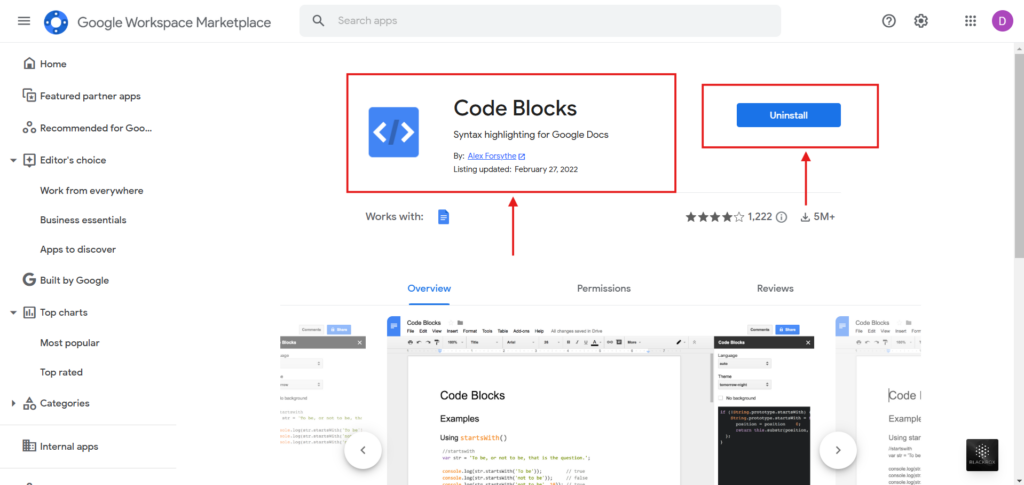
Step 1: Install the Code Blocks add-on from the Google Workspace Marketplace.
Step 2: Copy your code into a Google Doc.
Step 3: Once you have pasted your code into the Google Doc, select the code you want to present. Then, go to Extensions > Code Blocks and click Start.
Step 4: A sidebar will appear on the right. Select the code language (you can set it to “Auto”) and choose a theme. The add-on offers a variety of themes to present your code. If you’d like to preview the theme and code, click Preview. Otherwise, click Format to finalize the formatting.
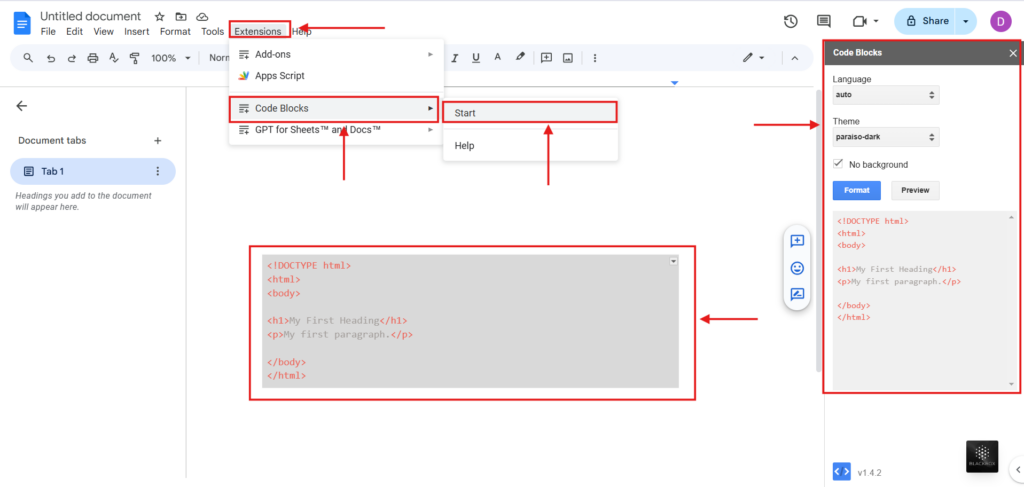
Step 5: After formatting the code, select it from top to bottom, copy it, and paste it into Google Slides.
Step 6: Adjust the code block in Google Slides as needed.
With this method, you can easily and effectively present your code.
Method 2: Using Code Syntax
This method is useful if you want to add and format your code quickly at the last minute.
Step 1: Install the Code Syntax add-on from the Google Workspace Marketplace.

Step 2: Add your code as plain text in Google Slides.
Step 3: Once you’ve added your code, include three backticks (“`) followed by the code language at the beginning of your code. At the end of your code, add three backticks (“`) again.
For example (green highlight part):
“`HTML
< body >
< h1 >Welcome to My Webpage
< p >This is a simple HTML page. Feel free to explore and learn!
< a href=”https://example.com” target=”_blank”>Visit Example
“`
Step 4: Click anywhere outside the slide to exit editing mode. Then, go to Extensions > Code Syntax and select Colorize this slide.
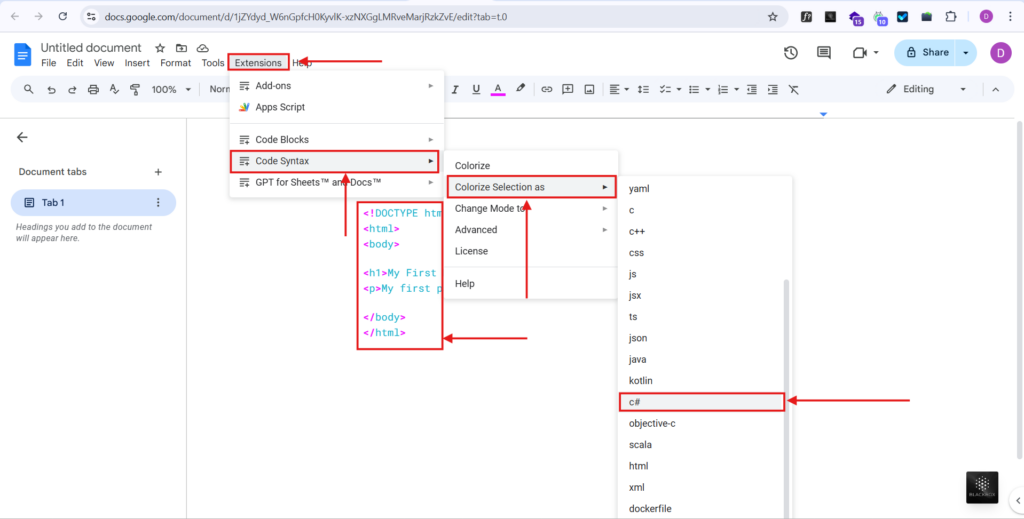
Step 5: This will format your code properly with the correct syntax highlighting.
This is a quick and efficient method to format your code in Google Slides.
Also Read – How to Check Word Count on Google Slides?
To summarize, embedding code in your Google Slides can dramatically improve your presentations by adding clarity and sophistication, allowing for a fluid flow that captivates your audience.
Here, you looked at two simple approaches that enable you to exhibit your coding abilities properly. Now, it’s time to put this knowledge into practice!
Don’t let Google Slides limit your presentation potential. Try these methods immediately to improve your next presentation. A well-integrated code can make a significant difference in establishing a lasting impression.
Begin inserting your code today and see how your presentation game changes!
How can SlidesAI embed code in Google Slides automatically?
Formatting and embedding code manually takes time. Here is how SlidesAI takes care of it for you in just a few steps.
Step 1: Open the Google Slides Presentation and install the SlidesAI Add-on. Log in or set up your Slides AI account. You can also use SlidesAI web application.

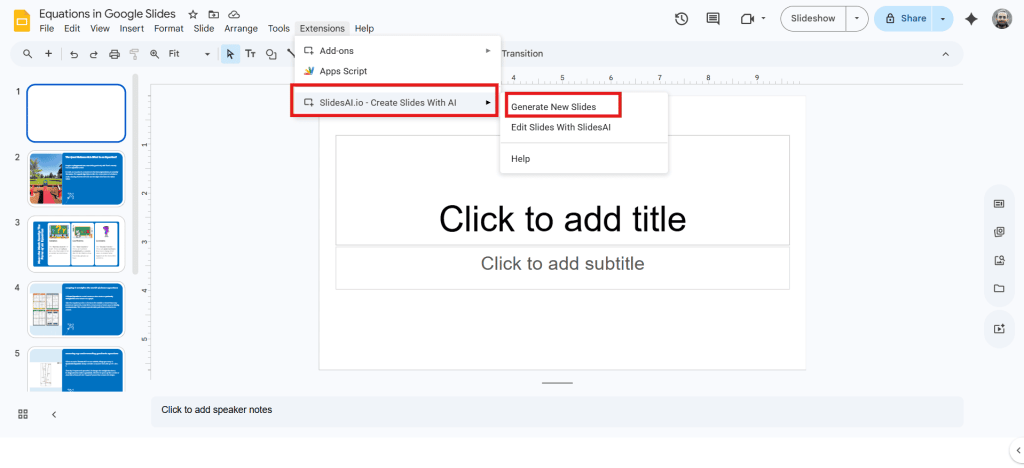
Step 2: After setting up the account, go to “Extensions” > SlidesAI > Generate New Slides
Step 3: Enter the topic of your presentation. For example, here I have entered “Introduction to Coding.”

Step 4: Select the Presentation type, Audience, Tone, and language.

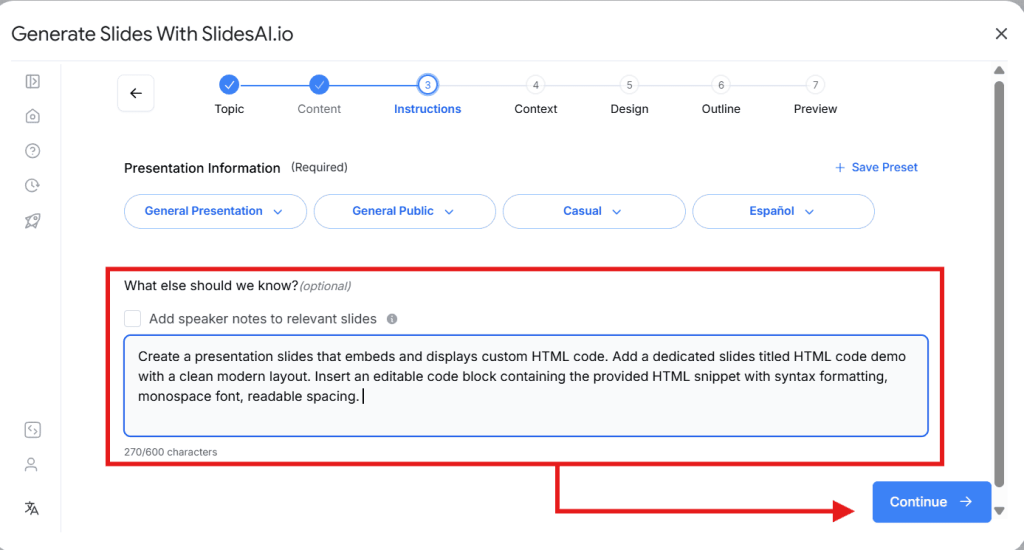
Step 5: Under the section “What else should we know?”, add proper instructions to add code in your presentation slide.
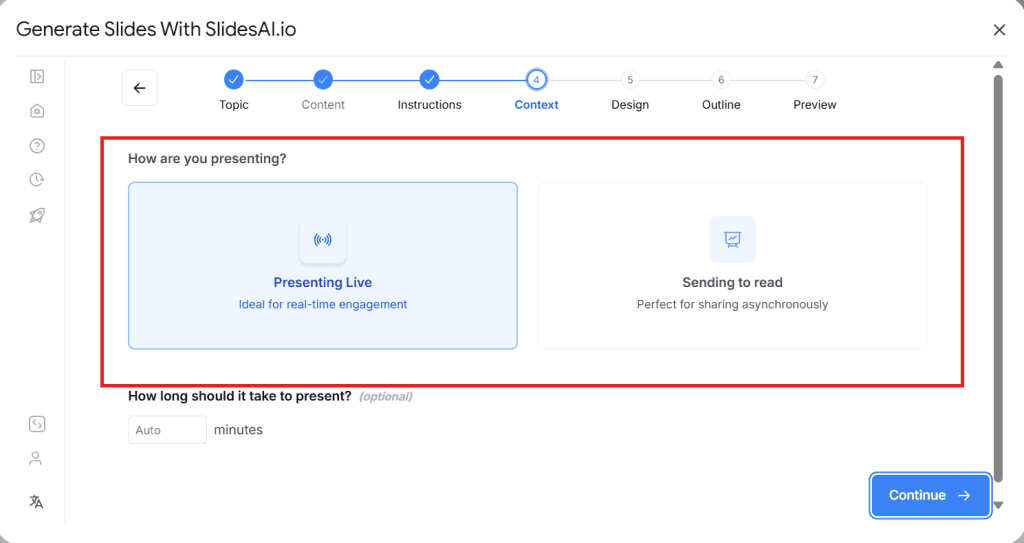
Step 6: Choose how you want to present your presentation.
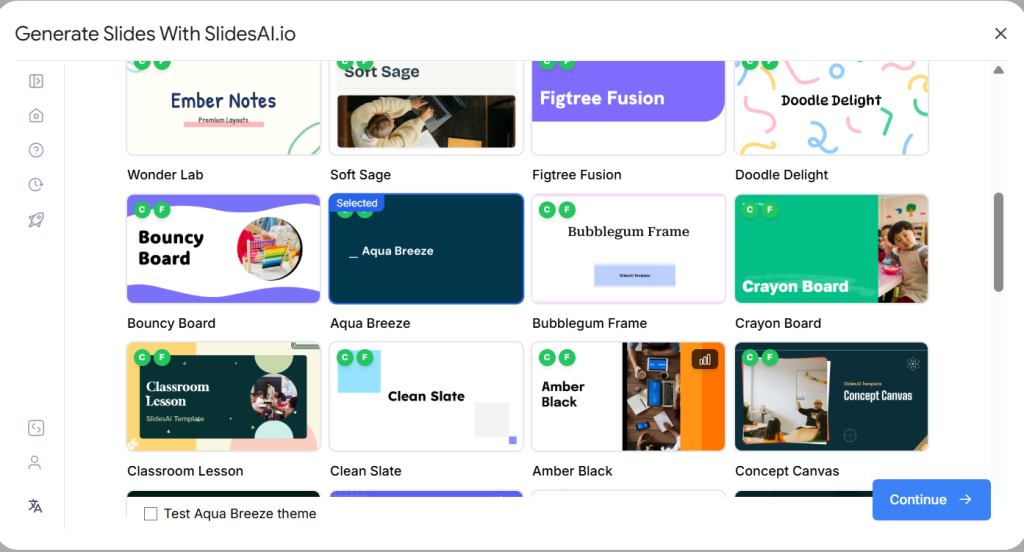
Step 7: Select the presentation template of your choice from the template options
Step 8: SlidesAI will generate an outline for your presentation. Review the outline. Make edits if necessary.

Step 9: Once the outline is final, SlidesAI will now generate the content for your presentation. Review the content before proceeding further, and then click on “Generate Slides.”

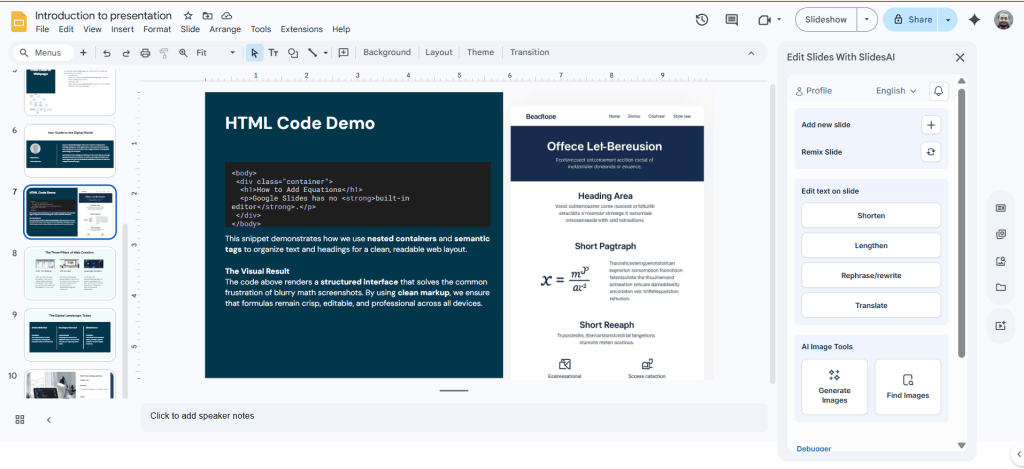
Step 10: SlidesAI will create a whole presentation. Review the slide with your HTML code to make sure it is perfect.
Create AI presentations directly in Google Slides.
- No design skills required
- 3 presentations/month free
- Save directly in Google Slides

Troubleshooting Errors While Embedding Code in Google Slides
1. The code block is not displaying correctly after pasting
This usually happens when the formatting gets stripped during the paste. Try using “Paste without formatting” (Ctrl+Shift+V) and reapply the code styling manually.
2. The font changed after embedding the code
Google Slides sometimes defaults to its own font when you paste content. Select the code block and manually switch it to a monospace font like Courier New or Roboto Mono to restore the code appearance.
3. Syntax highlighting is not showing up
Google Slides does not support syntax highlighting natively. You will need to use an external tool like Carbon or a Google Slides add-on to get colored, highlighted code blocks.
4. The code looks fine in edit mode, but breaks in presentation mode
This is usually a font rendering issue. Stick to standard monospace fonts and avoid custom fonts that may not load correctly when the presentation is in full screen.
5. The embedded image of the code looks blurry
If you screenshot your code and insert it as an image, the resolution may be too low. Export or screenshot at a higher resolution, or use a tool like Carbon that lets you download a high-quality PNG directly.
6. The code block shifted position after adding other elements to the slide
Google Slides can nudge elements around when new content is added nearby. Once your code block is in place, right-click it and use the position settings to lock its exact coordinates on the slide.
FAQs on Embedding Code in Google Slides
Can I directly embed code in Google Slides?
No, Google Slides doesn’t natively support embedding code snippets. However, you can use third-party add-ons like Code Blocks or Code Syntax to format and display code professionally within your slides.
Which is better: Code Blocks or Code Syntax?
Both methods are effective. Code Blocks offers more customization options like themes and automatic language detection, making it ideal for polished presentations. Code Syntax is faster and great for quick formatting when you’re short on time.
How can I make my code look visually appealing in Google Slides?
You can enhance your code’s readability by choosing a syntax highlighting theme, adjusting font size, and maintaining consistent spacing. Add-ons like Code Blocks make this easy with multiple built-in styling options.
Can I copy formatted code from Google Docs into Google Slides?
Yes. If you use the Code Blocks add-on in Google Docs, you can format your code there and then copy and paste it into Google Slides. The styling will remain intact, making it a convenient way to embed clean, highlighted code.