

You’ve found the perfect image for your Google Slides presentation, but the background is cluttered, off-color, or just plain distracting. Instead of your audience focusing on the subject that matters, their eyes keep drifting to the busy backdrop behind it. Sound familiar? Whether you’re a student putting together a class project, a professional crafting a client pitch, or a teacher building an engaging lesson, a messy image background can quietly undermine an otherwise polished presentation.
The good news is that removing the background of a picture in Google Slides is easier than you might think, and it doesn’t require any advanced design skills. Whether you have access to Google Workspace Labs or prefer a quick third-party tool, there are simple, step-by-step solutions that can transform your images in minutes. In this guide, we’ll walk you through exactly how to do it, so you can create cleaner, more professional-looking slides that keep your audience focused on what truly counts.
2 Methods to Remove the Background of a Picture in a Google Slides?
Removing the background from a picture in Google Slides can make your presentations look cleaner and more professional. Let’s explore how you can do this, whether you’re using Google Workspace Labs or a reliable alternative. Step-by-step guide with pictures.
Method 1: Using Google Workspace Labs
This background removal feature is currently in beta. If you’re part of Google Workspace Labs, you can use it directly within Google Slides.
To join Google Workspace Labs, sign up here.
Here’s a step-by-step guide to help you erase the background using this tool:
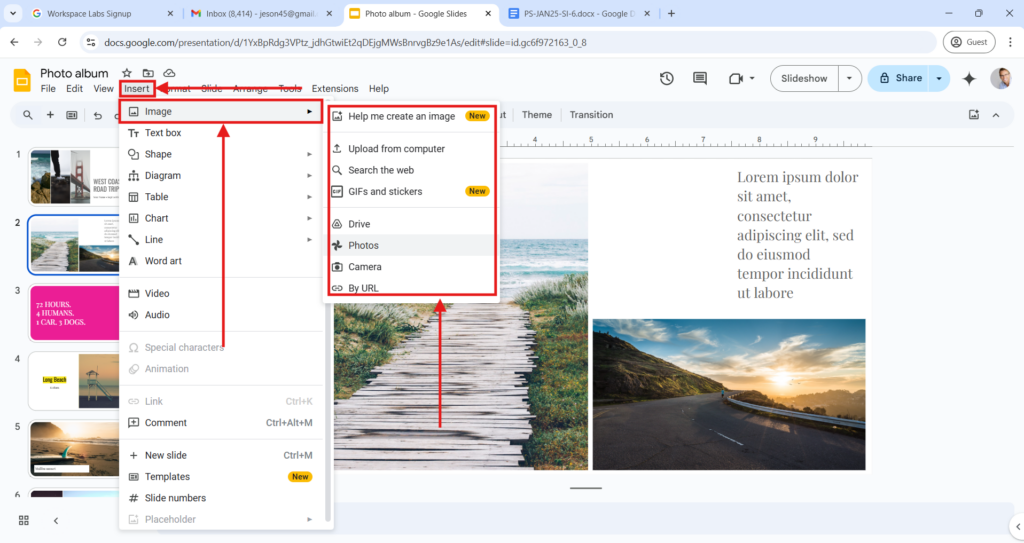
Step 1: Insert the Image
- Open the Google Slides presentation where you want to work.
- Navigate to the slide where you want to place the image.
- Click on Insert in the top menu, choose Image, and then select the source of your image (Upload from computer, Google Drive, etc.).
- Place the image on your slide and resize or position it as needed.
Step 2: Access the Image Editing Tools
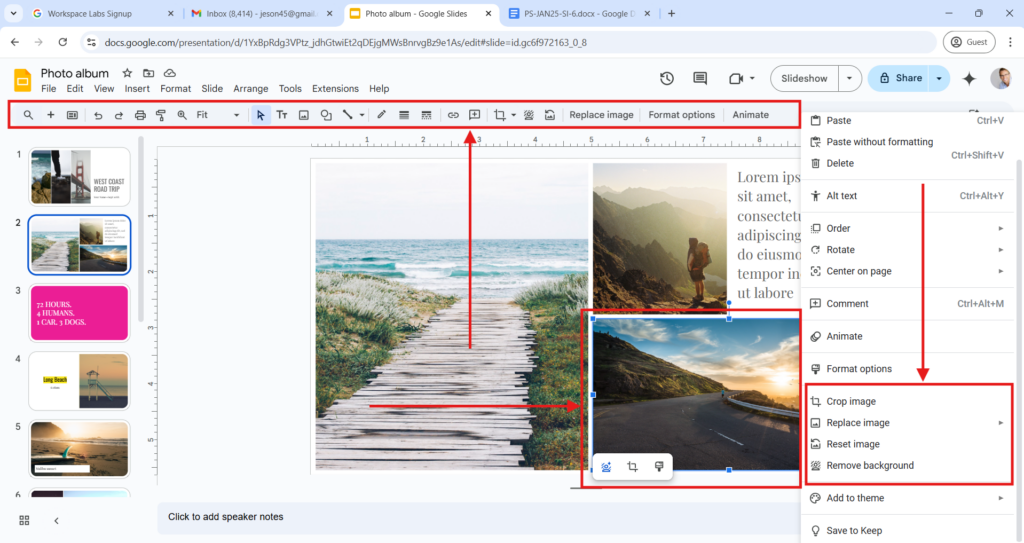
- Click on the image to select it.
- Right-click on the image and select “Edit Image,” or double-click the image to open the editing options.
- This action will open a toolbar with various editing tools.
Step 3: Use the “Remove Background” Tool
- In the image editing toolbar, look for the Remove Background button. This may appear as a scissors or eraser icon, depending on the design.
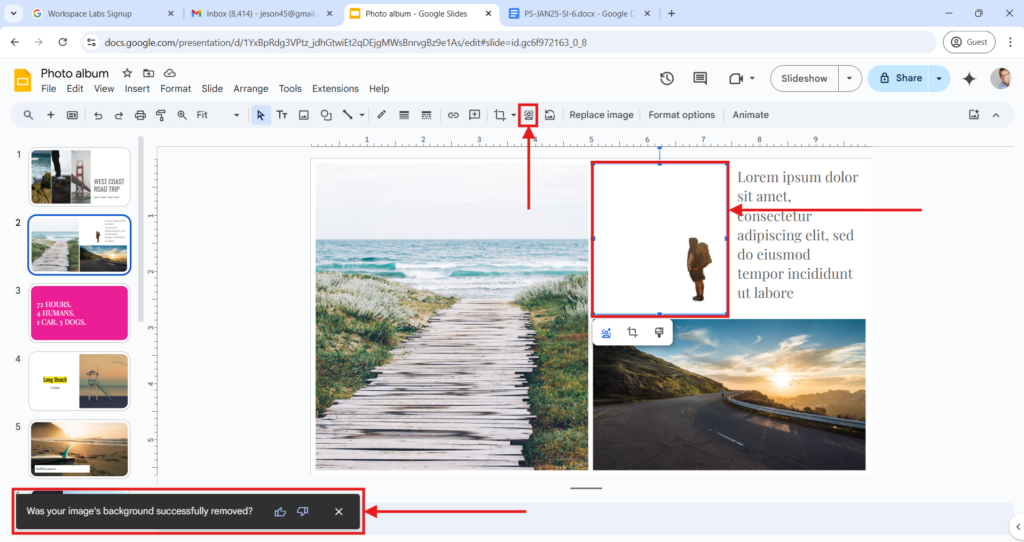
- Click the button to activate the background removal tool.
- The tool will analyze the image and automatically erase the background.
- Once the process is complete, review the image to ensure the subject is clear.
Method 2: Removing Background Using a Third-Party Background Remover
If the background removal tool isn’t available in your account, don’t worry! You can still achieve the same result using external tools. Follow these steps:
Step 1: Use a Third-Party Background Remover
- Visit a free online background remover tool like Remove.bg, Canva, or Adobe Express.
- Upload the image you want to edit to the website or app.
- Most tools will automatically detect and erase the background for you.
- Download the updated image to your device once you’re satisfied with the results.
Step 2: Add the Edited Image to Google Slides
- Open your Google Slides presentation and go to the slide where you want the image.
- Insert the image with the removed background by clicking Insert > Image, then choosing the upload method (from your computer, Google Drive, etc.).
- Resize and position the image as needed to fit your slide design.
- Check the Edges: After removing the background, zoom in to ensure there are no leftover edges or unclean cuts. Some tools allow manual touch-ups for better precision.
- Enhance the Image: Use Google Slides’ built-in tools like shadows, reflections, or borders to make the image pop.
- Choose High-Quality Images: Images with a clear subject and distinct background work best for these tools.
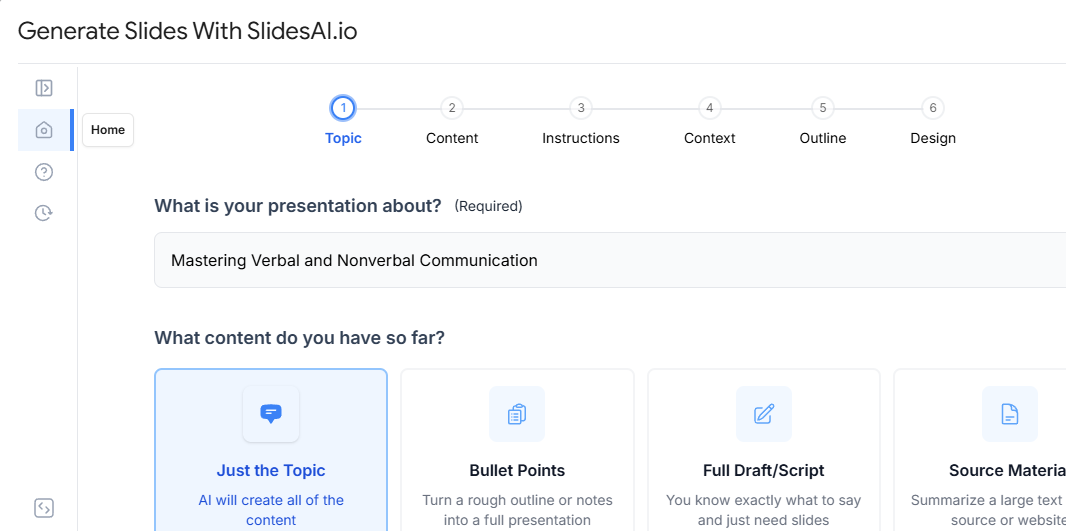
From Manual Edits to Full Automation with SlidesAI
Let’s be honest. Removing an image background feels like a win, but zoom out for a second. You still have to write the slide content, pick a layout, choose fonts, maintain consistency across 15 slides, and somehow make the whole thing look like it was designed by a professional. One clean image doesn’t build a presentation. Your time does.
And that’s the real problem worth solving.
SlidesAI flips the entire process on its head. Rather than assembling your deck piece by piece, editing images, adjusting layouts, and second-guessing design choices, you simply bring your idea or your content, and SlidesAI builds the presentation around it. Text, structure, visuals, and design handled. What used to take hours now takes less than a minute.
The best part? When your slides are built with smart, modern templates from the start, you rarely run into the messy background problem at all. Good design prevents the issues that manual editing tries to fix after the fact.
So yes, knowing how to remove a background in Google Slides is a handy skill to have in your back pocket. But if you find yourself doing it constantly, that’s a sign your workflow needs an upgrade, not just your images. SlidesAI is that upgrade. Try it and see how much of your time you’ve been leaving on the table.
Create AI presentations directly in Google Slides.
- No design skills required
- 3 presentations/month free
- Save directly in Google Slides

Closing Thoughts
Removing the background from an image in Google Slides may seem like a small detail, but it can make a big difference in how your presentations look and feel.
Whether you have access to Google Workspace Labs or use an external tool, the process is simple and can help you create cleaner, more professional visuals. Take some time to experiment with these methods and find what works best for your needs. With a little effort, you can make your slides stand out and keep your audience focused on the content that matters most.
Looking for an even faster way to create stunning visuals? Consider leveraging an AI presentation maker to streamline your design process.
Build Stunning Slides in Seconds with AI
- No design skills required
- 3 presentations/month free
- Don't need to learn a new software

Frequently Asked Questions Related to Erasing the Background of a Picture in Google Slides
1. Can you remove the background of a picture in Google Slides?
Yes, you can remove the background of an image in Google Slides, but this feature is available if you have a Google Workspace Labs subscription. It’s a useful tool for those who need quick edits within Slides.
2. What tools can I use to remove the background of an image?
There are several tools available to remove backgrounds from images. You can try online options like Remove.bg or Canva, which are easy to use and allow you to upload and download images without backgrounds. If you’re looking for more advanced features, software like Adobe Photoshop and GIMP offers more detailed editing capabilities for background removal.
3. Are there any extensions or add-ons for background removal in Google Slides?
Yes, some third-party extensions and add-ons can help with background removal in Google Slides. Tools like Lunapic or Canva have integrations with Google Slides, making it easier to remove backgrounds. You can check out the Google Workspace Marketplace to find other compatible add-ons that might suit your needs.