
Adding Blooket to Google Slides is a simple yet powerful way to make your presentations more interactive and engaging. Instead of switching between multiple tabs during a lesson or meeting, you can seamlessly integrate Blooket games directly into your slide deck to maintain attention and boost participation. This guide explains the fastest and most effective methods to add Blooket into Google Slides for a smooth and dynamic presentation experience.
What is a Blooket?
Blooket is an online game-based learning platform that allows teachers and presenters to create or host interactive quizzes in a fun, competitive format. Participants answer questions on their own devices while engaging in themed game modes that boost motivation and participation. It is widely used in classrooms and training sessions to make learning more engaging, interactive, and results-driven.
How to Add Blooket Into Google Slides: Step-by-Step Guide
If you are ready to elevate your presentations, follow these simple steps to integrate Blooket with Google Slides.
Step 1: Create a Blooket Account
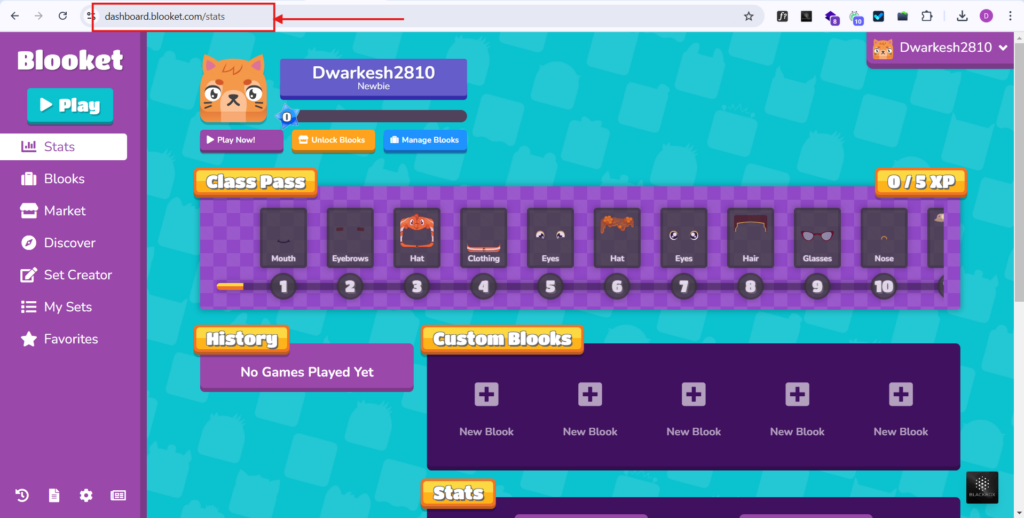
Begin by going to Blooket.com and registering for a free Blooket account if you haven’t already. The setup process is quick and requires little time. You will be directed through the process of creating your account.
Step 2: Create Your Game on Blooket
After you’ve created your account, you may start designing your game. Click the “Create a New Set” button to enter questions and answers depending on your curriculum. Choose from a wide range of styles and themes to match your students’ interests. Take advantage of the customization options to make your material more relevant and engaging.
Step 3: Open Google Slides and Select a Presentation
Once your Blooket game is complete, launch Google Slides. Select the presentation in which you want to incorporate the game.
Step 4: Add a Textbox for the Blooket Link
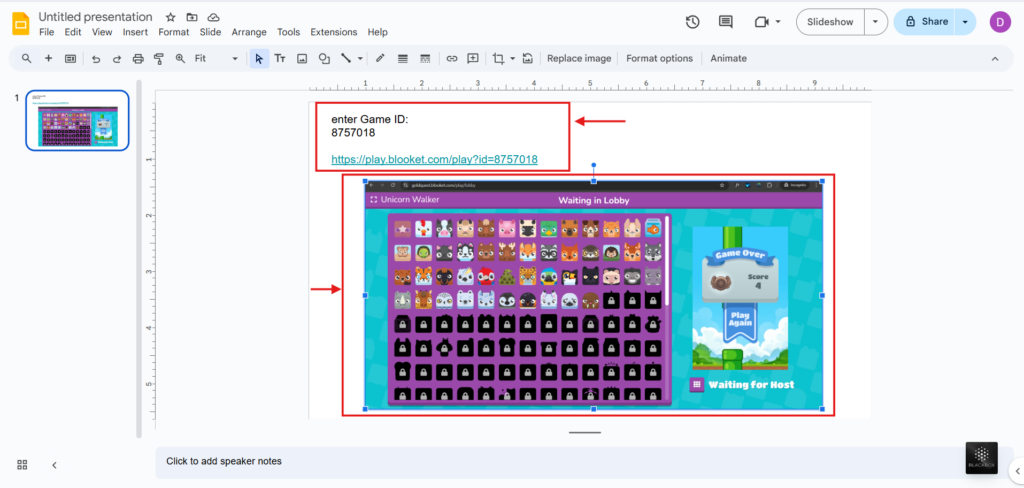
Then, add a text box to your Google Slides presentation. This text box will function as a link to your Blooket game, directing students where to go. To attract their interest, consider labeling it something inviting, like “Join Our Learning Adventure”.
Step 5: Link the Textbox to the Blooket Game
Next, highlight the text in your new text box, then right-click and choose the link option. Enter the URL of your Blooket game into the hyperlink field. Ensure that the link is correct and functional.
Step 6: Test the Link
Before presenting, make sure everything is running smoothly. Click the link during a practice run to ensure it takes you to your Blooket game. This final testing process ensures that you will not experience any difficulties when you go live with the presentation.
Create Presentations Easily in Google Slides and PowerPoint
14M+Installs
 Install add-in
From creating engaging slides to adding interactive Blooket games, our AI Google Slides maker helps you prepare impactful presentations faster.
Why Should You Add a Blooket to Google Slides?
Integrating Blooket into your presentations will take your teaching to the next level. Here’s why it’s worth your time.
- Participatory Learning
Interactive learning has been shown to retain information effectively. Pupils are more engaged when they take an active role in their education. Blooket helps you create an environment in which students are emotionally and academically engaged. The incorporation of a gamified component like Blooket can improve retrieval cues and help students recall what they learned.
- Summarization and Sustained Lessons
After introducing new concepts, it is critical to review the material to reinforce learning. Blooket provides quick quiz recaps to assist students in examining the main elements. This not only strengthens their knowledge but also gives them rapid feedback on how well they comprehended the information.
- Student Engagement
- Engagement levels are directly related to learning results. Blooket turns a typical lecture into an intriguing competition that piques students’ interest. It leads to improved performance and a desire to learn.
As an educator, you are constantly looking for new ways to pique the attention of your pupils. Thus, it is always beneficial to make use of the resources at your disposal. By adding Blooket to your Google Slides, you not only create a more interesting learning environment but also allow for real-time feedback and reinforcement learning.
To further gamify your classroom content, you might also enjoy learning how to make a Jeopardy game or Corn Maze Google Slides, another fun way to reinforce learning and boost participation.
If you are looking for game formats comparable to Blooket but want to develop your quizzes, make friends with predesigned templates like the SlidesAI Jeopardy template.
By adhering to these steps and tips, you are well on your way to creating a memorable educational experience that both you and your students will appreciate. Happy teaching!
Create AI presentations directly in Google Slides.
- No design skills required
- 3 presentations/month free
- Save directly in Google Slides
Frequently Asked Questions About Adding Blooket in Google Slides
-
How can I make Blooket more engaging while presenting?
Engage your students in real-time by pausing your lecture to allow them to play the Blooket game. It makes your presentation more interactive. Also, this way, you can provide formative tests to determine the grasp of your students at the end of each course.
-
Can I tailor Blooket according to certain instructional topics?
Absolutely! Blooket allows you to develop customized questions and themes that are connected with your curriculum, allowing targeted learning.
-
Is it possible to play Blooket games offline during a presentation?
No. Blooket requires an active internet connection to load and play the games. So, you must make sure to stay connected during your presentation.