

To add bullet points in Google Slides, click inside any text box, then click the Bulleted List icon in the toolbar, or press Ctrl+Shift+8 (Cmd+Shift+8 on Mac). That inserts a bulleted list instantly. To put bullet points on an existing line of text, highlight the text first, then apply the same shortcut or toolbar button. To insert a numbered list instead, use Ctrl+Shift+7.
That covers the basics in under ten seconds. But depending on your device and what you are trying to do, adding sub-bullets, changing the bullet style or colour, working on Android, iOS, or a Chromebook — the steps vary. This guide covers every method, for every platform, with step-by-step visuals for each.
Quick Shortcuts to Add Bullet Points in Google Slides
Toolbar method: Click inside a text box → click the Bulleted List icon (☰ with dots) in the toolbar
Keyboard shortcut: Ctrl+Shift+8 (Windows/Chromebook) or Cmd+Shift+8 (Mac)
Format menu: Select text → Format → Bullets & numbering → choose a style
Numbered list: Ctrl+Shift+7 (Windows) or Cmd+Shift+7 (Mac)
Sub-bullet: Press Tab at the start of a new bullet line
Remove bullets: Select bulleted text → press Ctrl+Shift+8 again to toggle off
Adding Bullet Points in Google Slides: A Complete How-To Guide
Step 1: Begin by opening Google Chrome. Click on the app button, then select Google Slides.
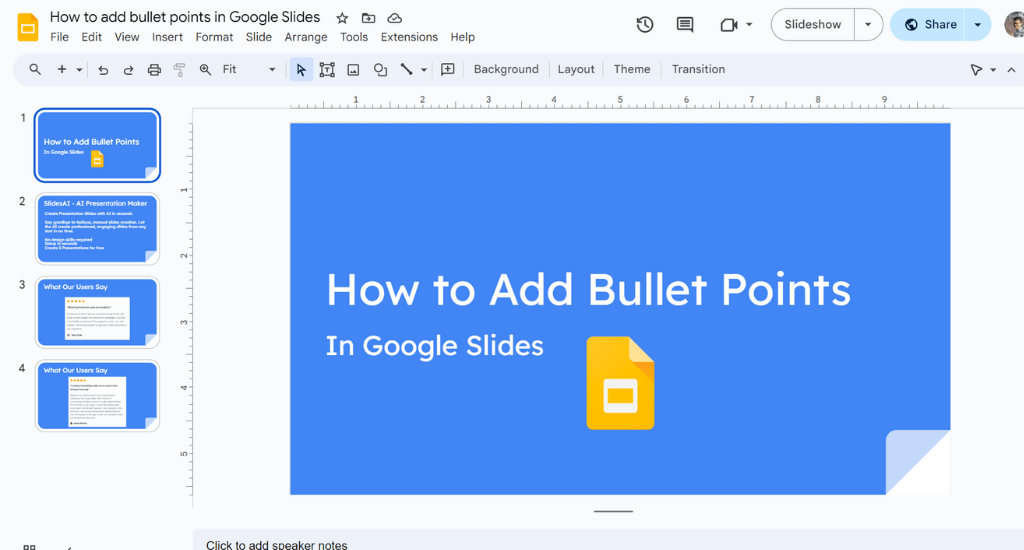
Step 2: Choose the presentation where you want to include bullet points.
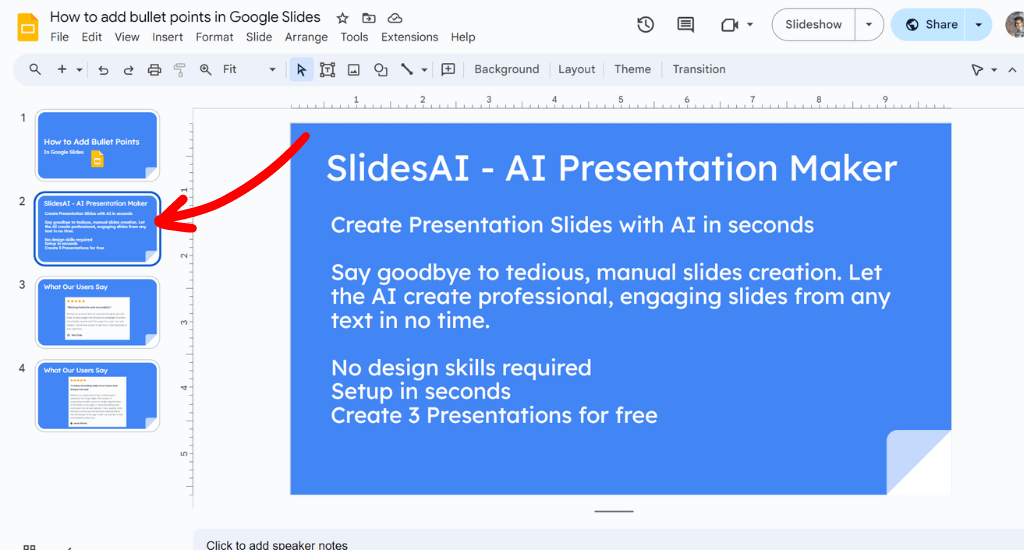
Step 3: Click on the slide where you want to add bullet points. If there’s no text box, click on the “Text box” icon on the top toolbar or go to “Insert” > “Text box” in the menu. Drag to create a text box on your slide.
Step 4: Type your content or click and highlight the slide with text/data.

Step 5: Click on More (the three dots icon) in the toolbar.
Step 6: Choose the symbol for Bulleted lists.
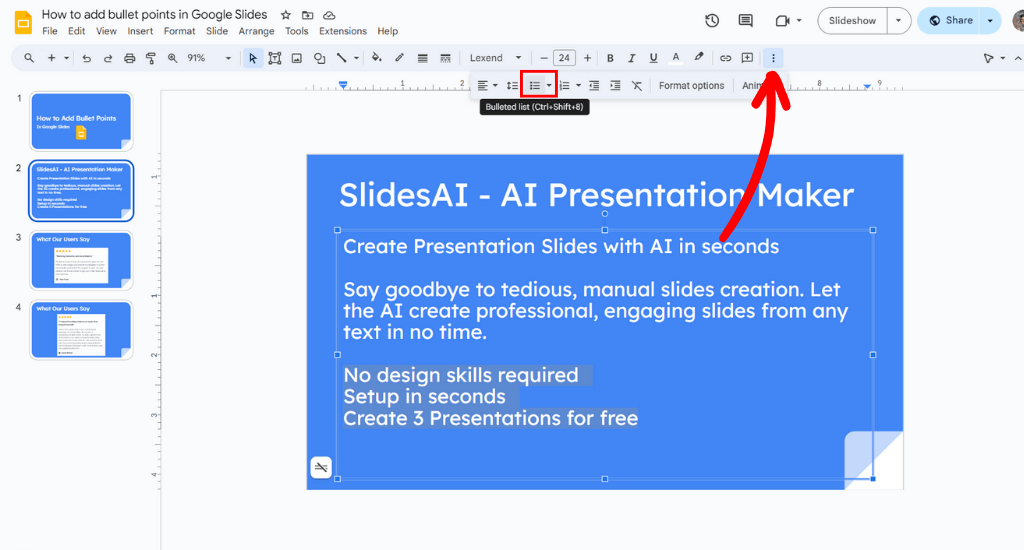
Pro-tip: Use a Keyboard Shortcut –
- Press Ctrl + Shift + 8 (Cmd + Shift + 8 on Mac) to add or remove bullet points.
- For a numbered list, press Ctrl + Shift + 7 (Cmd + Shift + 7 on Mac)
Step 7: Customize Your Bullet Points in Google Slides:
- Change Bullet Styles: Click on the bullets, then go to “Format” > “Bullets & numbering” to pick different styles.
- Indentation: Use the Increase and Decrease Indent icons in the toolbar for sub-points.

Step 8: Now you have a bullet list in your Google Slides. Repeat as necessary.
“Ready to level up your presentations? Discover how to create seamless slide structures and achieve hanging indents effortlessly. Get started here!”
How to Add Bullet Points in the Google Slides on Android ?
Step 1: Open the Google Slides app on your Android device and select the project you want to work on.

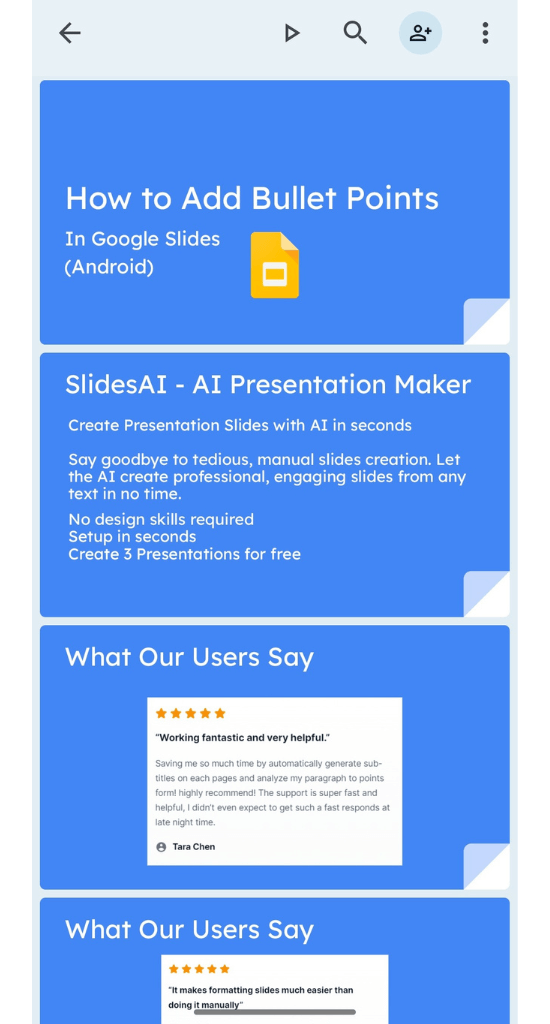
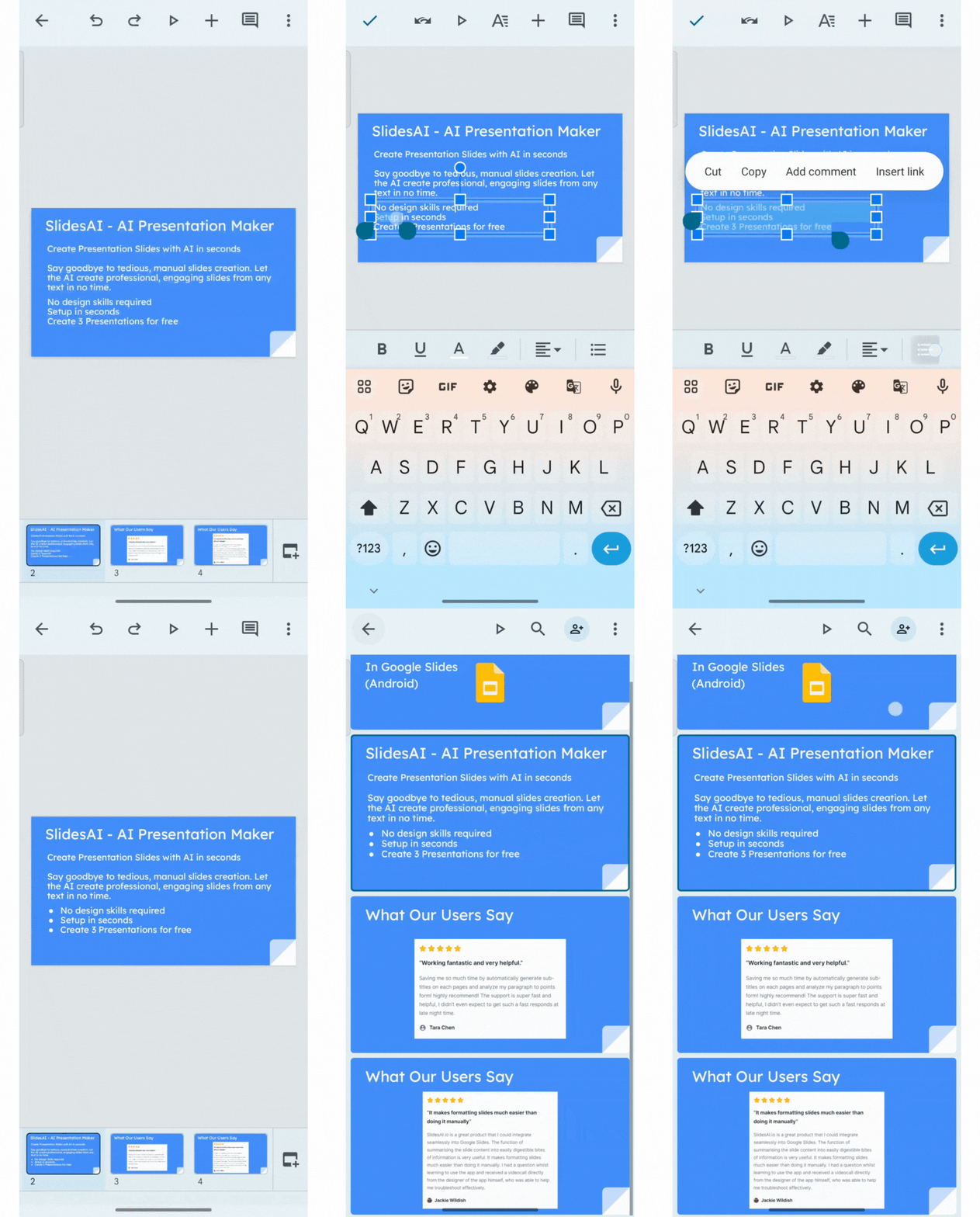
Step 2: Find the spot in the text where you want to add a bullet point list and double-tap to choose it.
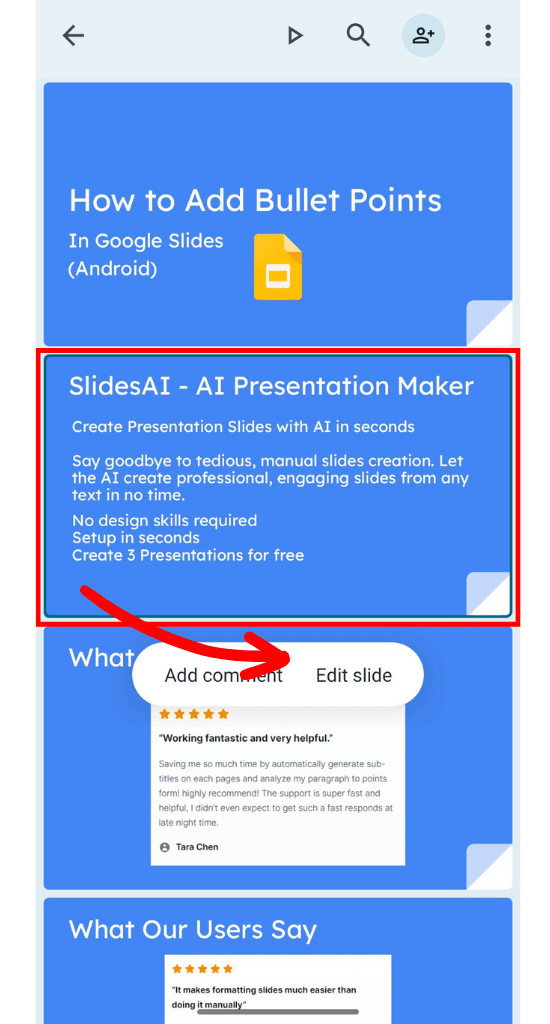
Step 3: Use the toolbar and tap the icon for a bullet point list to start your list.
Step 4: In the Google Slides Android app, look for the bullet point icon.
Step 5: Changes you make in Google Slides are automatically saved, so there’s no need to save manually.
Step 6: Type the text for the first point, press Enter, and continue for the next item. Keep going until your list is complete.
Step 7: When you’ve added all your points, tap the blue checkmark in the top-left corner.
Step 8: Tap outside of the slide to remove any visual guides.
How to Make Bullet Points in Google Slides on IOS?
The official Google Slides app for iOS is free to download from the App Store and works on iPhones, iPod touches, and iPads.
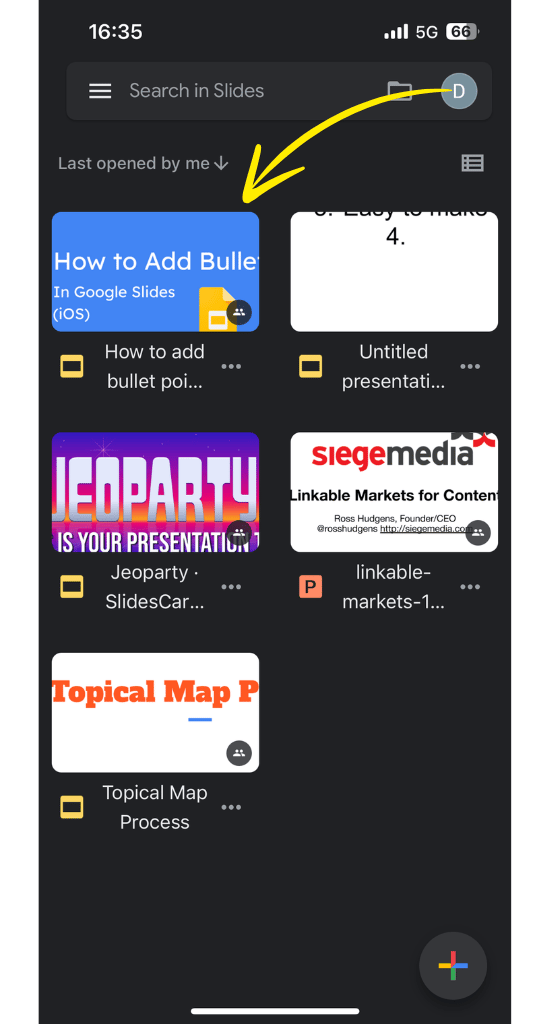
Step 1: Open the Google Slides app on your iOS device and choose the presentation you want to edit.
(Hint: You can zoom in and out of a slide by doing a two-finger pinch on the screen, which is handy on smaller devices like an iPod touch or iPhone.)
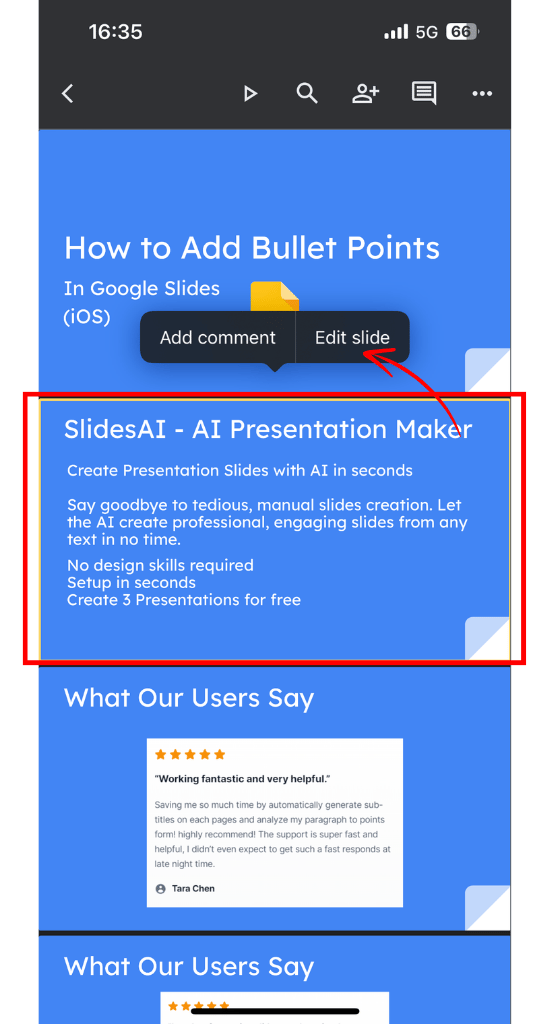
Step 2: Double-tap where you want to add a bullet point in the text area to select it.
Step 3: Use the toolbar to tap the bullet point icon and place the first bullet in the text box.
Step 4: Type your word or phrase and tap Return on the keyboard to start a new line for another entry.
Step 5: When your list is complete, tap the checkmark in the top left corner.
Step 6: Tap outside the slide area to view it without any editing guides.

How to Make Sub-Bullet Points in Google Slides?
To better organize your points along with subjects and make your presentation easier for the audience to understand, consider creating mini-lists or sub-bullet points inside of your main bullet point list. Follow the steps below for iOS, Android, and the web.
On the Web:
- Creating Sub-lists: When you’re typing a list and want to add a mini list within it, press the Tab key at the start of a new point. This creates a sub-bullet point.
- Returning to the Main List: To go back to your main list, press Enter twice.

On iOS (iPhone/iPad):
- Making a Sub-list: While typing, look for the indent icon (a triangle pointing right, surrounded by lines) next to the bullet point icon in the toolbar. Tap it to create a sub-bullet point.
- Going Back to Main List: To return, tap the indent icon with the triangle pointing left.

On Android:
- Creating Sub-lists: Like on iOS, while typing in your list, tap the indent icon (the triangle pointing right) in the toolbar to add a sub-bullet point.
- Returning to the Main List: Tap the indent icon with the triangle pointing left to go back to the main list.

Tip: If you don’t see the indent icons, tap twice on any text area within the list you’re editing.
How to Animate Bullet Points in Google Slides?
Step 1: Add and choose your bullet points.
Step 2: Right-click and pick “Animate.”
Step 3: Choose your animation type.
Step 4: Set the starting and ending conditions.
Step 5: If you want line-by-line animation, turn on “By paragraph.”
Step 6: Click “Play” to see the animation.

Also Read – How to Add Comments on Google Slides?
How to Add Bullet Points in Google Slides on Chromebook
Adding bullet points on a Chromebook works almost identically to the Windows desktop method, since Google Slides on Chromebook runs in the Chrome browser:
- Open Google Slides in Chrome on your Chromebook
- Click inside the text box where you want to add bullet points
- Use the keyboard shortcut: Ctrl+Shift+8 (the same as Windows — there is no separate Chromebook shortcut)
- Or use the toolbar: click the Bulleted List icon in the formatting bar
- For sub-bullets: press Tab at the start of a new line
Note: if you are using the Google Slides Android app on your Chromebook (rather than the browser version), follow the Android steps in the section above — the interface is identical.
How to Change the Colour of Bullet Points in Google Slides?
By default, bullet points inherit the same colour as your slide text. To change only the bullet colour (not the text):
1. Click inside your text box
2. Carefully select only the bullet characters themselves — click just before the bullet symbol and drag to select it without selecting the text
3. In the toolbar, click the Text colour button (the A with a colour bar underneath)
4. Pick a colour from the palette or enter a custom hex code
To change both the bullet and text to the same colour: select the entire bullet line, then apply the text colour. This is the faster approach when you want a uniform colour across the whole list item.
Tip: High-contrast bullet colours (such as a brand colour against white text) are commonly used in pitch decks and marketing presentations to draw attention to key points.
How to Change Bullet Style in Google Slides?
Google Slides offers several built-in bullet styles beyond the default rounded dot. To change the style:
- Click inside the text box containing your bullet list
- Select all the bulleted text you want to restyle (Ctrl+A selects all text in the box)
- Go to Format in the top menu → select Bullets & numbering
- A panel appears showing available bullet styles: filled circles, hollow circles, squares, dashes, arrows, stars, and more
- Click any style to apply it to the selected text immediately
Note: Custom bullet characters (using a specific symbol or emoji) are not natively supported in Google Slides the way they are in Word. The available styles are limited to what appears in the Bullets & numbering panel.
Looking for more ways to improve your Google Slides presentations? Explore step-by-step tips, tricks, and guides in our Google Slides Tutorials
Closing Thoughts
Bullet points are powerful tools for crafting clear and engaging presentations. Whether you’re using Google Slides on your computer or mobile device, mastering bullet points can take your presentations to the next level. So go ahead, experiment with different styles, and watch your presentations come to life!
Create AI presentations directly in Google Slides.
- No design skills required
- 3 presentations/month free
- Save directly in Google Slides

Frequently Asked Questions
1. How Do You Add a Numbered List to a Slide?
To make numbered lists in Google Slides, just highlight the information you want, and click the numbered list icon next to the bullet list option.
2. What Is the Shortcut for Bullet Points in Google Slides?
You can press Ctrl + Shift + 8 (Cmd + Shift + 8 on Mac) to add or remove bullet points. For a numbered list, use Ctrl + Shift + 7 (Cmd + Shift + 7 on Mac).
3. How do I change the color of bullet points in Google Slides?
Highlight your bullet list → click the Text color icon → select your color. This changes the bullet color and text color together.
4. How do I format bullet spacing in Google Slides?
Go to: Format → Line spacing → Custom spacing. Adjust “Line spacing” and “Paragraph spacing” until the bullets look right.
5.How do I remove bullet points in Google Slides?
Highlight the bulleted text and click the Bulleted List icon again to toggle it off, or press Ctrl+Shift+8 (Cmd+Shift+8 on Mac).
6. Why can’t I find the bullet point button in Google Slides?
The toolbar may be collapsed. Click the three-dot (More) icon at the right end of the toolbar to expand it and reveal the Bulleted List button.
7. Can I apply bullet points to multiple text boxes at once?
No — you must apply bullets to each text box individually.
8. How do I create a nested/indented bullet list in Google Slides?
Press Tab at the start of a new line to create a sub-bullet. Press Shift+Tab to return to the parent level.
9. How do I change the bullet point style in Google Slides?
Highlight your text, click the dropdown arrow next to the Bulleted List icon, and select from the available styles.
10 . Can I change the size of bullet points in Google Slides?
The bullet size follows the font size of your text. To make bullets larger, increase the font size of your bulleted text.
11. What is the keyboard shortcut for bullet points in Google Slides?
Press Ctrl+Shift+8 on Windows and Chromebook, or Cmd+Shift+8 on Mac. This shortcut both adds and removes bullet formatting — pressing it a second time on bulleted text removes the bullets. For numbered lists, use Ctrl+Shift+7 (Cmd+Shift+7 on Mac).
12. How do I add sub-bullet points in Google Slides?
While typing in a bulleted list, press Tab at the beginning of a new line to create a sub-bullet (indented one level). Press Shift+Tab to move a sub-bullet back up to the main list level. On mobile, use the indent icon (triangle pointing right) in the toolbar.
13. How do I change the bullet style in Google Slides?
Select the bulleted text, then go to Format → Bullets & numbering. A panel shows all available styles — circles, squares, dashes, arrows, and more. Click any style to apply it.
14. Why are my bullet points not showing in Google Slides?
The most common cause is that the text box does not have the bulleted list format applied. Click inside the text box, select your text, and press Ctrl+Shift+8 to apply. If bullets appear but are invisible, check that the text colour is not the same as the slide background.
15. Can I add bullet points in Google Slides on my phone?
Yes. Both the Android and iOS Google Slides apps support bullet points. Open your presentation, double-tap the text area, and tap the bullet list icon in the toolbar that appears above the keyboard. See the Android and iOS sections above for full step-by-step walkthroughs.