
If you want your presentation charts to update automatically, the best solution is to link an Excel chart to PowerPoint instead of copying and pasting it. When properly linked, any changes made in Excel will instantly reflect in your PowerPoint slides, saving time and preventing data errors.
Many professionals struggle with outdated numbers in reports, sales decks, or performance reviews because their charts are manually pasted. Learning how to link an Excel chart to PowerPoint ensures your data stays accurate, dynamic, and presentation-ready.
In this guide, you’ll learn step-by-step methods to link Excel charts to PowerPoint, how to keep them updated automatically, and how to fix common linking issues.
A few advantages of linking Excel charts to PowerPoint are:
- You can centralize data management and easily make changes across different presentations.
- The PowerPoint chart gets automatically updated whenever there’s a change in source data in Excel.
- It saves time and improves accuracy and efficiency.
Read Related – How to Add an Excel Dashboard to PowerPoint?
Build Stunning Slides in Seconds with AI
- No design skills required
- 3 presentations/month free
- Don't need to learn a new software


How to Link an Excel Chart to PowerPoint?
It is easy to link an Excel chart to a PowerPoint, and the steps are explained below:
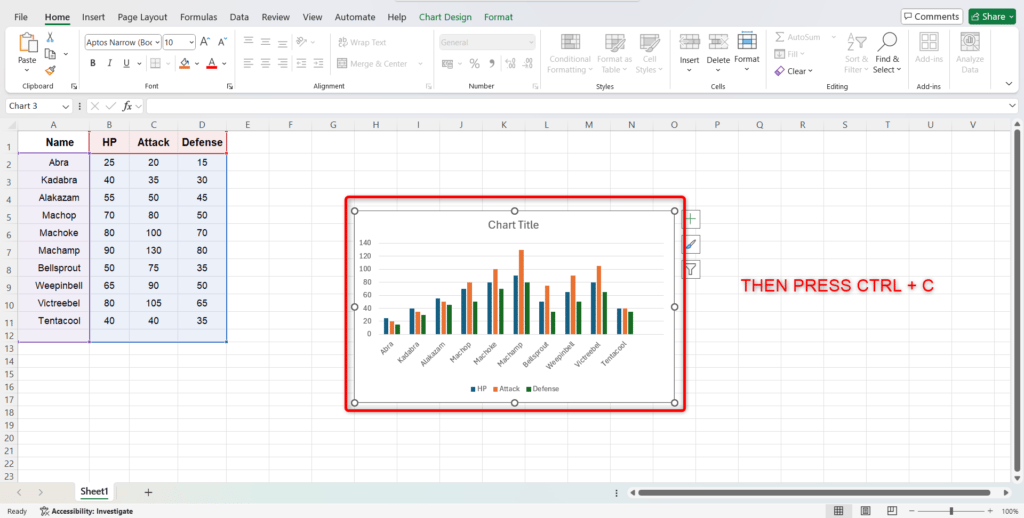
- Prepare Your Excel Chart: The first step is to make your chart in Excel and format it as required.
- Copy the Chart: Once you have prepared the chart, select it and copy it by right-clicking on it and choosing “copy” or simply pressing Ctrl+C.
- Paste the Chart into PowerPoint: Go to PowerPoint, right-click on the slide, and select “Paste Special.” Then, select “keep source formatting & link data” or “keep destination formatting & link data.”
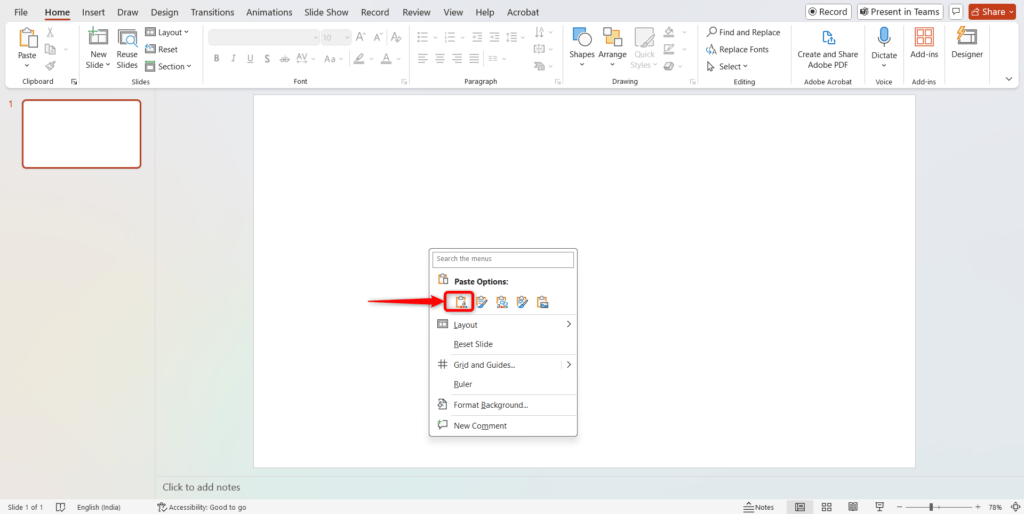
5. Update the chart (if needed): Once you have copied the chart in PowerPoint, you can make changes in Excel if required; the chart in PowerPoint will automatically get updated. If it does not, you can do it manually by selecting the linked chart in PowerPoint and selecting the Update link.
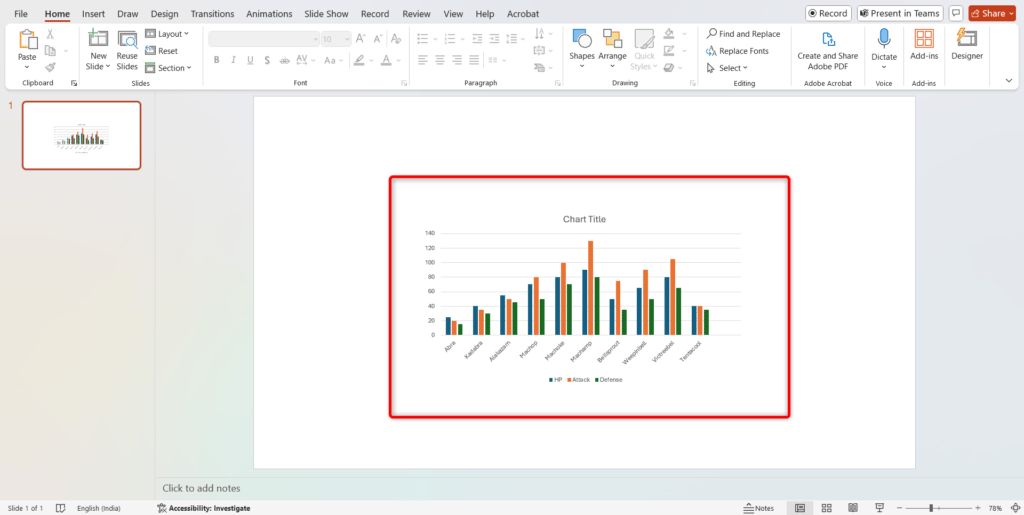
Please note: If you move the Excel file or the PowerPoint presentation to a different location, the link might break. Keeping both files in the same folder or using relative file paths is best.
Create Presentations Easily in Google Slides and PowerPoint
14M+Installs

Read Related – How to Insert Hyperlinks in PowerPoint Like a Pro
Why Should You Link And Not Embed an Excel Chart to PowerPoint?
It is better to link an Excel chart to a PowerPoint slide instead of embedding it when you require updates in your presentation, every time you update your Excel data. So, whenever you make any changes to your source data in Excel, it will automatically update your PowerPoint without needing to update it manually.
Key differences between linking and embedding:
| Feature | Linking | Embedding |
|---|---|---|
| File Size | The file size is smaller. | The file size is larger. |
| Data Updates | It updates the PowerPoint automatically when the source Excel file is changed. | It does not update automatically; it needs to be done manually. |
| Data Source | It relies on an external Excel file. | It contains a copy of the Excel data. |
| Editing Data | You can edit data directly in the source Excel file. | You need to Edit data within the embedded Excel sheet. |
| Broken Links | There is a risk of broken links if the source file is moved or renamed | There is no risk of broken links. |
| Collaboration | It is easier to collaborate with others who have access to the source file. | It is more suitable for standalone presentations. |
Conclusion
Once you know how to link an Excel chart to PowerPoint, it will become easy for you to manage all your data across multiple presentations. It will help you stay more organized and ensure that whatever changes and updates you make on our Excel chart are automatically updated in PowerPoint.
Frequently Asked Questions About How to Link an Excel Chart to PowerPoint
Can I link multiple Excel charts to one PowerPoint slide?
Yes, linking more than one chart from the same or even different Excel sheets to a single PowerPoint slide is possible.
Can I link charts from different Excel files to the same PowerPoint presentation?
Yes, it is possible. You can link charts from various Excel files to the same presentation.
Can I link any type of Excel chart to PowerPoint?
You can easily link different types of Excel charts, such as bar charts, line graphs, pie charts, etc., to your PowerPoint slide.
What are the disadvantages of embedding an Excel worksheet?
If you embed an Excel worksheet, it will increase the size of the file and also make it difficult to manage all updates.
What happens if the Excel file is moved or renamed?
If you move or rename your Excel file, the link will break. So, you will have to update the link in PowerPoint and point it to the new location of the Excel file.
What happens if I paste the chart without using “Paste Special”?
If you paste the chart without using “Paste Special,” it will create a static image of that chart, which won’t get updated when the Excel source data changes.
Can I control the update frequency of the linked chart?
It is not possible to control the update frequency of the linked chart as it gets automatically updated whenever the Excel file is opened, changed, or saved.