If you’re displaying a presentation at a trade show, reception area, classroom, kiosk, or event booth, you may want it to keep playing without someone clicking through the slides.
PowerPoint includes a built-in looping feature that allows your slideshow to restart automatically when it reaches the last slide. You can also combine looping with automatic slide timings so the presentation runs continuously without user interaction.
In this guide, you’ll learn how to loop a PowerPoint presentation, how to make PowerPoint advance slides automatically, and the settings required to create a self-running slideshow.
To loop a PowerPoint presentation:
- Open your presentation.
- Go to Slide Show > Set Up Slide Show.
- Check Loop continuously until ‘Esc’.
- Click OK.
If you want the presentation to run automatically, you’ll also need to set slide timings from the Transitions tab so slides advance without requiring a mouse click.
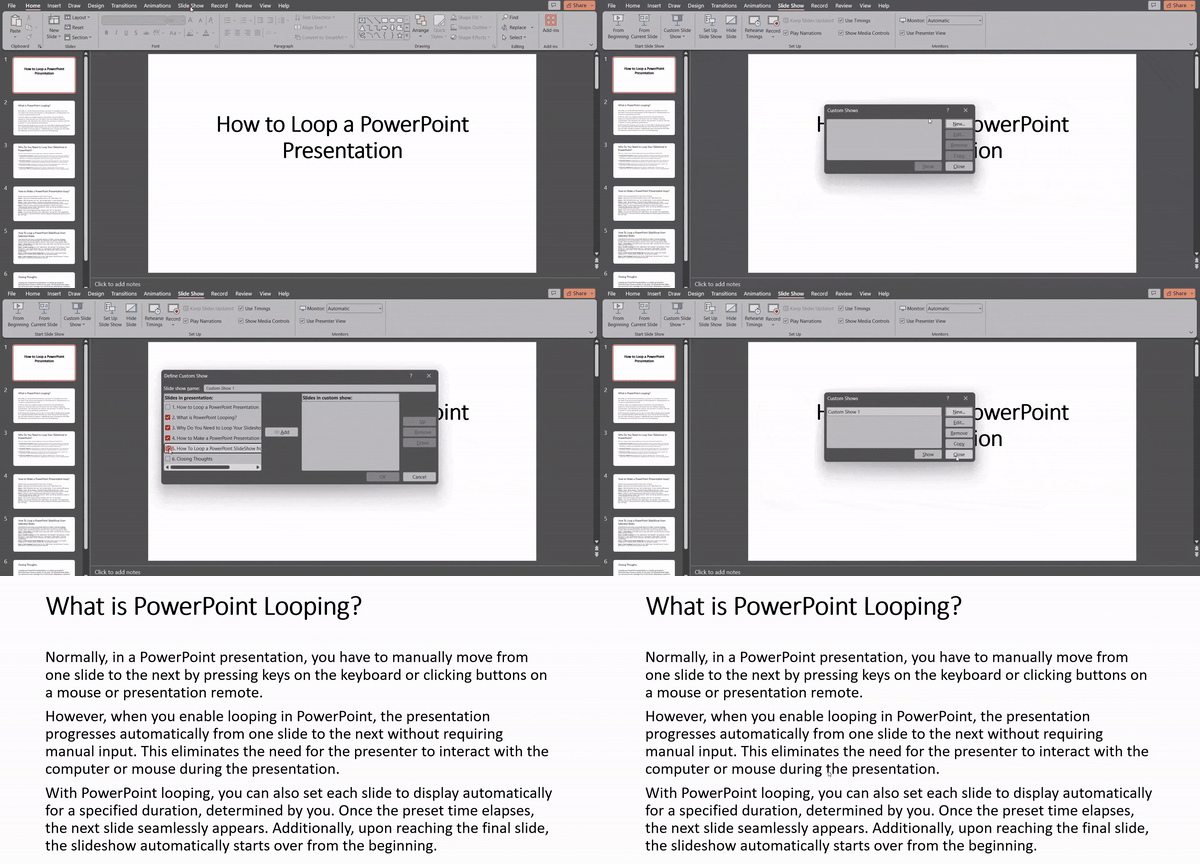
What is PowerPoint Looping?
In a typical PowerPoint presentation, you need to manually move from one slide to the next using the keyboard, mouse, or remote. When looping is enabled, the slides advance automatically after a set time, removing the need for manual control. You can decide how long each slide stays on screen before transitioning. Once the presentation reaches the last slide, it automatically starts again from the beginning, creating a continuous loop for effortless playback.
How to Make a PowerPoint Presentation loop?
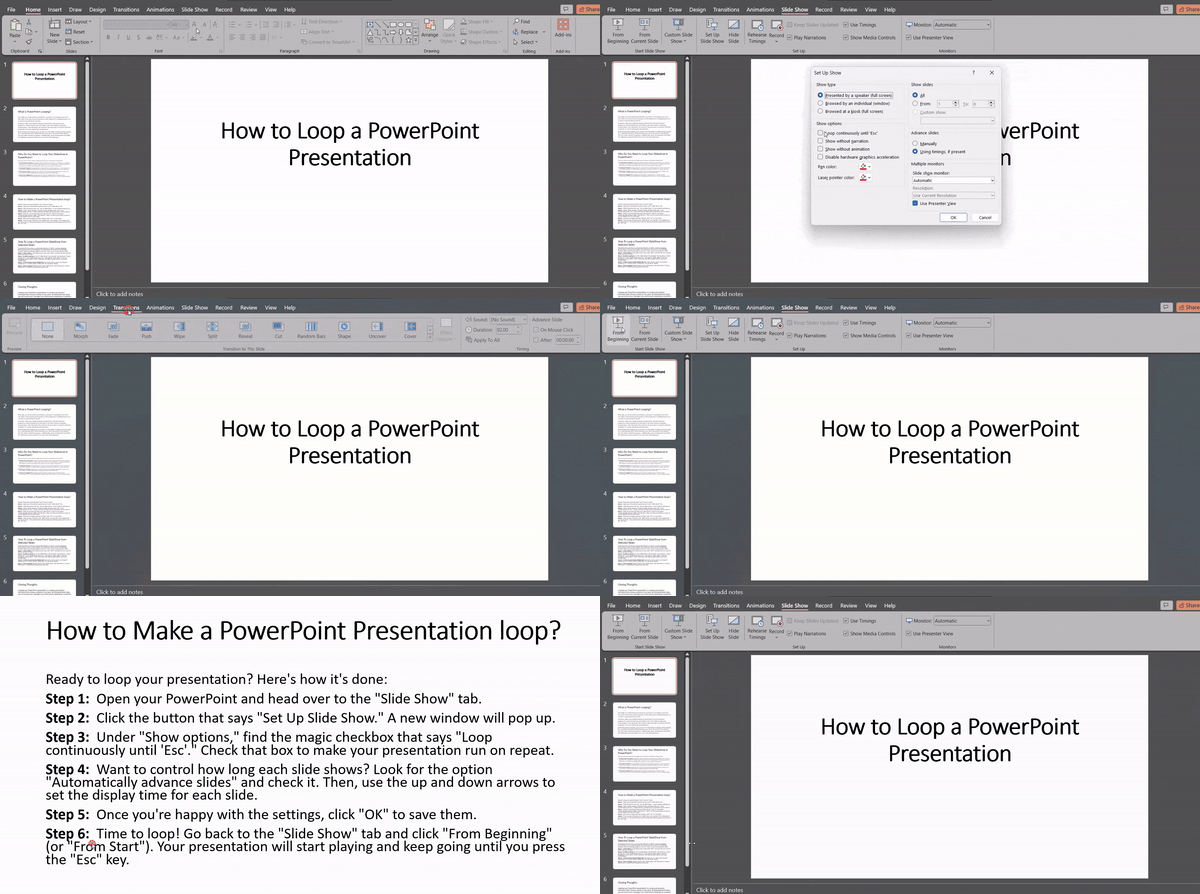
Ready to loop your presentation? Here’s how it’s done:
Step 1: Open your PowerPoint and head over to the “Slide Show” tab.
Step 2: Click the button that says “Set Up Slide Show.” A new window will pop up.
Step 3: Under “Show options,” find the magic checkbox that says “Loop continuously until ‘Esc’.” Check that box to make your presentation run on repeat.
Step 4: Want to control how long each slide shows? Look for the option “Automatically advance slides” and check it. Then, use the up and down arrows to set the display time for each slide.
Step 5: Once you’re happy with the settings, click “OK” to save them.
Step 6: Time to loop! Go back to the “Slide Show” tab and click “From Beginning” (or “From Start”). Your presentation will start playing and keep going until you press the “Esc” key.
How To Loop a PowerPoint SlideShow from Selected Slides?
PowerPoint lets you loop a customized selection of slides, creating engaging presentations that run unattended. This eliminates the need for manual slide changes while maintaining audience interest. Here’s how to loop specific slides:
Step 1: Select Slides: In the Slide Sorter view, hold “Shift” and click the first and last slides you want to loop.
Step 2: Enable Looping: Go to the “Slide Show” tab and click “Set Up Show.” Check the box for “Loop continuously until ‘Esc'” and choose “Show slides” from the dropdown menu. Select “From” and enter the slide number where your loop should begin.
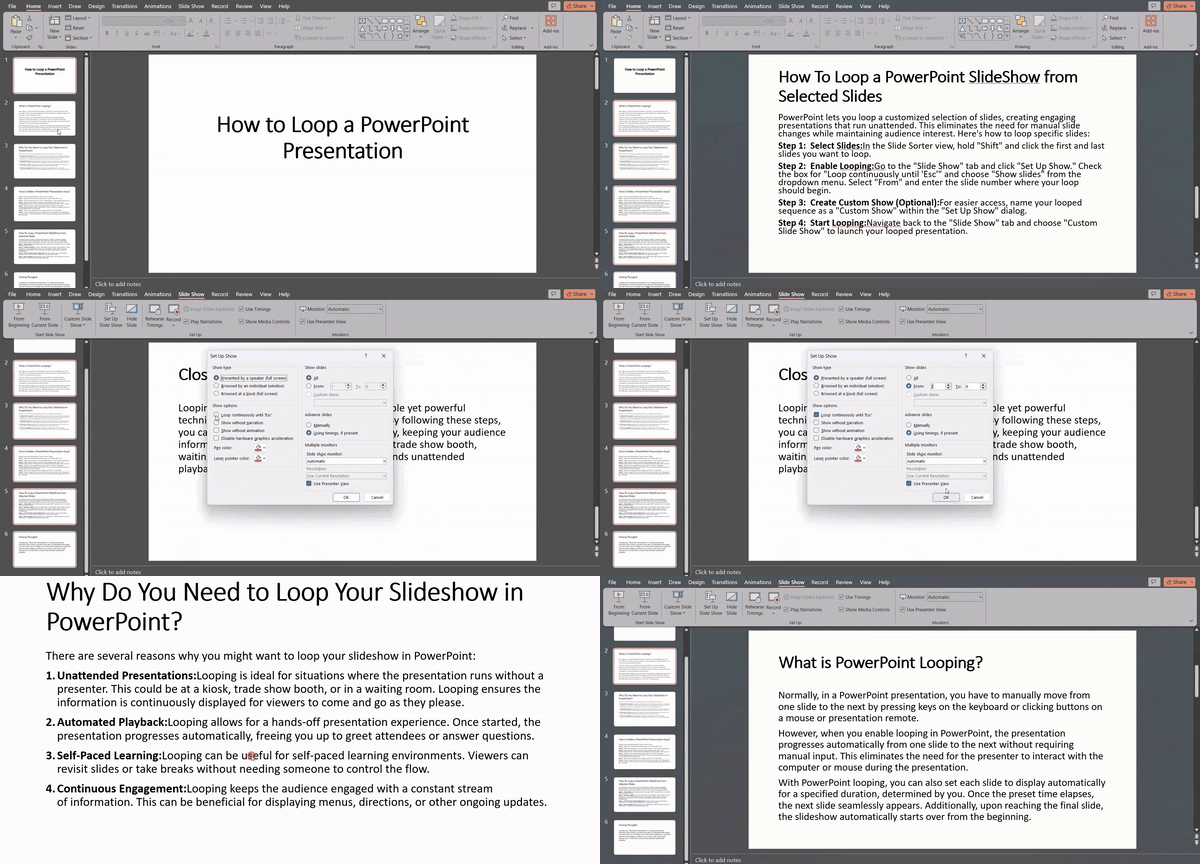
Step 3: Create Custom Show (Optional): For easier access, name your looped sequence as a “Custom Show” within the “Set Up Show” dialog.
Step 4: Start Looping: Navigate back to the “Slide Show” tab and choose “Custom Slide Show” to launch your looped presentation.
Also Read – How to Play Google Slides on Loop?
Why Do You Need to Loop Your Slideshow in PowerPoint?
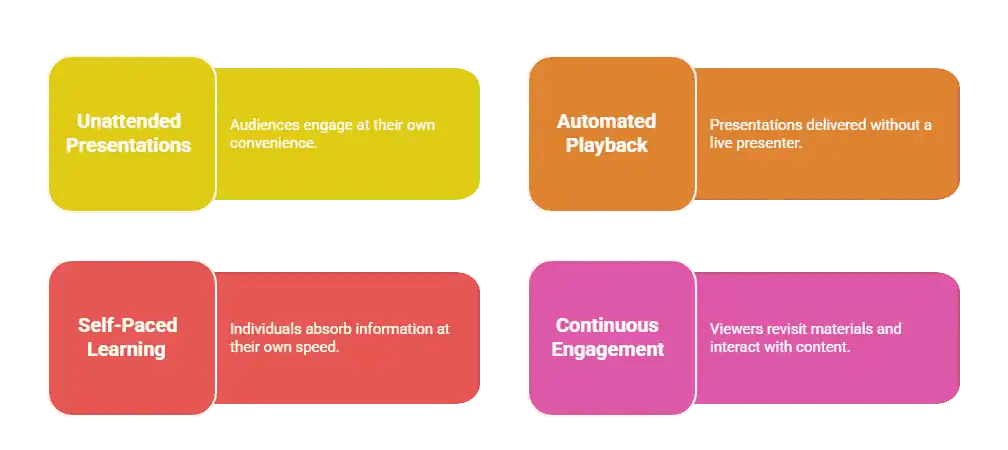
There are several reasons why you might want to loop your slideshow in PowerPoint:
- Unattended Presentations: Looping is ideal for situations where the presentation runs without a presenter. This could be at a kiosk, trade show booth, or in a waiting room. Looping ensures the information is continuously displayed for viewers to come and go as they please.
- Automated Playback: Looping allows for a hands-off presentation experience. Once started, the presentation progresses automatically, freeing you up to greet attendees or answer questions.
- Self-Paced Learning: Looping can be useful for self-paced learning environments. Viewers can revisit slides or take breaks without needing someone to control the flow.
- Continuous Engagement: Looping keeps the audience engaged with a constant stream of information. This can be beneficial for displaying menus, directions, or other ongoing updates.
“Need a presentation for events, kiosks, or displays? Create a professional PowerPoint presentation with AI in minutes.”
Looping vs Automatic Playback: What’s the Difference?
Many users assume that enabling the loop setting will automatically advance slides. However, these are two separate PowerPoint features.
Looping
The loop setting restarts the presentation when it reaches the final slide.
Automatic Playback
Automatic playback controls how slides advance from one slide to the next without requiring a mouse click.
If you want a presentation to run continuously on a screen, kiosk, trade show booth, or waiting room display, you’ll need to enable both looping and automatic slide timings.
Best Uses for a Looping PowerPoint Presentation
A looping presentation works well when content needs to stay visible without a presenter controlling the slides.
Common examples include:
-
Trade show displays
-
Event welcome screens
-
Digital signage
-
Product demonstrations
-
Waiting room information screens
-
School announcements
-
Reception area displays
For these use cases, combine looping with automatic slide timings so the presentation continues running without interruption.
PowerPoint Loop Not Working?
If your presentation isn’t looping correctly, check the following:
Slides are not advancing
Enable automatic slide timings from the Transitions tab.
Presentation stops at the last slide
Verify that Loop continuously until ‘Esc’ is selected in Set Up Slide Show.
Presentation exits unexpectedly
Check whether a keyboard, presentation remote, or user interaction is interrupting the slideshow.
Only some slides advance automatically
Review the timing settings for each slide and make sure they are applied consistently.
Closing Thoughts
Looping your PowerPoint presentation is a simple yet powerful technique that unlocks a variety of use cases. By following these steps, you can ensure your message runs continuously, keeping your audience informed and engaged, whether it’s at a kiosk, trade show booth, waiting room, or any other scenario that demands unattended playback.
Take Your PowerPoint From Basic to Professional With SlidesAI
- Improve your slide content with AI
- Create polished layouts faster
- Work directly inside PowerPoint

Frequently Asked Questions Related to Looping a PowerPoint Presentation
My presentation has animations and transitions. Will they loop as well?
Absolutely! When you loop your presentation, animations and transitions will also repeat continuously, regardless of the looping method you choose.
Does looping affect animation timing?
There’s a possibility. Looping might affect how your animations play out, especially if they have specific timings set. To avoid any hiccups, be sure to thoroughly test your looped presentation. This will ensure your animations sync smoothly with the slide transitions.
How do I make a PowerPoint presentation loop continuously?
Go to Slide Show > Set Up Slide Show and enable Loop continuously until ‘Esc‘.
How do I make PowerPoint loop without clicking?
Set slide timings from the Transitions tab and enable looping from Set Up Slide Show.
Can I loop only certain slides in PowerPoint?
Yes. You can create a custom slide show and loop only a selected range of slides.
How do I stop a looping PowerPoint presentation?
Press the Esc key to end the slideshow.
Can I loop specific slides in my PowerPoint presentation?
Yes! PowerPoint gives you the flexibility to loop a selected group of slides, creating engaging presentations that run unattended.
How do I stop or pause a looped slideshow in PowerPoint?
Need a break? Simply press the “Esc” key on your keyboard to interrupt the looped slideshow at any time.
Can I customize the duration of each slide in a looped PowerPoint presentation?
Yes, you can! PowerPoint allows you to adjust the slide transition settings for each slide. This lets you control how long each slide displays, creating a tailored and dynamic looping experience.