

Google Slides is a great tool for creating presentations, whether it’s for work, school, or any other purpose. It gives you plenty of options to showcase your information in a way that grabs attention. One of these options is the photo collage feature, which lets you put multiple images on one slide in a creative and fun way.
In this blog, we’ll walk you through the process of making a photo collage in Google Slides. Let’s dive in and get started!
How to Make a Collage on Google Slides?
Making a collage on Google Slides is a fun and simple process. Here’s how you can do it:
- Step 1: Open Google Slides Go to Google Slides and pick the “Blank” option to start with an empty slide.
- Step 2: Pick a Theme & Layout Click “Theme” on the top bar and pick “Simple Light” — it gives you a clean white background. Then click “Layout” and choose “Blank” so your slide is fully empty and ready to use.
- Step 3: Change the Background (Optional) If you want a different background, right-click on the slide and choose “Change background.” You can pick a color, a gradient, or even use your own photo as the background.
- Step 4: Add Your Photos Click “Insert” at the top, then click “Image.” You can add photos from your computer, Google Drive, Google Photos, or search for one online — pick whichever is easiest for you.
- Step 5: Move and Resize Your Photos Once your photos are on the slide, drag them to wherever you like. Pull the corners to make them bigger or smaller. Use the helper lines that appear while moving to keep things neat and even.
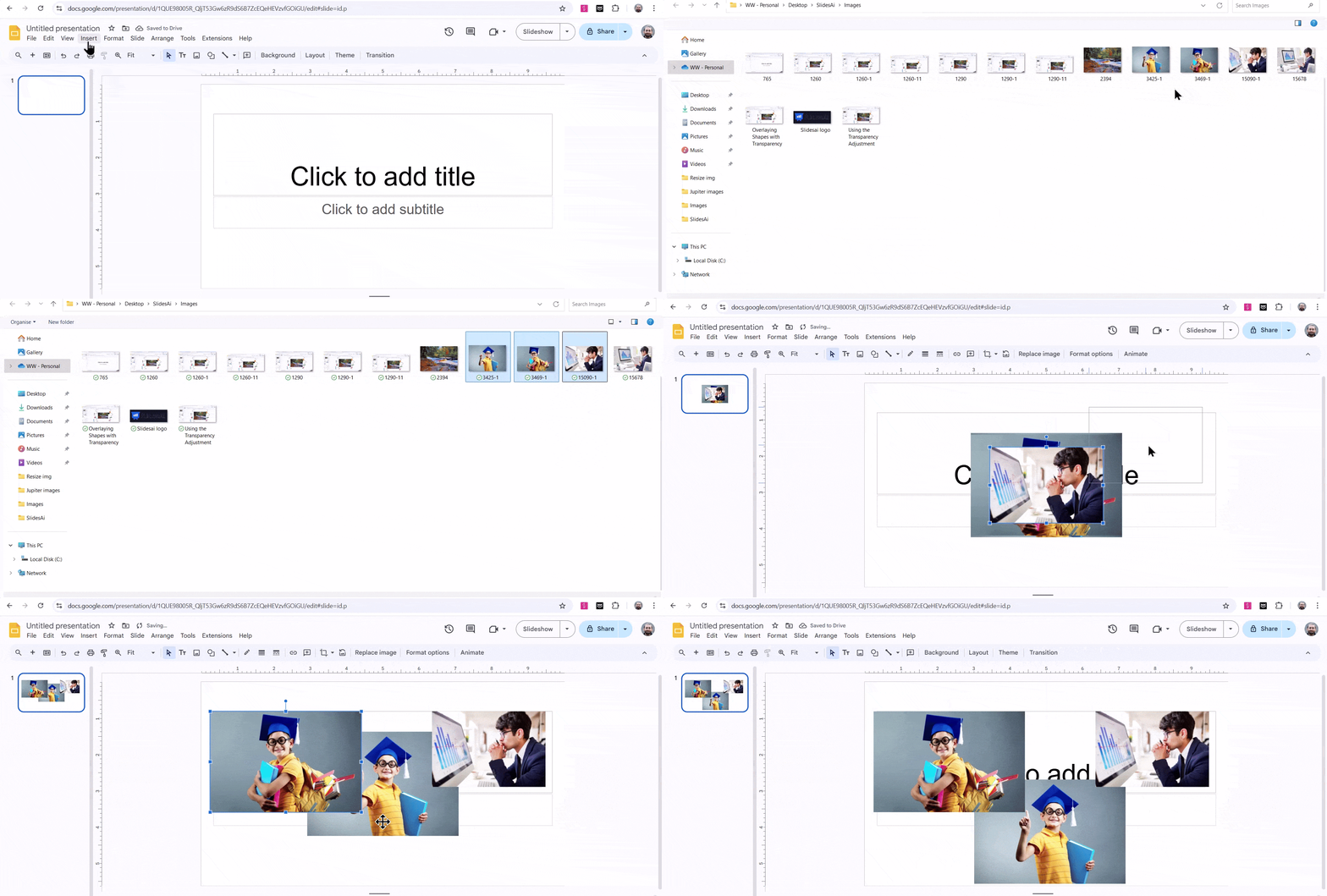
- Step 6: Stack Images on Top of Each Other Right-click on a photo and choose “Order.” This lets you move a photo in front of or behind another one. It’s great for creating a nice overlapping look.
- Step 7: Change the Shape of a Photo (Optional) Click on a photo, then hit “Crop” in the toolbar. Click the small triangle next to it and pick a new shape — like a circle or star — for your photo.
- Step 8: Add Text (Optional) Click “Insert” and then “Text box.” Click anywhere on the slide and start typing. Move the text box to wherever it looks best.
- Step 9: Add Shapes or Lines (Optional) Click “Insert” and choose “Shape” or “Line.” Draw it on your slide and use the toolbar to change its size, color, or style.
- Step 10: Add Animations (Optional) Want your collage to feel more lively? Click “Slide” at the top and choose “Transition” to add a fun animation effect.
- Step 11: Save and Share Your work is saved automatically! To download it, go to “File” → “Download” and pick a format like PDF or JPEG. To share it with someone, click the “Share” button at the top right, add their email, and choose if they can view or edit it.
Create AI presentations directly in Google Slides.
- No design skills required
- 3 presentations/month free
- Save directly in Google Slides

Tips for a Better Collage
Creating a good collage on Google Slides is all about keeping things clean and balanced. Here are some simple tips:
- Stick to a Color Theme: Use 2–4 matching colors to keep your collage neat and consistent. Avoid using too many colors.
- Maintain Alignment and Spacing: Align your images properly and keep equal space between them. This makes your collage look organized.
- Use Contrast for Readability: Make sure text is easy to read. Use dark text on light backgrounds or light text on dark backgrounds.
- Use High-Quality Images: Always use clear, high-resolution images. Blurry images can make your collage look unprofessional.
Closing Thoughts
Creating a collage on Google Slides is a fun and easy way to showcase your images. With a few simple steps, you can turn a blank slide into a creative masterpiece. Whether for work, personal projects, or even thoughtful photo collage gift ideas, it’s a great tool to make your presentations stand out. Enjoy experimenting with different layouts and designs!
For even more dynamic and efficient presentations, consider leveraging an AI presentation maker to enhance your visual storytelling.
Frequently Asked Questions Related to Making a Collage on Google Slides
How do I layer images in a collage on Google Slides?
To layer images in your collage, right-click on the image you want to adjust, then go to the “Order” option. From there, you can choose whether you want to send the image to the back or bring it to the front, depending on where you want it to appear in relation to other images.
Can I add text to my Google Slides collage?
Yes, you can easily add text to your collage. Just click on “Insert” in the menu, then select “Text box.” Once the text box appears, type in your message and move it to any spot on your slide that looks best.
Is it possible to add borders or effects to images in my collage?
Absolutely! To add a border, click on the image, then use the Border weight tool on the toolbar to adjust the thickness of the border. You can also change its color using the Border color tool to match your design.
Can I share my Google Slides collage with others?
Yes, sharing your collage is simple. Click the “Share” button at the top-right of the screen, and you’ll have the option to either generate a shareable link or invite specific people via email. You can choose whether they can just view or also edit the slide.