

An organizational chart (or org chart) is a visual representation of your organization’s hierarchy, showing reporting relationships, roles, and departments. Creating one in Google Slides makes it easy to present your team’s structure in a clear and professional way.
In this guide, we’ll show you three simple ways to create an organizational chart in Google Slides: using shapes, built-in diagrams, and a ready-made SlidesAI template. Choose the method that best fits your needs and start building your org chart in minutes.
How Do You Create an Organizational Chart in Google Slides?
Method 1: Create an Org Chart in Google Slides Using Shapes
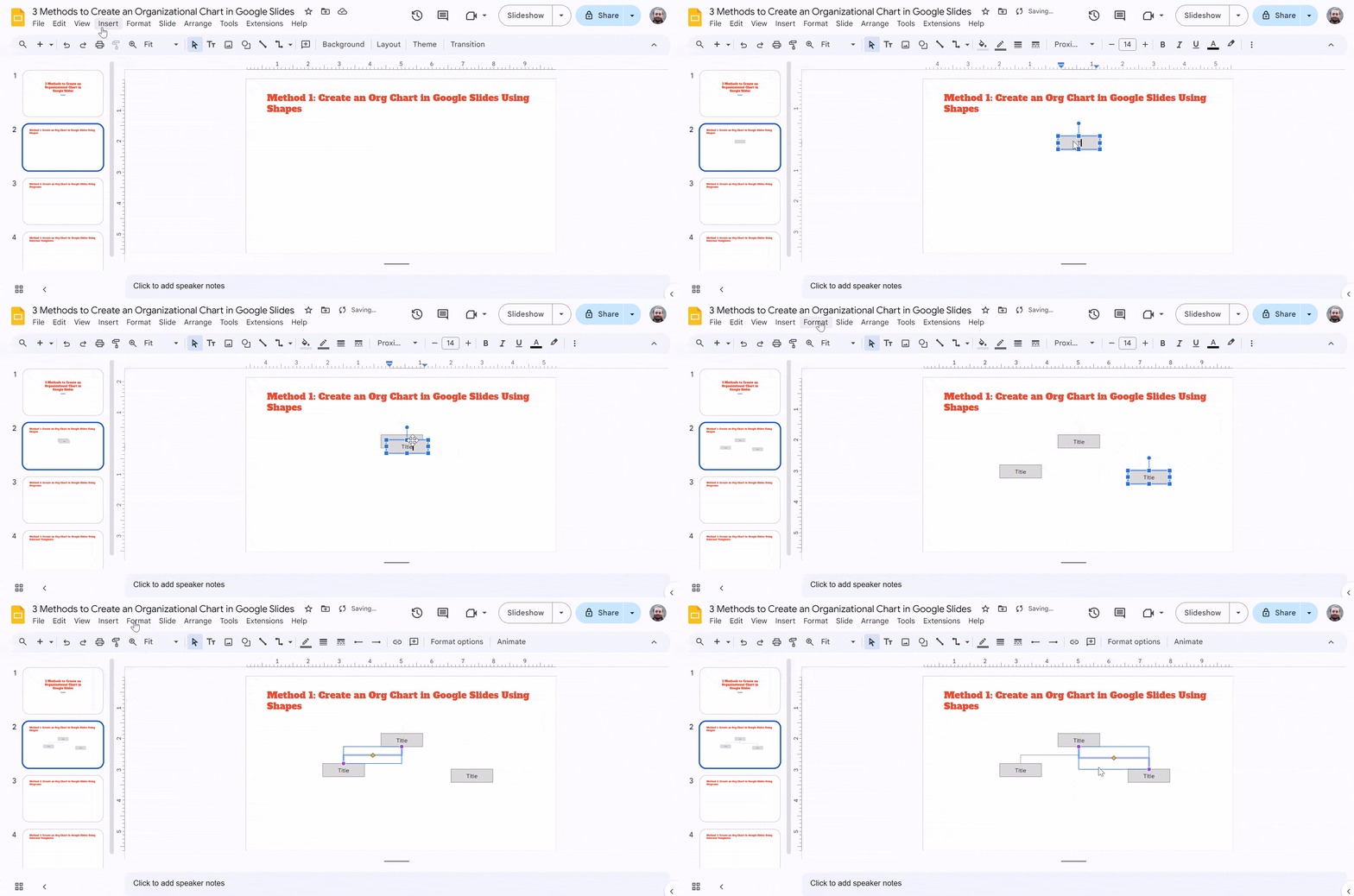
Creating an org chart using shapes is a straightforward method that allows for high customization. Follow these steps:
- Open Google Slides. Start a new presentation or choose an existing one.
- Insert a blank slide. Click Slide > New Slide.
- Include shapes for roles. Click Insert > Shape > Shapes, then select a rectangle or oval.
- Double-click within each shape to enter a name or title for each slot.
- To ensure consistency, right-click a shape and choose “Duplicate”.
- Arrange in hierarchical order. Drag and drag the shapes to form a hierarchy.
- Connect forms. To indicate relationships, create lines connecting the forms using Insert > Line > Elbow Connector.
- Customize the appearance by changing the colors and line weights.
- Finalize Layout. Check that everything is correctly aligned and easy to grasp.
- Save and share. You may save the presentation or use the Share button to collaborate.
Method 2: Create an Org Chart in Google Slides Using Diagrams
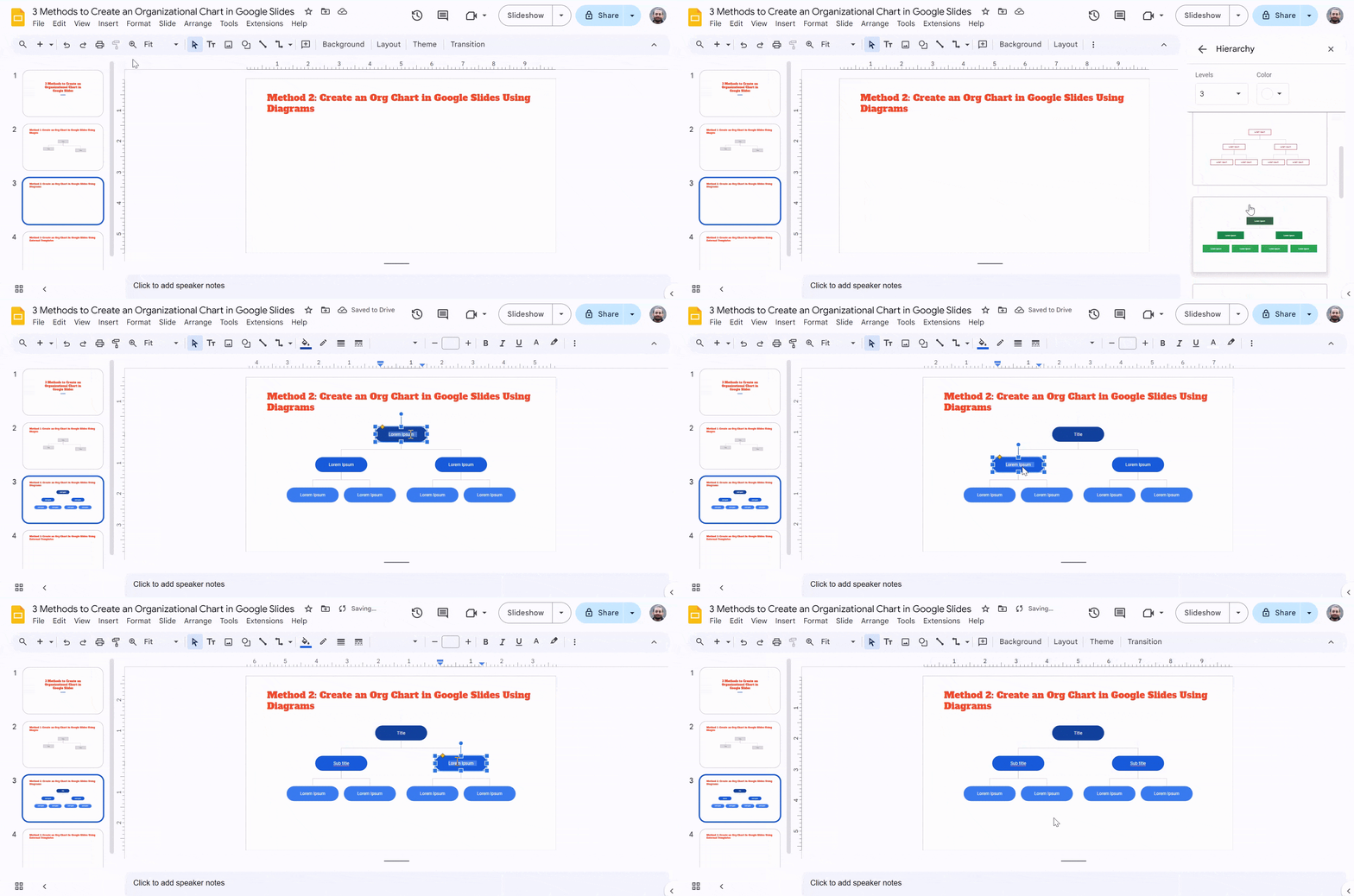
Using built-in diagrams can expedite the process while maintaining a polished look. Here’s how to do it:
- Open Google Slides. Create a new presentation or choose an existing one.
- Insert a blank slide. Click Slide > New Slide.
- Access Diagrams. Select Diagram from the Insert menu.
- Select Hierarchy. In the sidebar, choose Hierarchy.
- Choose Styles. Choose the style and number of tiers for your organizational chart.
- Click on each box to add or change text.
- Customize further by duplicating or removing items as needed to meet your organization’s needs.
- Adjust the layout to ensure that the organization chart suits the presentation attractively.
- Personalize the Design. Change the colors and fonts to reflect your brand.
- Save and Share. Finish and distribute the presentation as needed.
Method 3: Create an Org Chart In Google Slides Using External Templates
If you want to create an organizational chart quickly without building one from scratch, you can use a ready-made SlidesAI template. Simply open the template in Google Slides and customize it to match your organization’s structure. Follow these steps:
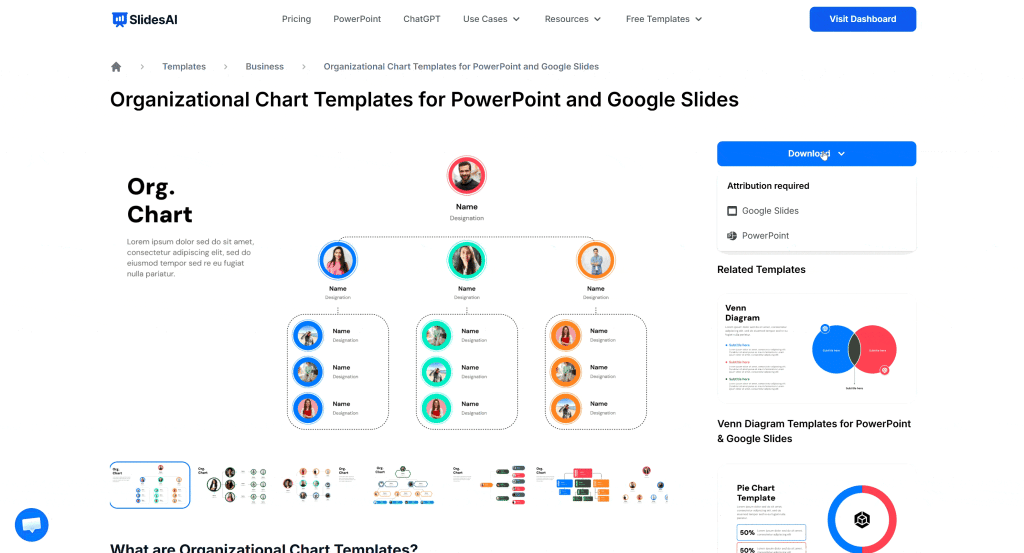
- Open the SlidesAI organizational chart template.
- Click Download and choose Google Slides.
- The template will open in Google Drive. Click Use Template to create your own copy.
- Your copy will automatically open in Google Slides.
- Replace the placeholder names and job titles with your organization’s employees and roles.
- Add or remove positions as needed by duplicating or deleting the existing boxes.
- Customize the design by changing the colors, fonts, icons, and layout to match your company’s branding.
- Save, share, or present your organizational chart directly from Google Slides.
Using a SlidesAI template helps you create a clean, professional organizational chart in minutes while keeping every element fully editable.
Conclusion
Creating an organizational chart in Google Slides is not only a practical necessity but also a strategic advantage for any organization. Whether you opt to use shapes, built-in diagrams, or external templates, each method offers unique benefits tailored to different needs and preferences.
Explore More:
- How to Make a Table on Google Slides
- How to Make a Pie Chart in Google Slides
- How to Make a Calendar in Google Slides
- Create an Candlestick Chart in Google Slides
Create AI presentations directly in Google Slides.
- No design skills required
- 3 presentations/month free
- Save directly in Google Slides

Frequently Asked Questions
1. What is the most common organizational chart?
The most popular organizational chart is the hierarchical or pyramid-shaped one, in which the line of command runs from top to bottom, such as from the CEO to lower-level staff.
2. Why should I use Google Slides to create an organizational chart?
Google Slides is user-friendly, cloud-based, and allows for simple collaboration and sharing. Its style and layout versatility make it excellent for producing visually appealing organizational charts.
3. Is it possible to alter my organizational chart once it has been created?
You may easily modify your organizational chart on Google Slides at any moment. Simply click on the chart to change the layout, text, and design.
4. Can I interact with others on my organizational chart on Google Slides?
Absolutely! Google Slides offers real-time collaboration, allowing several users to collaborate on a presentation at the same time.