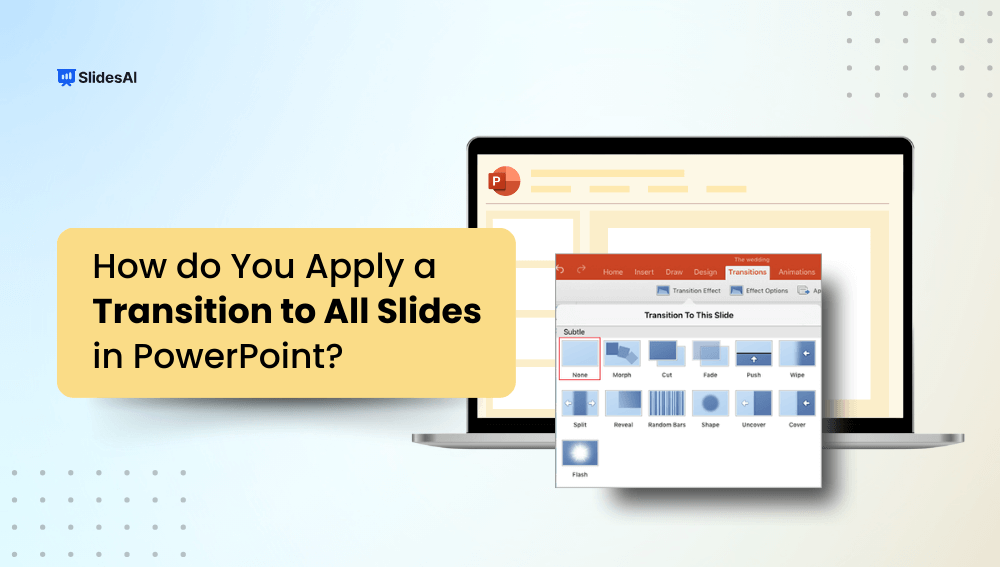
In the realm of presentations, engaging your audience is crucial. Slide transitions are an efficient approach to enhance your PowerPoint presentations while also keeping your audience’s attention. Slide transitions are animations that occur when you go from one slide to the next.
Applying transitions to all slides in PowerPoint helps to generate a visual flow that can influence how your audience receives your content. This article looks at how to use slide transitions successfully and why they are essential for successful presentations.
How to Apply a Transition to All Slides in PowerPoint (Quick Steps)
Using slide transitions in PowerPoint regularly helps improve the overall flow of your presentation. Take these simple steps:
- Open PowerPoint and pick the appropriate file.
- Select the slide you wish to start with.
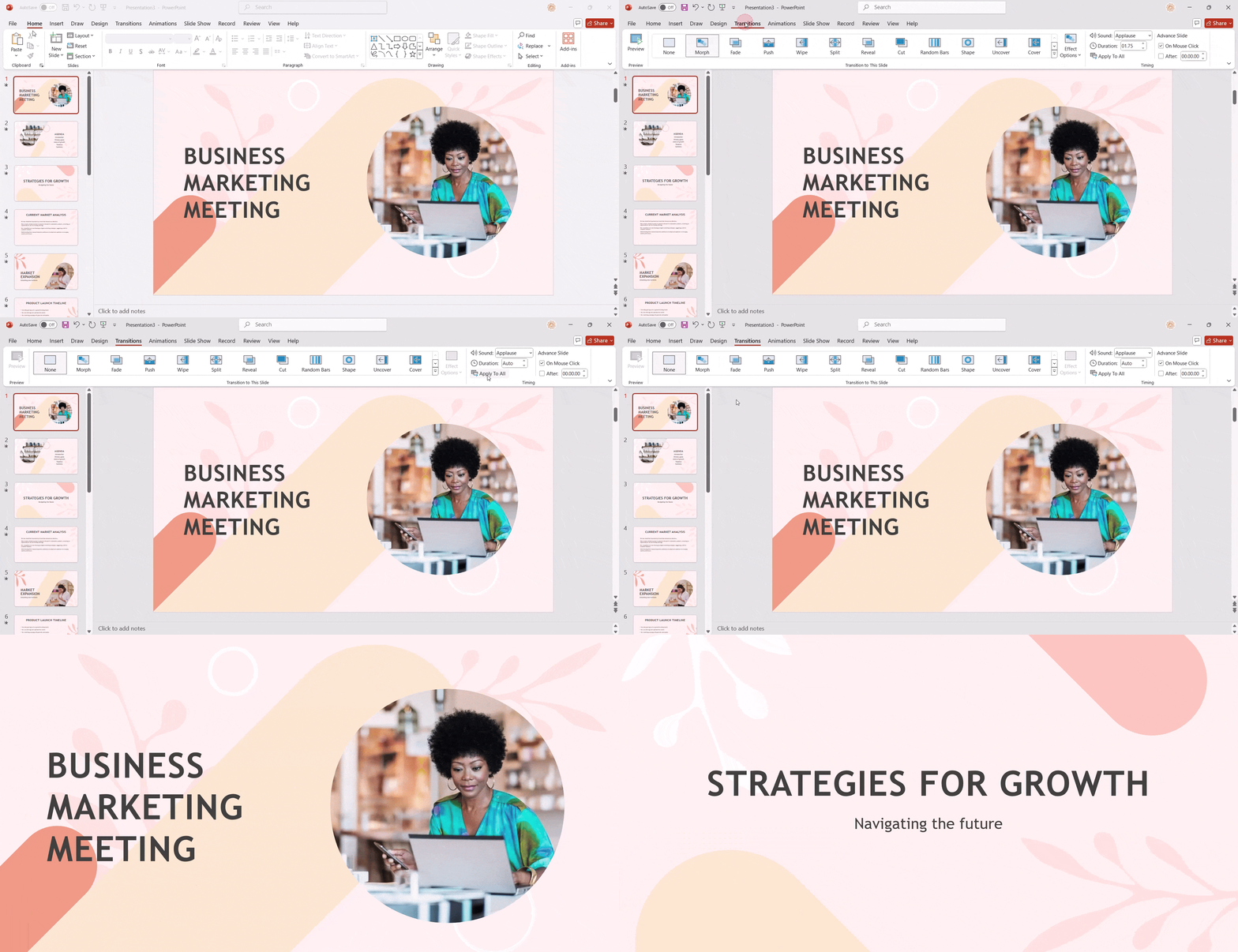
- Click the “Transitions” tab on the ribbon at the top of the PowerPoint window.
- Browse the different transitions and choose the one that best suits your presenting style.
- Optional: Customize the transition:
- Speed: Change the duration of the transition to achieve a smoother effect.
- Sound: Include an audio element to improve the transitional experience.
- Duration: Determine how long the transfer will take.
- Direction: Determine whether the transition should enter from the left, right, or another angle.
- Once you are pleased, click “Apply to All” to apply your chosen transition to all the slides throughout your presentation.

Want professionally designed slides with smooth transitions? Create a presentation in minutes with an AI PowerPoint Generator.
How to Remove Slide Transitions in PowerPoint?
You may find that some transitions do not work as well as you initially imagined. To remove undesired transitions, follow these steps:
- Select the slide that has the transition you want to remove.
- On the transitions tab in the transitions gallery, select “None.”
- To remove all transitions from the presentation, after selecting none, click “Apply to all.”
How to Change Slide Transition in PowerPoint?
Modify your transition effects easily by following these straightforward steps:
- Select the slide you wish to edit.
- On the Transitions tab, select Effect Options, then choose your preferred modification from the dropdown menu.
- In the Timing group, you can change the duration or set the transition to occur after a particular event, like a mouse click. This ensures your transitions fit seamlessly into your presentation’s narrative.

Read Related – How Add Animation in PowerPoint
Types of Transitions in Microsoft PowerPoint
Within PowerPoint, you have a wealth of transitions at your disposal, classified into three major types:
- Subtle Transitions: Simple, minimal animations that work best for professional presentations by keeping focus on the content.
- Exciting Transitions: More dramatic animations that add visual interest but should be used sparingly to avoid distraction.
- Dynamic Content: Transitions that move placeholders while keeping content consistent, helping slides feel connected and polished.
While slide transitions can be helpful, they should be used in moderation. Using too many or too dramatic transitions might be distracting for your viewers. Aim for a subtle approach, keeping thrilling transitions for critical occasions.
Read Related – How to Add Music in PowerPoint
Tips for Choosing Slide Transitions in PowerPoint
Selecting the proper transitions requires context. Here are several factors you should consider:
- Content & Theme: Match transitions to your topic and presentation style. Technical or formal content works best with subtle effects, while creative themes allow slightly bolder transitions.
- Audience: Consider your audience’s age, background, and cultural expectations. Simple transitions are generally safer and more widely accepted.
- Presentation Style: Formal presentations benefit from smooth, minimal transitions, while informal settings can support more dynamic effects.
- Purpose of the Transition: Use transitions to highlight key points, show progression, or indicate relationships between slides.
- Avoid Overuse: Keep transitions consistent and minimal to maintain professionalism and avoid distracting from your message
Let AI choose the best slide transitions for your presentation with a ChatGPT Presentation Maker.
Why Use Slide Transitions in PowerPoint?
Using slide transitions in all slides may improve your presentation in a variety of ways. Here are some significant reasons to have them in your PowerPoint toolkit:
- Maintains Consistency: Using the same transition across all slides creates a unified look, making your presentation feel organized and professionally designed.
- Reduces Distractions: Consistent transitions prevent abrupt visual changes that can distract your audience from the message you’re presenting.
- Improves Flow: Uniform transitions help slides move smoothly from one point to the next, improving the overall pacing of your presentation.
- Saves Time: Applying one transition to all slides eliminates the need to adjust each slide individually, speeding up the presentation design process.
Pro Tip: If you’re a Google Slides user, try QuickAnimate by SlidesAI to instantly add animations to Google Slides™ using keyboard shortcuts!
Take Your PowerPoint From Basic to Professional With SlidesAI
- Improve your slide content with AI
- Create polished layouts faster
- Work directly inside PowerPoint

Closing Thoughts
Slide transitions are more than just eye candy. They are instrumental in enhancing audience engagement, organizing content, and creating a cohesive storytelling experience.
By understanding how to use them effectively—be it through subtle animations or dynamic effects—you can elevate your presentations to new heights of professionalism.
As you experiment with transitions, remember that practice makes perfect. Start by applying transitions to all slides in PowerPoint and keep modifying them within your presentations. This way, you can learn what works best for your content and audience and make notes for future reference.
Your journey to mastering the art of presentations has just begun—dive deeper, explore, and always strive for improvement!
Frequently Asked Questions About Slide Transition in PowerPoint
1. Can I apply the same transition to all slides at once?
Yes, PowerPoint allows you to apply one transition to all slides at once using the Apply To All option.
2. Does “Apply to All” work in PowerPoint on Mac?
Yes, PowerPoint for Mac includes the Apply To All button in the Transitions tab, similar to the Windows version.
3. Can I apply transitions to all slides in PowerPoint Online?
PowerPoint Online supports basic transitions, but some advanced transition features may be limited compared to the desktop app.
4. Do transitions apply to animations automatically?
No, transitions and animations are separate. Transitions control slide changes, while animations affect elements within a slide.
5. What is the best transition to use for professional presentations?
Subtle transitions like Fade or Push are best for professional and business presentations.
6. Can I use different transitions on different slides?
Yes, you can apply individual transitions to specific slides instead of using Apply To All.
7. How long should a slide transition last?
A duration of 0.3–0.5 seconds is ideal for most presentations to maintain a smooth flow.
8. What should I do if transitions don’t play during slideshow mode?
Check slideshow settings, ensure transitions aren’t disabled, and confirm the presentation is running in full slideshow mode.
9. Can I apply transitions using the Slide Master?
Slide Master controls layouts and design, but does not apply slide transitions to all slides.