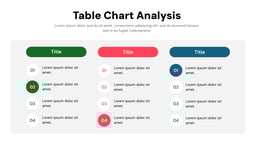
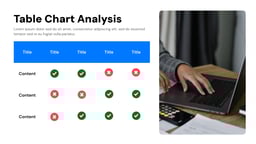
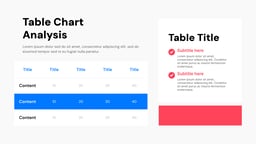
What is the Table Presentation Template
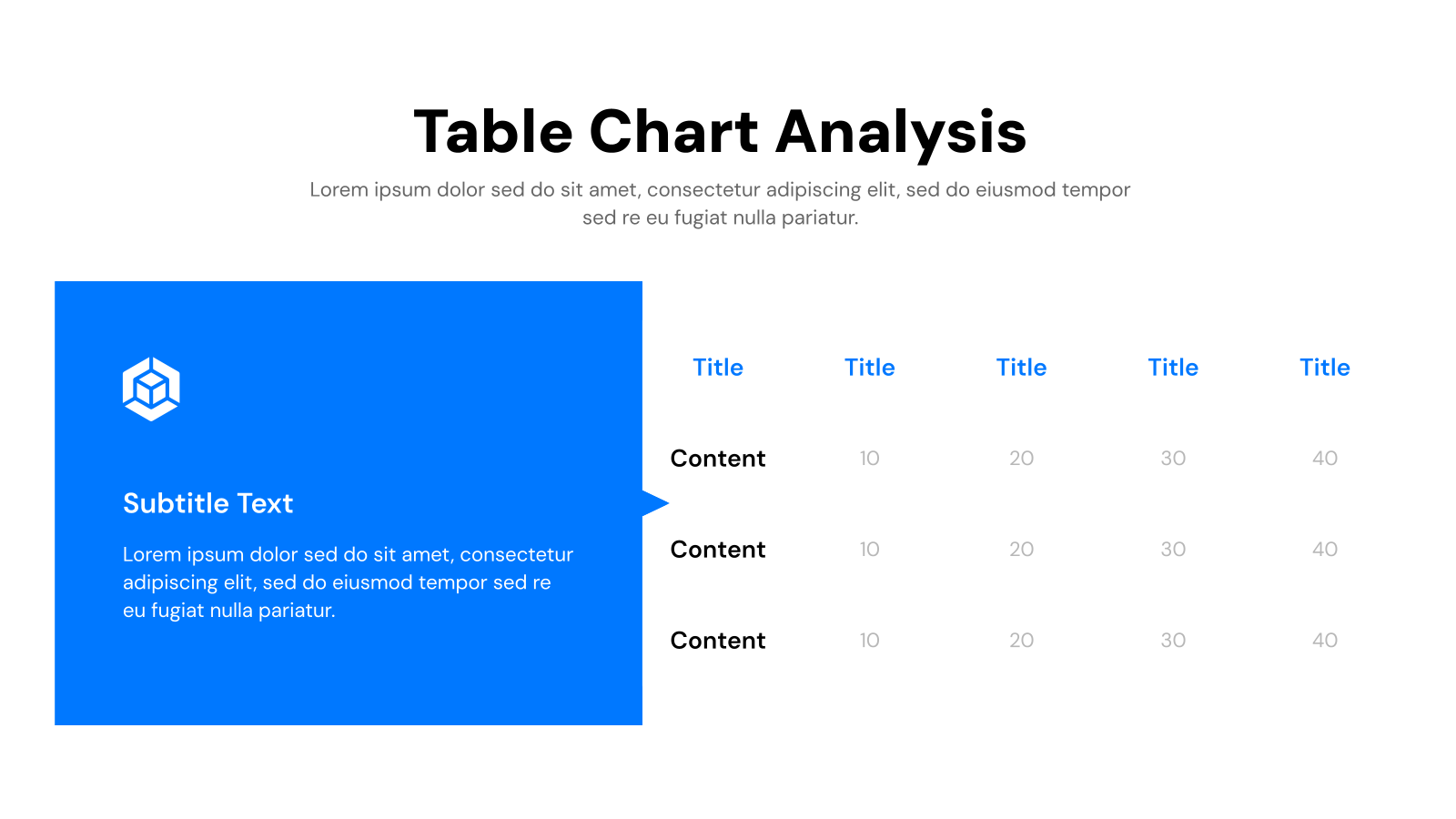
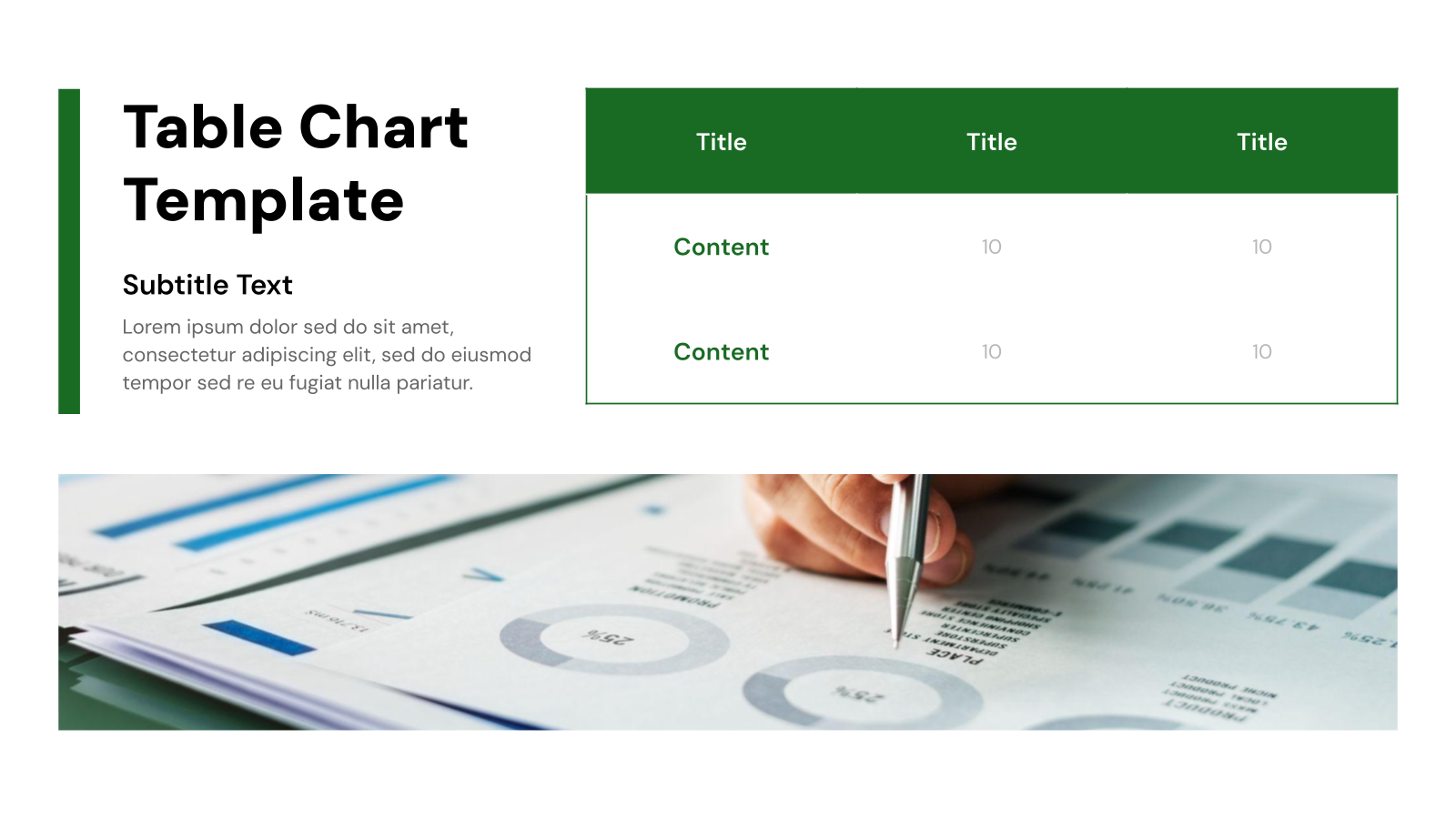
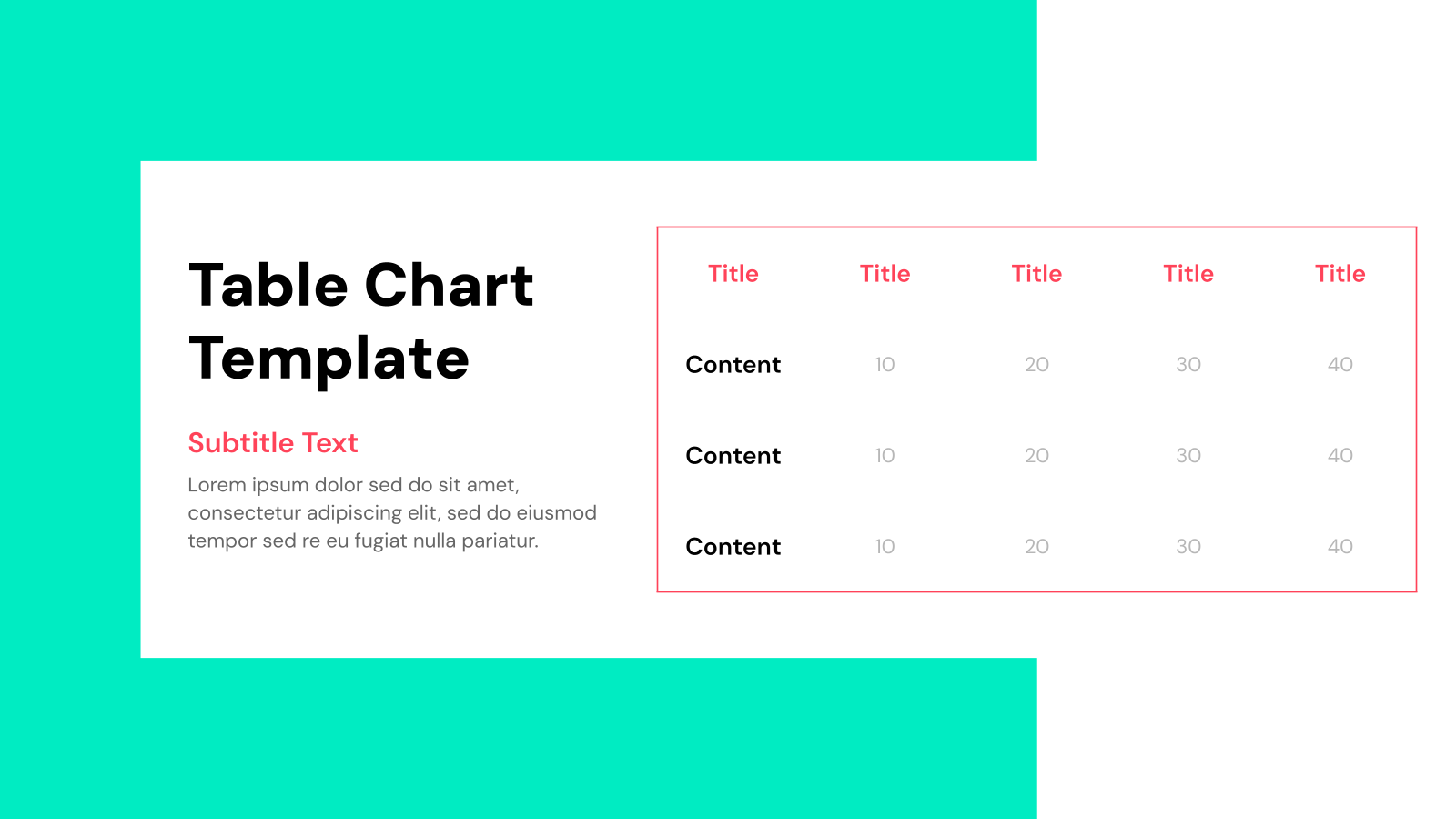
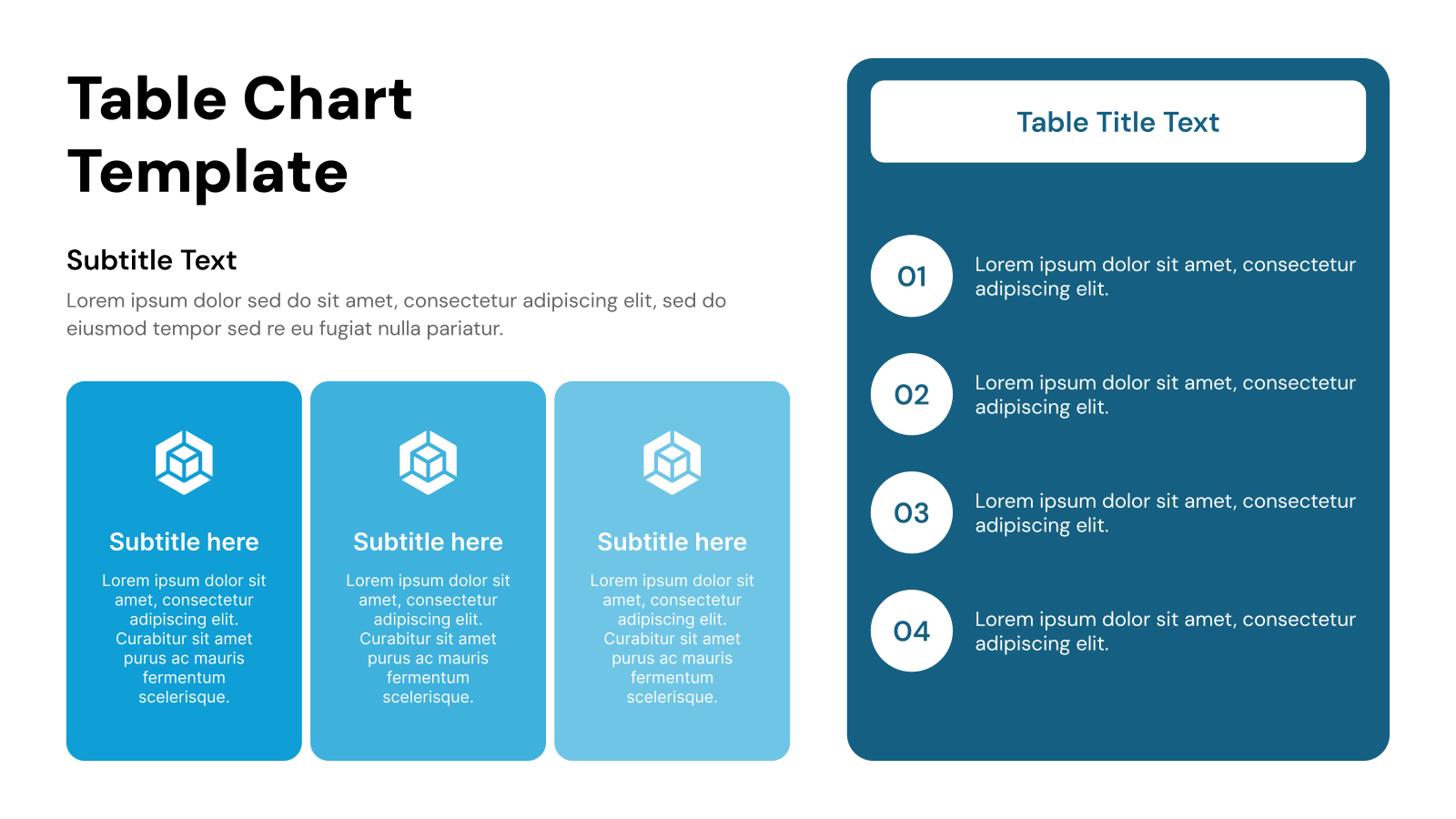
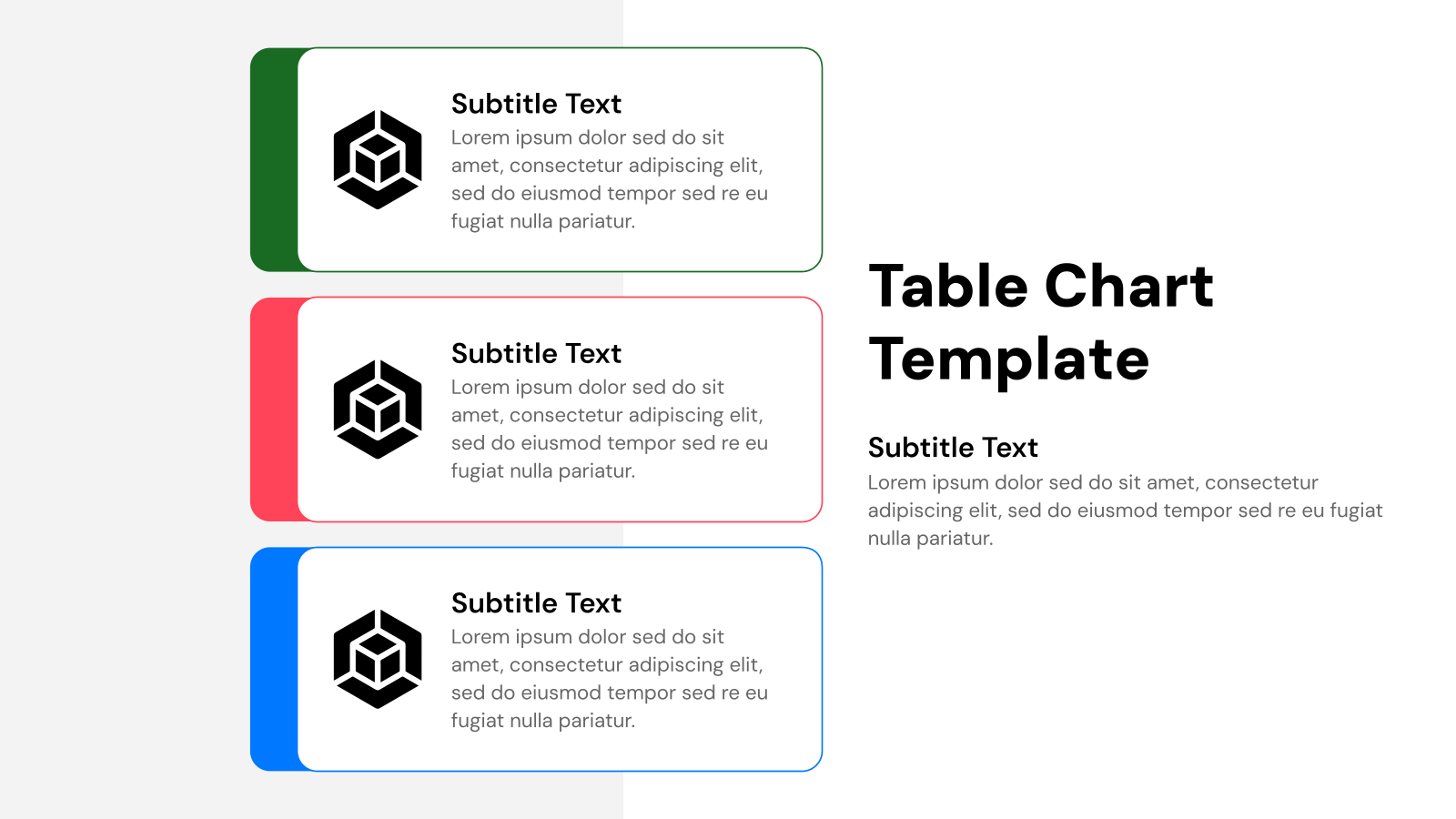
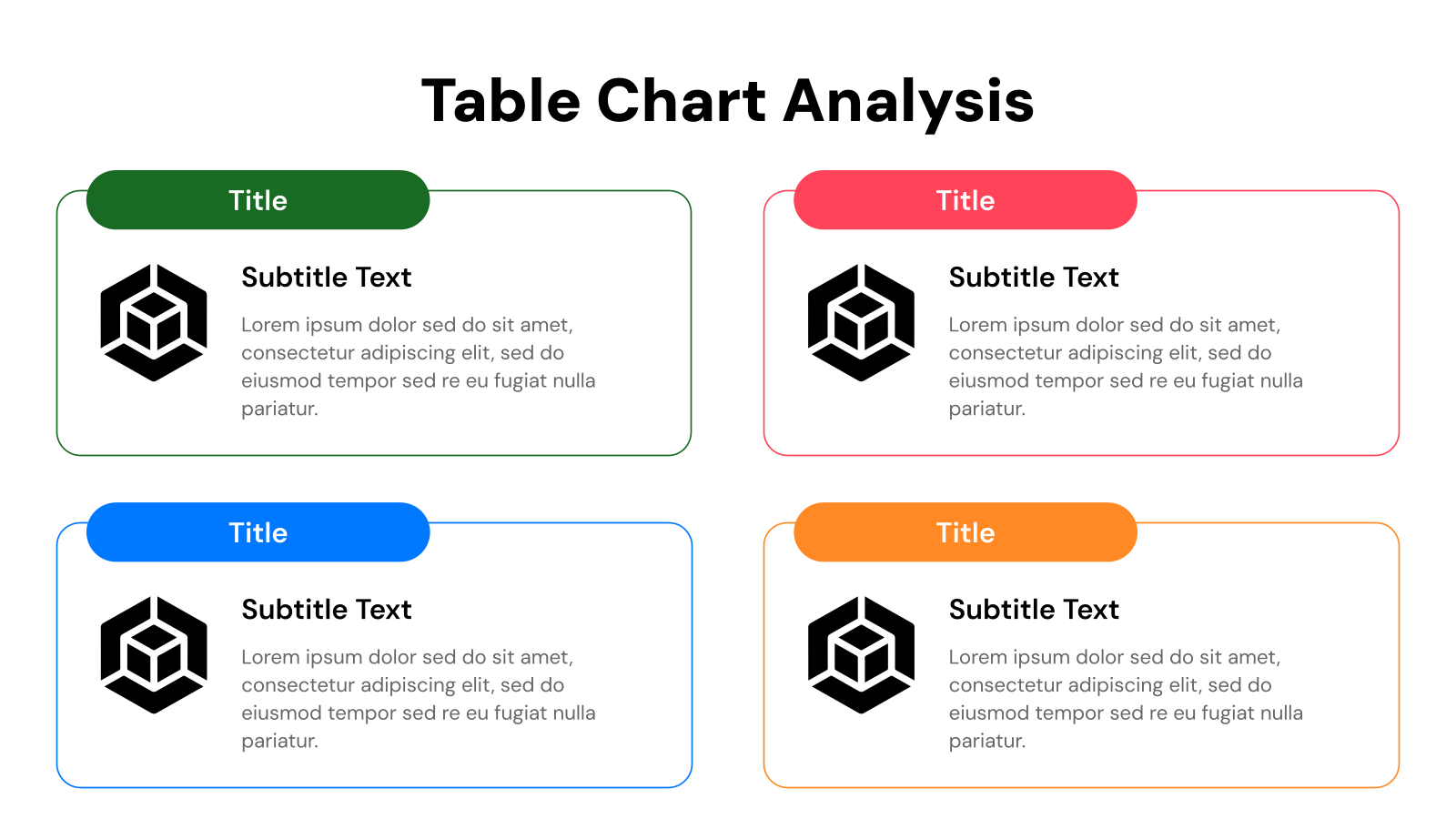
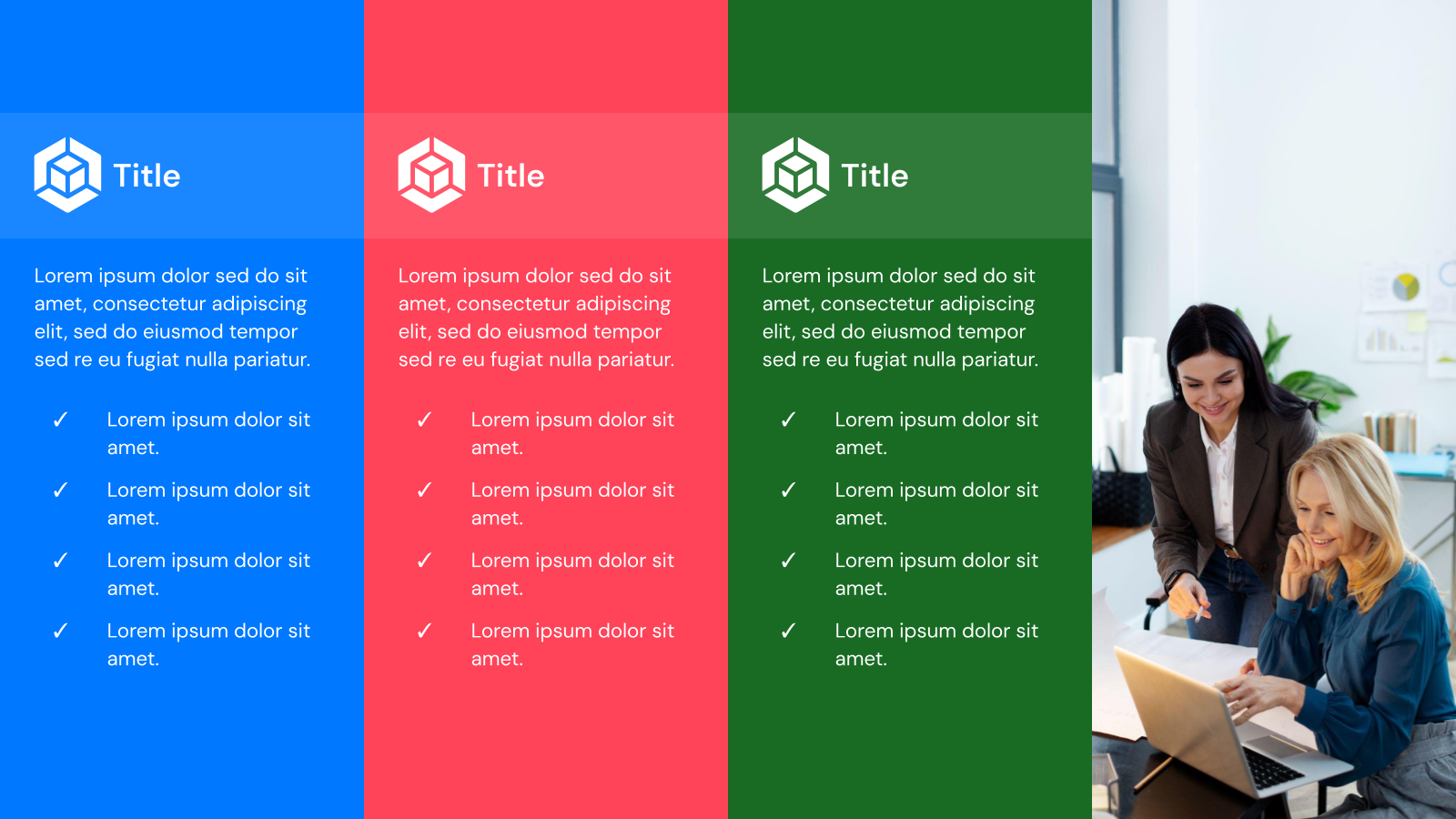
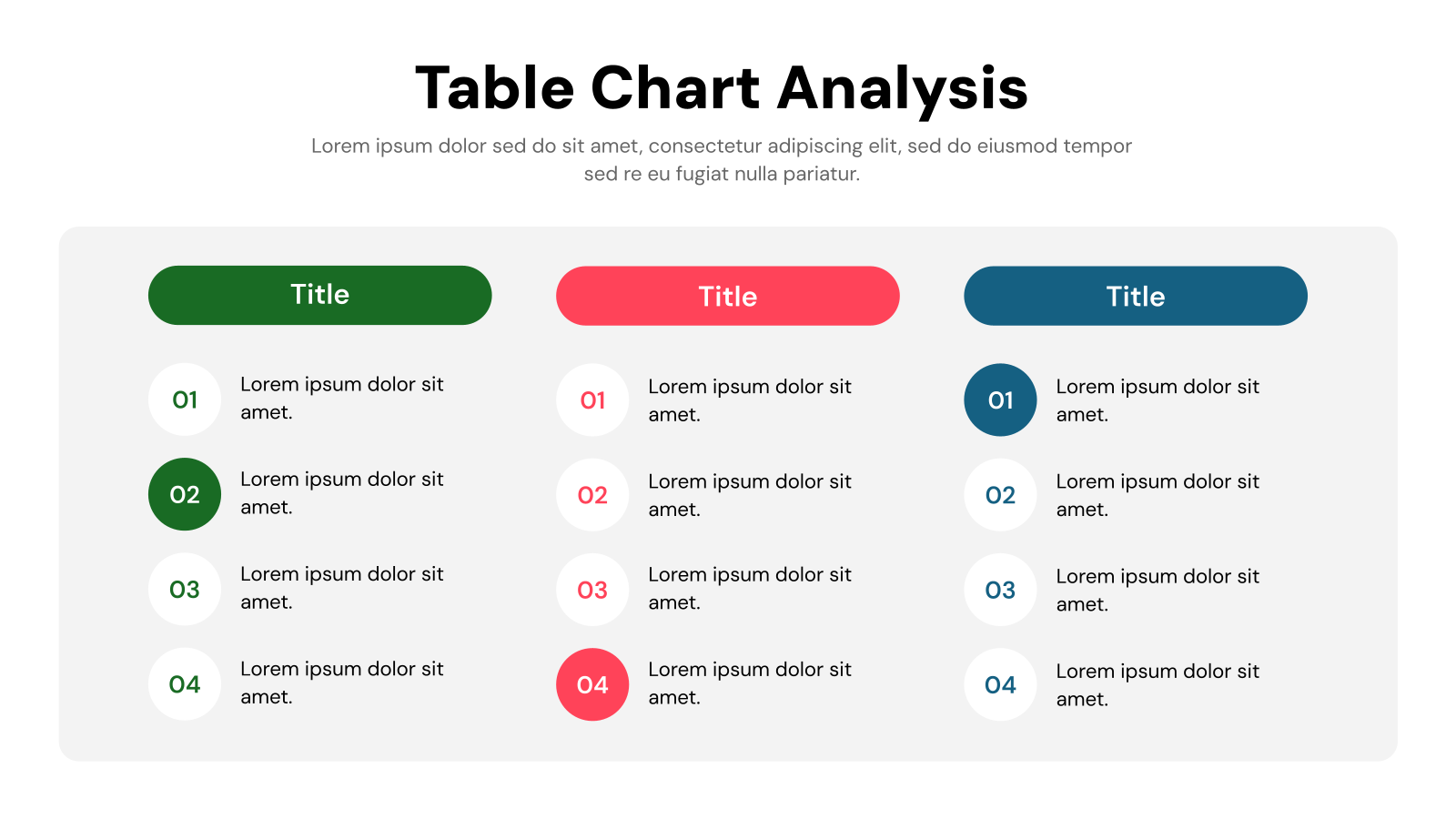
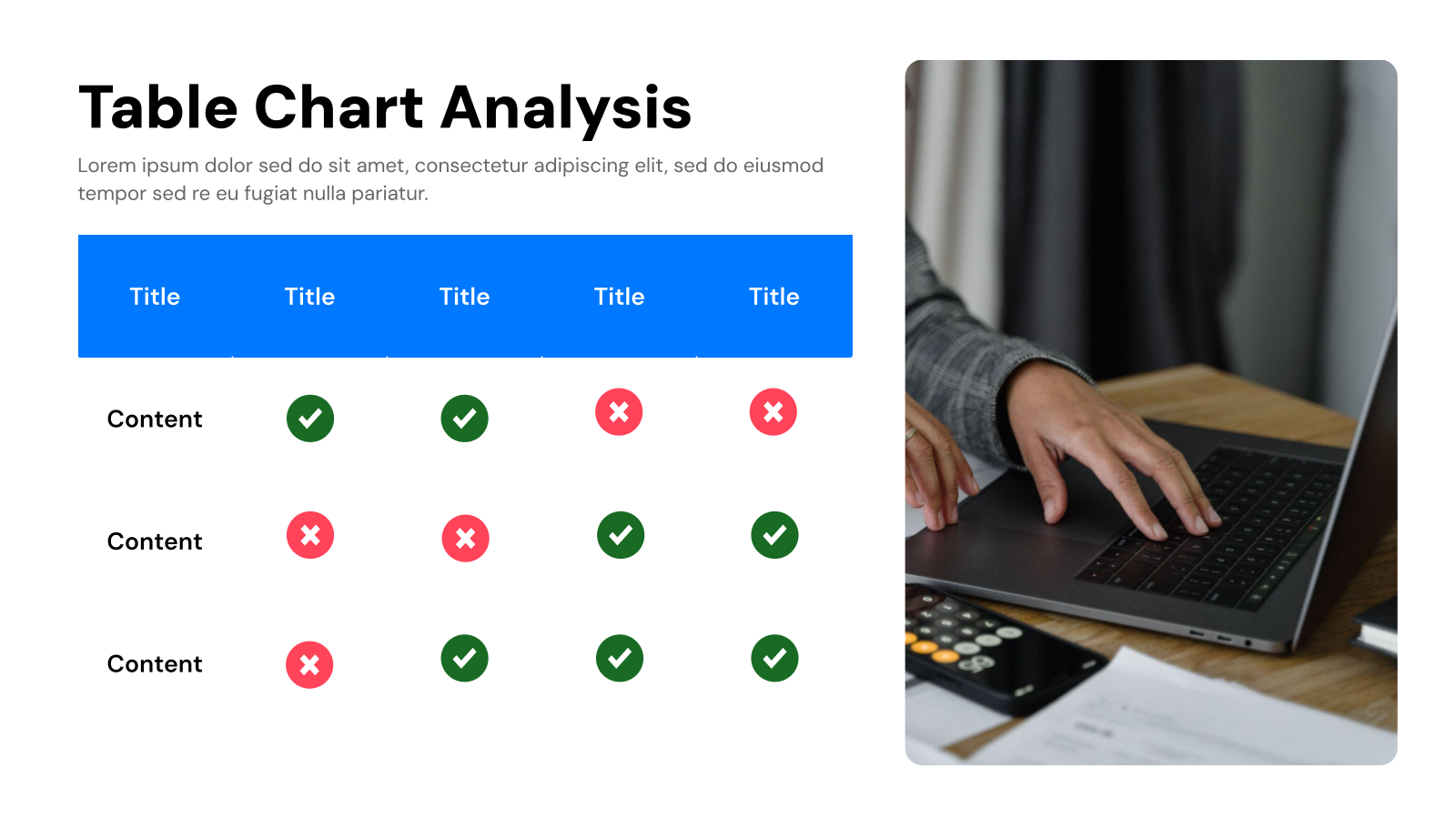
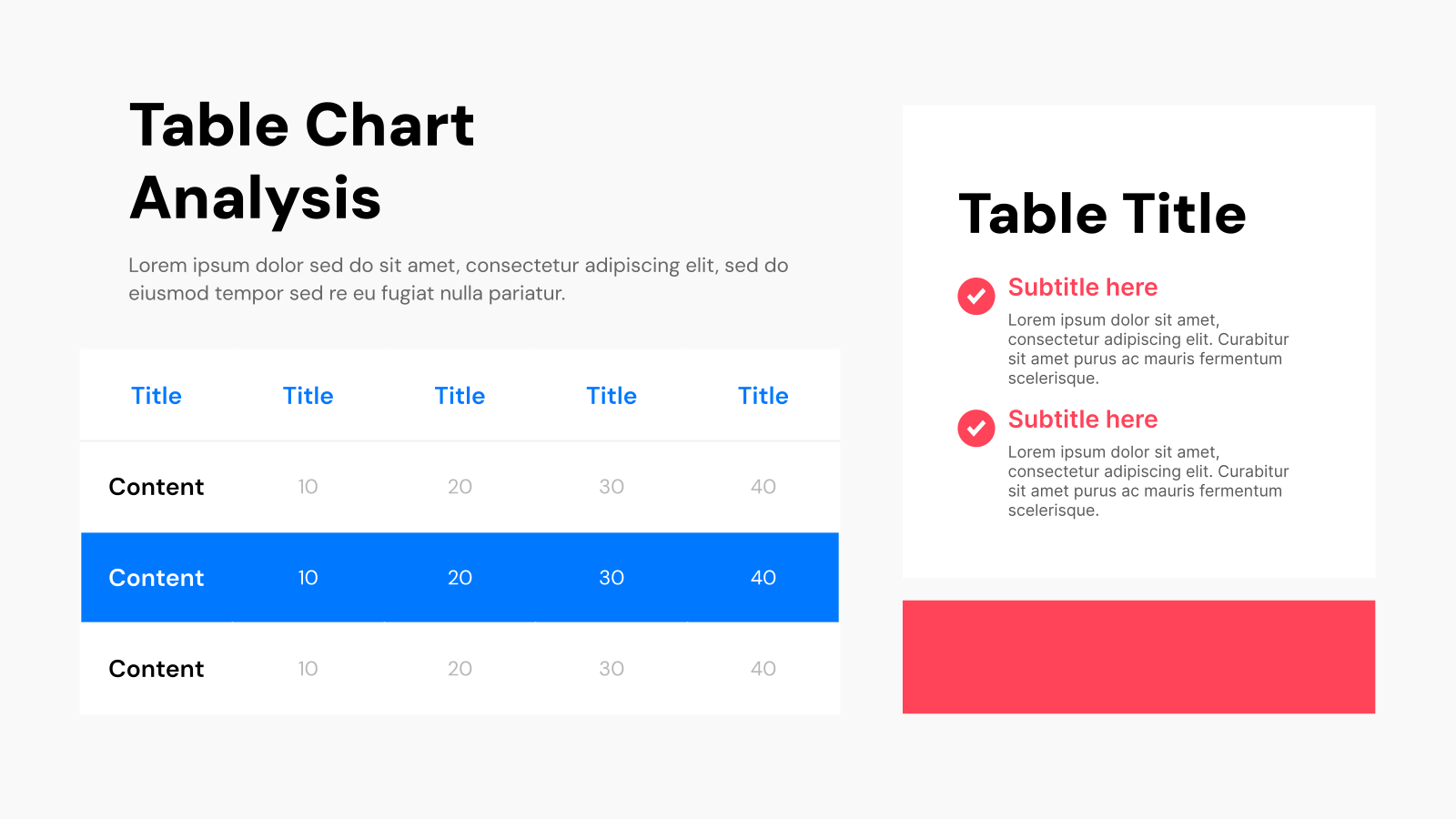
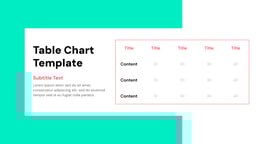
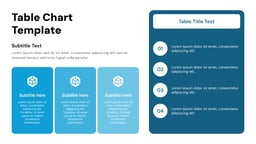
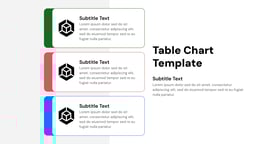
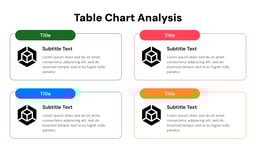
A Table Presentation Template is a ready-made slide design used to organize and display information in rows and columns. It helps present data like numbers, comparisons, or lists in a clear and structured format.
By using a table layout, it becomes easier to read, compare, and understand information quickly. This makes your presentation look clean, professional, and more organized.
Where Can You Use This Template?
- Data Presentation: Used to display information in rows and columns. It helps present data clearly and makes it easy to compare values.
- Business Reports: Helps present sales data, financial details, and performance metrics. It makes reports more structured and easy to understand.
- Educational Use: Used by teachers and students to organize information and explain concepts. It improves clarity in learning.
- Project Management: Useful for tracking tasks, deadlines, and progress. It helps teams stay organized and manage work efficiently.
- Comparison & Analysis: Helps compare products, services, or data points side by side. It makes decision-making easier.
Create Presentations Easily in Google Slides and PowerPoint
14M+Installs
 Install add-in
Why Choose Our Presentation Template?
- Faster Starts: Get going quicker with pre-made templates instead of building slides from scratch. This frees you up to focus on your content and ideas.
- Easy Customization: SlidesAI lets you customize their templates to fit your needs. Change layouts, fonts, colors, and text to match your brand or presentation style.
- AI Makes It Easy: Use the power of AI to quickly edit and style your slides based on what you give them. Just provide your outline or key points, and SlidesAI will build slides with layouts, fonts, and even images!
- Look Consistent: Keep your presentation looking polished with pre-set themes and color options already built into the templates.
- Professional Polish: SlidesAI’s templates help you create professional-looking presentations, even if you’re not a design expert.
How to Use Table Presentation Template?
- Microsoft PowerPoint: Click on Download > Click on “PowerPoint” > Click on the downloaded file to make a copy and start customizing/editing the template
- Google Slides: Click on Download > Click on “Google Slides” > Click on “Use Template” to make a copy and start customizing/editing the template
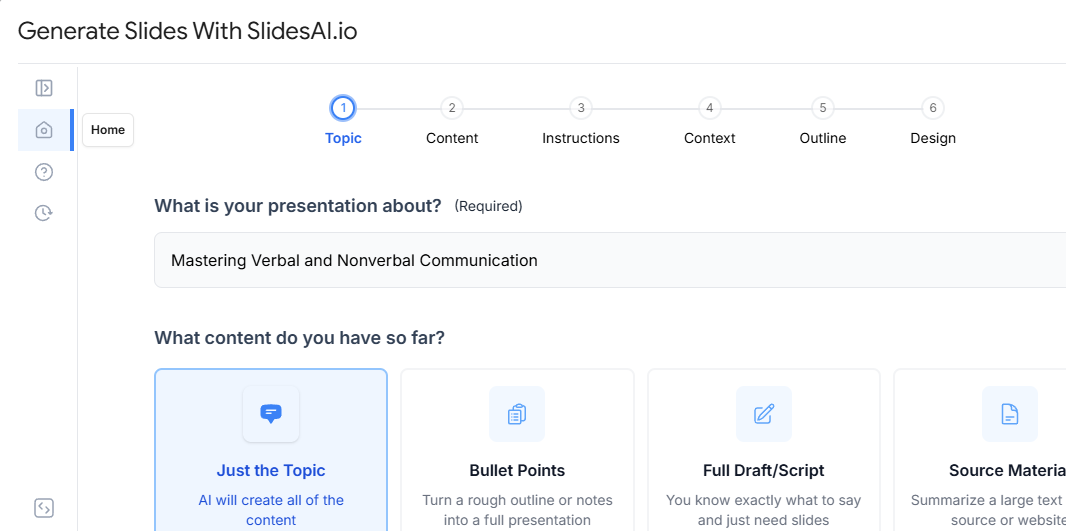
Build Stunning Slides in Seconds with AI
- No design skills required
- 3 presentations/month free
- Don't need to learn a new software
Frequently Asked Questions (FAQs)
-
How do I format a table in PowerPoint?
- Select the table you want to format.
- Go to the “Table Design” tab on the ribbon.
- You can choose from a pre-designed table style (optional).
- Further customize the table by fine-tuning borders, shading, or fonts (optional).
-
How do I move a table in PowerPoint?
- Click and hold anywhere on the table itself (not the resize handles).
- Drag the table to the desired location on your slide.
- For precise placement, use the alignment tools on the ribbon (optional).
Does this template work in Google Slides and PowerPoint?
Yes! This template is designed to be compatible with both Google Slides and PowerPoint. Simply download the template and choose the program you want to use it in.
Can I customize the template to fit my brand?
Absolutely! The template allows you to edit colors, fonts, and graphics to match your branding. You can even use the built-in “Slides AI” tool to further customize the template with text in seconds.
What file format is the template in?
The template is provided in .pptx format, which is compatible with PowerPoint and can be easily imported into Google Slides.
Do I need any special software to use the template?You’ll need either Microsoft PowerPoint or access to Google Slides, a free online presentation tool.