PowerPoint can already do a lot, but there are times when you need something more. Maybe you want to build a Gantt chart without spending an hour formatting it, add live polls to a presentation, create equations, or turn a basic deck into an eLearning course. That is where PowerPoint add-ins come in. In this blog, we will look at some of the best PowerPoint add-ins in 2026, what each one does, who it is best suited for, and how much it costs.
Best Add-ins for PowerPoint – At a Glance
| Add-in | What it’s really useful for | What you can do with it | Pricing |
|---|---|---|---|
| Power-user | Building business decks faster | Use ready-made slides, create agendas, clean up formatting, link Excel data and pull from a large content library | Paid |
| iSpring Suite | Turning slides into online courses | Add quizzes, narration, screen recordings and interactive content, then publish for an LMS | Paid |
| think-cell | Making complicated business data easier to present | Build waterfalls, Gantt charts, Mekko charts and other visuals while keeping them linked to Excel | Paid |
| Lucen Timeline | Showing projects, deadlines and plans visually | Create timelines, roadmaps and Gantt charts and update them from project data | Freemium |
| QR4Office | Putting useful links behind a QR code | Create QR codes for websites, email addresses, phone numbers, text and other information | Free |
| ToDo List Pro | Keeping track of unfinished presentation work | Add tasks and reminders without leaving PowerPoint or keeping a separate checklist | Free |
| Web Viewer 2.0 | Showing a website during a presentation | Load live webpages, dashboards and interactive online tools directly onto a slide | Paid |
| Poll Everywhere | Getting the audience involved | Run live polls, Q&A sessions, quizzes, word clouds and voting during your presentation | Freemium |
| SlidesAI | Getting a first draft of a presentation quickly | Turn notes, topics or documents into slides, rewrite content and generate visuals with AI | Freemium |
| Power BI Tiles | Bringing live business data into slides | Add Power BI reports to PowerPoint and refresh information without replacing screenshots | Paid |
| draw.io Diagrams | Creating technical and process diagrams | Build flowcharts, network diagrams, UML diagrams and other visuals | Free |
| Lucidchart | Building diagrams with a team | Create flowcharts, org charts and technical diagrams while collaborating with others | Freemium |
| Pexels | Finding free images for slides | Search photos and videos and add them to your presentation without leaving PowerPoint | Free |
| Adobe Stock | Finding polished, professional visuals | Search millions of photos, illustrations, videos and other creative assets | Paid |
| Pickit | Managing presentation visuals and brand assets | Find stock images and icons while keeping your company’s approved assets in one place | Freemium |
| The Noun Project | Finding icons that actually match slides | Search millions of icons and add them to slides in different styles and formats | Freemium |
| Mentimeter | Making presentations more interactive | Add polls, quizzes, Q&A, surveys and word clouds for live audience responses | Freemium |
| Pro Word Cloud | Turning text into a visual | Create word clouds from slide content and adjust their appearance | Free |
| MathType | Writing equations without fighting PowerPoint | Add mathematical formulas, scientific notation, matrices and chemistry symbols | Freemium |
| PPT Productivity | Cutting down repetitive PowerPoint work | Speed up formatting, slide management, alignment, tables, hyperlinks and other everyday tasks | Paid |
Content Creation & Specialized Tools
1. iSpring Suite
If you already use PowerPoint to create training material, iSpring Suite can save you from learning an entirely different eLearning authoring tool. You can continue building your slides as usual and then use iSpring to turn them into proper online courses.
The add-in supports everything from quizzes and narration to screen recording and interactive activities. Once your course is ready, you can publish it in formats such as SCORM, xAPI, AICC, cmi5 and HTML5 and upload it to an LMS.
It is particularly useful for organisations that already have years of training content sitting in PowerPoint files.
Features:
- Converts PowerPoint presentations into HTML5, SCORM 1.2/2004, AICC, xAPI and cmi5.
- Includes 14 interactive question types, including drag-and-drop, hotspots and branching scenarios.
- Built-in video studio for narration, screen recording and role-play simulations.
- Creates eBooks from Word, PowerPoint and PDF files.
- Compatible with more than 150 LMS platforms.
- Cloud storage for sharing and reviewing courses.
- 24/7 technical support on higher-tier plans.
Best for: Corporate L&D teams, trainers, instructional designers and educators who need to turn PowerPoint decks into trackable online courses.
Rating: 4.6/5
Price:
- iSpring Presenter starts at $570/year per author.
- iSpring Suite AI costs $1,290/year per author.
- Both have a 14-day free trial.
2. Lucen (Formerly known as office timeline)
You may still know this one as Office Timeline. The product has been renamed Lucen Timeline, but the basic idea remains the same. It is made for creating timelines, Gantt charts and project roadmaps directly in PowerPoint.
This is especially useful when your source data is sitting in Excel, Jira or another project management system and you need to turn it into a slide that an executive can understand quickly.
Features:
- Creates timelines, Gantt charts, roadmaps and milestone views directly in PowerPoint.
- Imports and refreshes information from Excel, MS Project, Smartsheet and Jira.
- Supports swimlanes, sub-swimlanes, dependencies and critical paths.
- Includes pre-designed themes and branded templates.
- Planned-versus-actual tracking and progress bars on higher plans.
- Browser-based Timeline Online version is available for Mac users.
Best for: Project managers, consultants and teams that regularly turn project data into presentation-ready visuals.
Rating: 4.6/5
Price:
- Free plan available with limited features.
- Lite: less than $9/user/month when billed annually.
- Plus: less than $17/user/month.
- Expert: less than $21/user/month.
- Paid plans come with a 30-day money-back guarantee.
3. SlidesAI
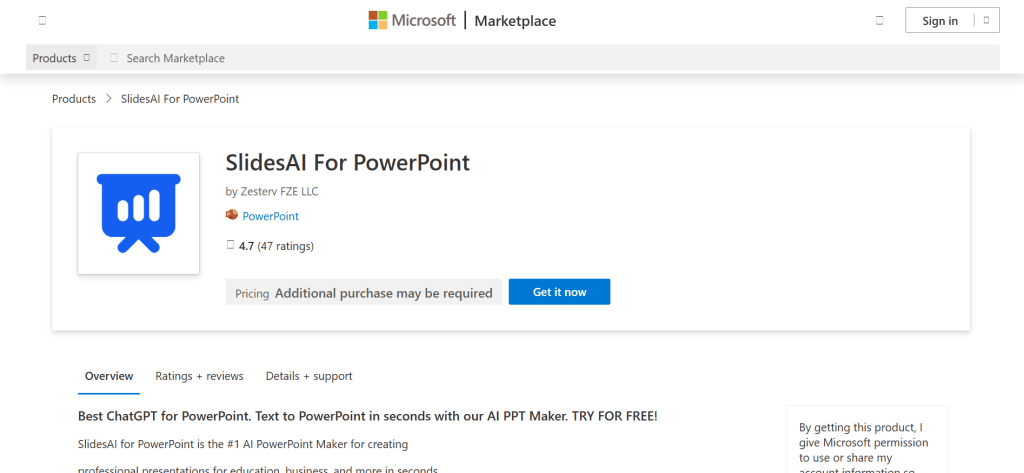
SlidesAI takes care of one of the most annoying parts of presentation work: staring at a blank slide and wondering where to begin.
You can give it a topic, notes, script, PDF, Word document or other source material, and it can turn that information into a structured presentation. It also works with your existing Slide Master, so you do not necessarily have to throw your company’s branding out of the window.
It works inside PowerPoint and Google Slides and supports more than 100 languages.
Features:
- Generates complete presentations from topics, notes, scripts and uploaded documents.
- Works with existing Slide Masters and placeholders.
- Rewrites, shortens, expands and translates slide content.
- Supports more than 100 languages.
- Generates images from text prompts.
- Includes built-in stock image search.
- Can remix existing slides and generate continuation slides.
- Does not require a Microsoft 365 Copilot licence.
Best for: Professionals, teachers and students who want to create a structured first draft quickly.
Rating: 4.4/5
Price:
- Basic: Free.
- Pro: $10/month when billed annually.
- Premium: $20.83/month when billed annually.
- Monthly billing is also available.
4. MathType
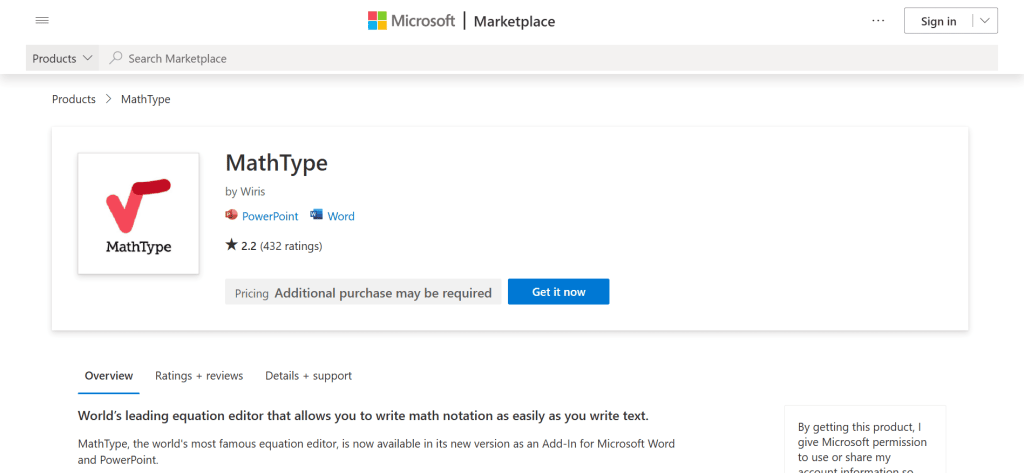
PowerPoint’s built-in equation editor is fine for occasional use. If you regularly create mathematical or scientific presentations, though, you will probably want something more specialised.
MathType adds a dedicated equation editor with hundreds of symbols, LaTeX support, matrices and multiline equations. There is also ChemType for chemistry notation, which makes it useful beyond ordinary maths presentations.
Features:
- Dedicated equation editor with 500+ mathematical and scientific symbols.
- Supports matrices and multiline equations.
- LaTeX and TeX input.
- ChemType toolbar for chemical notation.
- Built-in periodic table for chemistry work.
- Handwriting recognition for converting handwritten equations into editable formulas.
- Works across PowerPoint, Word, Google Docs, Google Slides and WPS Office.
- Supports Windows, Mac and web-based Office.
Best for: Teachers, students, researchers and technical writers.
Rating: 4.7/5
Price:
- Professional Office Tools plan: $66.50/user/year.
- Covers PowerPoint, Word, Google Docs/Slides and WPS Office.
- 30-day free trial available.
Productivity and Workflow
5. Power-user
Power-user is the sort of add-in that makes sense once PowerPoint becomes a major part of your job. It is aimed heavily at consulting, finance and corporate users who create a large number of presentations and need to work quickly.
Instead of installing separate tools for templates, charts, icons and formatting, Power-user puts a lot of them together.
Features:
- More than 1,000 slide templates.
- More than 10,000 icons and flags.
- 350 editable maps.
- More than 100 advanced chart types, including Mekko, Gantt, Sankey, Waterfall and Tornado charts.
- Excel-to-PowerPoint links for automatically updating charts, tables and text.
- Cleaner tool that identifies and fixes font and colour inconsistencies.
- AI Assistant for translation, rewriting, tone adjustment and grammar.
- Corporate template and brand management.
- Tombstones module for consulting-style business development slides.
Best for: Consultants, bankers and corporate teams producing lots of client-facing presentations.
Rating: 4.7/5
Price:
- €240/user/year.
- Free academic version for students and teachers.
- Custom team and enterprise pricing available.
6. PPT Productivity
PPT Productivity is designed for people who spend a ridiculous amount of time inside PowerPoint. It adds more than 200 functions to the PowerPoint ribbon, covering everything from formatting and alignment to slide libraries and chart tools.
The appeal is less about making presentations prettier and more about cutting down the number of repetitive things you have to do.
Features:
- 200+ ribbon functions.
- Formatting and shape-alignment tools.
- Personal and corporate slide and shape libraries.
- Full-text search across saved assets.
- Custom keyboard shortcuts.
- Preset McKinsey-style shortcuts.
- Proofing tools for fonts, spacing and alignment.
- Chart Painter for one-click chart formatting.
- Table formatting tools.
- Excel-to-PowerPoint pasting without losing formatting.
Best for: Heavy PowerPoint users, consultants and people who want faster formatting workflows.
Rating: 4.9/5
Price:
- Basic: $59/seat/year.
- Plus: $119/seat/year.
- Power Tools: $179/seat/year.
- 30-day free trial.
- Custom pricing for teams of 20+ seats.
7. ToDo List Pro
ToDo List Pro is much simpler than some of the other tools on this list, and that is actually the point.
It adds a small task list inside PowerPoint so you can keep track of things that still need to be fixed in your deck. The list saves with the document, meaning you can close the presentation and come back to the same list later.
Features:
- Sidebar to-do list inside PowerPoint.
- Automatically saves with the presentation.
- Lets you add reminders and tasks.
- Works with PowerPoint and Excel.
- Available on Windows and Mac.
Best for: Anyone working on long presentations over several sessions.
Rating: 3.2/5
Price: Free.
8. QR4Office
QR4Office is another small tool that does one job well. It lets you generate a QR code without leaving PowerPoint.
This can be useful when you want people to scan a link to a website, registration form, survey, contact page or other resource during a presentation.
Features:
- Creates QR codes for URLs.
- Supports phone numbers, SMS, email and geo-location.
- Can encode custom text.
- Offers different code categories and formats.
- Lets you customise foreground and background colours.
- Includes adjustable error-correction levels.
- Adds the QR code directly to the presentation as an image.
Best for: Presenters who want to add scannable links to their slides.
Rating: 4.1/5
Price: Free.
Audience Engagement and Interactivity
9. Poll Everywhere
If you have ever given a presentation where everyone sits quietly while you talk for 45 minutes, you already understand the problem Poll Everywhere is trying to solve.
The add-in brings live audience interaction into PowerPoint. You can ask questions, run polls, create word clouds or even hold competitions while people respond from their phones.
Features:
- Bar charts and donut charts for live polling.
- Word clouds.
- Competitions and leaderboards.
- Likert-scale questions.
- Q&A.
- Radar charts.
- Real-time response visualisation.
- Attendance management on higher plans.
- Reporting and archived results.
- Custom branding on Teams plans.
- Native PowerPoint integration.
Best for: Corporate trainers, lecturers, event speakers and workshop leaders.
Rating: 4.5/5
Price:
- Intro: Free, with a 40-person audience limit.
- Present: $10/month or $120/year.
- Engage: $49/month or $588/year.
- Teams: $84/month or $999/year.
- Enterprise pricing is custom.
10. Mentimeter
Mentimeter is another familiar name in the interactive presentation space. It covers many of the same use cases as Poll Everywhere, but its presentation style is particularly popular for classrooms, workshops and sessions where visual audience responses matter.
You can create a question, put it into your presentation and let the audience respond from their devices.
Features:
- Live polls.
- Multiple-choice quizzes.
- Word clouds.
- Open-ended Q&A.
- PowerPoint integration.
- Excel data export on paid plans.
- Slide import on paid plans.
- Larger audience limits on paid plans.
- Custom branding and themes.
- Attendance and reporting features.
Best for: Educators, trainers and presenters who want interactive sessions without making things too complicated.
Rating: 4.4/5
Price:
- Free plan available.
- Basic starts at roughly $14 to $18/month.
- Pro is roughly $25 to $28/month.
- Enterprise pricing is custom.
- Education discounts are available.
11. Web Viewer 2.0
Sometimes you need a website in your presentation. Maybe it is a live dashboard, an AI tool, an online calculator or a web application you want to demonstrate.
Web Viewer 2.0 lets you load an HTTPS webpage directly into a PowerPoint slide, so you do not have to keep jumping between PowerPoint and your browser.
Features:
- Loads live HTTPS websites inside PowerPoint.
- Built-in back and forward navigation.
- URL loading controls.
- Saves the URL and zoom level with the presentation.
- Works with PowerPoint and Excel.
- Does not upload or store your presentation content on external servers.
Best for: Presenters who need to demonstrate live websites or web applications.
Rating: 4.0/5
Price:
- 24-hour free trial.
- Subscription required afterwards with custom pricing shown directly in the app.
12. Pro Word Cloud
Pro Word Cloud is useful when you have a lot of text and want to turn it into something more visual.
Paste in some text or select text from your presentation and the add-in can turn it into a word cloud. You can then resize and move the result like any other image on your slide.
Features:
- Converts presentation text into word clouds.
- Custom font options.
- Colour and sizing controls.
- Word case customisation.
- Runs inside the PowerPoint side pane.
- Word clouds can be resized and repositioned.
Best for: Teachers, trainers and presenters working with surveys, brainstorming or audience feedback.
Rating: 3.9/5
Price: Free.
Data Visualization and Diagrams
13. think-cell
think-cell has been a familiar name in consulting and corporate presentation work for years, particularly when charts need to look polished without taking half an afternoon to build.
It supports more than 40 chart types and connects closely with Excel, so updating the source data does not necessarily mean rebuilding your chart.
Features:
- 40+ chart types.
- Waterfall, Mekko, Gantt, combination, scatter and bubble charts.
- Automatic CAGR arrows.
- Difference arrows and value lines.
- Deep Excel integration.
- Configurable data update rules.
- 250+ business slide templates.
- Agenda and style-file automation.
- think-cell Assist AI for chart creation, analysis and translation.
Best for: Management consultants, investment bankers and corporate strategy teams.
Rating: 4.6/5
Price:
- think-cell Suite starts at around $28.60/user/month when billed annually.
- think-cell Assist AI is an additional paid add-on.
- Free academic licences are available for eligible students and professors.
- Startup discounts are available.
14. Power BI Tiles
Power BI Tiles is aimed at a very specific problem. You have a Power BI dashboard, you take a screenshot, paste it into PowerPoint, and then realise a few days later that the numbers are outdated.
The add-in lets you embed Power BI visuals into your presentation and refresh them instead.
Features:
- Embeds Power BI and Microsoft Fabric reports into PowerPoint.
- One-click refresh for embedded visuals.
- Preserves formatting and themes during updates.
- Lets you filter Power BI data from within PowerPoint.
- Online version supports interactive reports during Slide Show mode.
- Supports drilldowns and tooltips.
- Desktop version can display embedded visuals without requiring viewers to have a Power BI licence.
- Supports row-level security.
Best for: Finance, sales and operations teams that create recurring reporting decks.
Rating: 4.5/5
Price:
- Single-user licence: $124.99/year.
- 5-user licence: $499.49/year.
- 20-user licence: $1,249.49/year.
- Discounts available for NGOs and educational institutions.
15. draw.io Diagrams
If you need professional diagrams but do not want another expensive subscription, draw.io is hard to ignore.
The tool supports flowcharts, UML diagrams, network diagrams, organisational charts and other technical visuals. It is also open source, which gives it some appeal for organisations that care about data privacy and software costs.
Features:
- Flowcharts and process maps.
- Network diagrams.
- Organisational charts.
- UML diagrams.
- Real-time collaboration.
- Integrations with Google Drive, Microsoft SharePoint, OneDrive, Teams, Confluence, Jira and GitHub.
- Open-source Apache 2.0 licence.
- Export to SVG, PNG and PDF.
- Editable diagrams can be embedded into documents and wikis.
- No artificial feature restrictions behind an enterprise-only tier.
Best for: Technical teams, educators and anyone looking for professional diagramming without a subscription.
Rating: 4.7/5
Price: Free.
16. Lucidchart
Lucidchart is a more polished, collaboration-focused alternative to basic diagramming tools. It works well for teams where diagrams are part of a larger workflow and need to be shared, commented on and connected to other business tools.
It also makes sense if your organisation already uses platforms such as Jira, Confluence, Slack or Microsoft Teams.
Features:
- Flowcharts.
- Organisational charts.
- Entity relationship diagrams.
- Network diagrams.
- Wireframes.
- Large shape and template library.
- Data linking from CSV, Google Sheets and databases.
- Real-time collaboration.
- Comments and shared editing.
- Jira, Confluence, Microsoft Teams and Slack integrations.
- Visio import and export.
- SSO, SAML and admin controls on Enterprise.
Best for: Cross-functional teams and businesses that need collaborative diagramming.
Rating: 4.5/5
Price:
- Free plan available.
- Individual plans start around $7.95 to $9/month when billed annually.
- Team plans start around $9 to $10/user/month.
- Enterprise pricing is custom.
Visual Assets and Design
17. Pexels
Finding good images for presentations can be surprisingly time-consuming. Pexels makes the process easier by putting its stock photo and video library inside PowerPoint.
You can search for an image from the add-in and insert it directly into your slide instead of downloading files from the website first.
Features:
- Access to free stock photos and videos.
- High-resolution images.
- Search by keyword, category or colour.
- No attribution requirement.
- Suitable for personal, educational and commercial use under the applicable Pexels licence.
- Direct insertion into PowerPoint.
- Works alongside PowerPoint’s own design tools.
Best for: Anyone who needs good-quality stock imagery without paying for every image.
Rating: 4.6/5
Price: Free.
18. Adobe Stock
Adobe Stock is the more premium option when free image libraries do not quite have what you need. Its library covers photographs, illustrations, vectors, videos, templates and 3D assets.
You can preview assets inside PowerPoint before licensing them, which is handy when you are still deciding what fits the presentation.
Features:
- 200+ million standard and premium assets.
- Photos, illustrations, vectors, templates and 3D content.
- Video assets.
- Watermarked previews before licensing.
- Search and preview directly from PowerPoint.
- Adobe Stock AI Studio options on eligible plans.
- Works with Windows, Mac and web-based PowerPoint.
- Team plans offer pooled licensing and central administration.
Best for: Marketing, sales and brand teams that need polished commercial visuals.
Rating: 4.3/5
Price:
- Add-in is free to install and preview.
- 10 assets/month: $29.99/month.
- 10 assets + AI Studio: $39.99/month.
- 40 assets/month: $89.99/month.
- Unlimited standard assets: $129.99/month.
- Team plans are also available.
19. Pickit
Pickit combines stock imagery with company asset management. That makes it more interesting for businesses than a standard stock image add-in.
You can search its library for images and icons while also keeping approved company logos, photographs, templates and other brand assets in the same PowerPoint environment.
Features:
- More than 1 million royalty-free photos, icons and clipart.
- Company logos and branded assets can be added to the library.
- Supports PowerPoint, Word, Teams and web applications.
- Works alongside PowerPoint Designer.
- Centralised asset management.
- Licence tracking and brand controls on higher plans.
Best for: Marketing and corporate teams that need both stock visuals and approved brand assets.
Rating: 4.3/5
Price:
- Free tier available.
- Paid individual plans start at around $1.99/month.
- Business and Enterprise pricing depends on the organisation’s requirements.
20. The Noun Project
Icons are an easy way to break up a slide full of text, but finding icons that actually look like they belong together can be difficult. The Noun Project gives you a huge library to search through directly inside PowerPoint.
The free option works with attribution, while Pro removes that requirement and gives you access to editable SVG files.
Features:
- Millions of icons and symbols.
- Search directly from the PowerPoint sidebar.
- Free PNG downloads with attribution.
- Pro includes attribution-free SVG downloads.
- SVG icons can be converted into editable PowerPoint shapes.
- Individual parts of icons can be recoloured and adjusted.
- Consistent icon styles make it easier to maintain a coherent visual look.
- Also available for tools such as Google Slides, Word and Adobe applications.
Best for: Anyone who wants clean, consistent icons for presentations.
Rating: 4.4/5
Price:
- Free with attribution.
- Pro: $39.99/year.
- Education plan: $19.99/year.
- Team and Enterprise plans are custom-priced.
Closing Thoughts
The best PowerPoint add-in really depends on what you spend your time doing. If you build business decks all day, Power-user, PPT Productivity and think-cell are worth looking at. For training and eLearning, iSpring Suite makes more sense. If you want AI to handle some of the initial slide creation, SlidesAI is a useful option. And for smaller jobs such as adding QR codes, diagrams, polls or free images, there are several add-ins that cost nothing to try. The best thing is that you do not have to completely change the way you work with PowerPoint. You can simply add the tools that solve the problems you run into most often.
Take Your PowerPoint From Basic to Professional With SlidesAI
- Improve your slide content with AI
- Create polished layouts faster
- Work directly inside PowerPoint

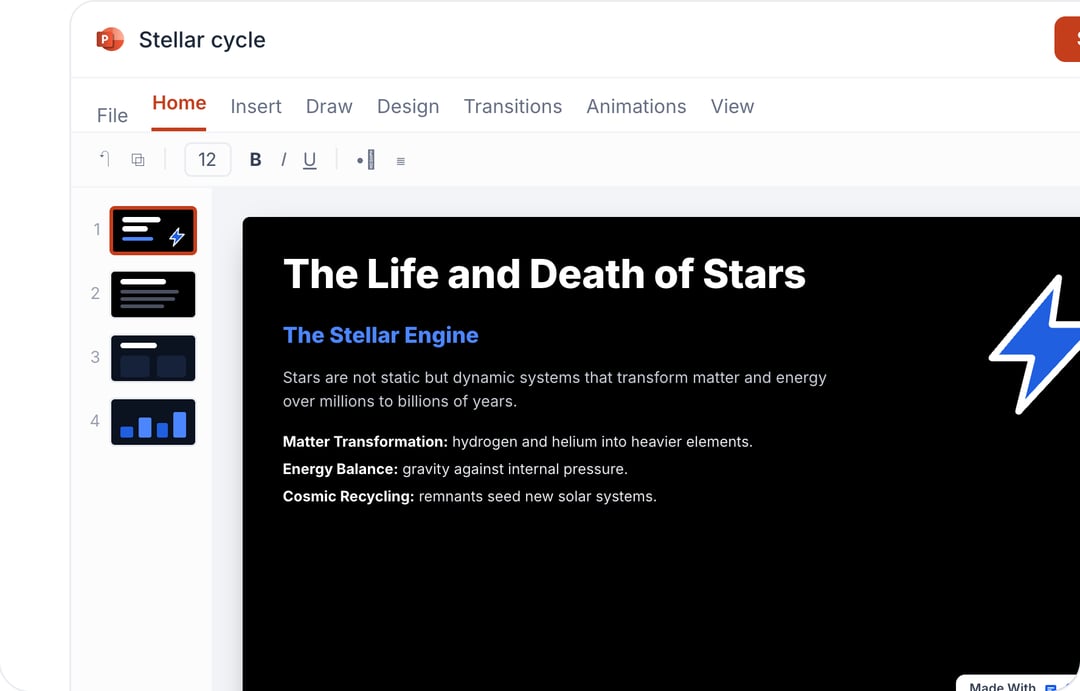
PowerPoint is already one of the most powerful presentation tools out there, but the right add-ins can take it to a whole new level. Whether you want to save time, elevate your design, or add interactive elements, there’s an add-in built for exactly that. This guide covers the best options to help your slides truly stand out.
- 12 Best Google Slides Add-Ons for Your Presentations in 2026
- Best Google Slides Add-Ons for Teachers
- Top ChatGPT Plugins for Presentations: Create Professional Slides in Minutes
- 15 Best ChatGPT Plugins for Students
- 15 Best ChatGPT Plugins for Teachers
Frequently Asked Questions About PowerPoint Add-ins
1. Are all PowerPoint add-ins free to use?
While some PowerPoint add-ins are available for free, some have membership plans or premium editions. You can test before you commit because many offer free trials.
2. How can I set up an add-in for PowerPoint?
Locate the desired add-in by browsing or searching under Home > Add-ins. To install it, click “Add” and follow the instructions.
3. Are PowerPoint add-ins compatible with Macs?
Yes, the majority of contemporary add-ins work with both Mac and Windows versions of PowerPoint. Prior to installation, make sure it is compatible.
4. Do add-ins for PowerPoint function offline?
While some add-ins operate offline, others, particularly AI or cloud-based tools, need internet access to operate. Always review the prerequisites on the add-in page.
5. Are PowerPoint add-ins safe to use?
In general, Microsoft Office Store add-ins are secure. Before installing, check user reviews and steer clear of downloading from unreliable sites.
6. Is it possible to remove a PowerPoint add-in?
Indeed. Click the three dots next to the add-in under Home > Add-ins, then choose “Remove.”
7. Where can I find the best PowerPoint add-ins?
The official Microsoft AppSource is the greatest source for safe and dependable PowerPoint add-ins. For suggestions in a particular niche, you can also look through carefully curated blog lists.