
Converting a Canva presentation to Google Slides is straightforward, but keeping your fonts, images, and layout intact during the transfer is where most people run into trouble. The good news: with the right export method, you can move your slides across platforms with minimal reformatting needed.
The fastest and most reliable approach is to export your Canva design as a PowerPoint (.PPTX) file, upload it to Google Drive, and open it directly in Google Slides — which automatically converts the file while preserving the majority of your text, images, and layout structure.
This guide covers three methods to convert Canva to Google Slides, a quick comparison so you can choose the right one for your situation, and the most effective tips to prevent formatting loss — including the specific fonts and design settings to apply in Canva before you export.
Which Method Should You Use? Quick Comparison
Not sure which method is right for your situation? Here is a quick overview before diving into the step-by-step instructions:
| Method | Best for | Formatting preserved? | Slides editable? | Time required |
|---|---|---|---|---|
| Method 1 — Google Drive | Quick transfer with editing access | Mostly — minor font adjustments may be needed | Yes — fully editable | 2–3 minutes |
| Method 2 — Download as Images | Pixel-perfect design preservation | 100% visually preserved | No — slides are locked as images | 5–10 minutes |
| Method 3 — Export as PPTX | Best overall balance of quality + flexibility | Good — best option for complex layouts | Yes — fully editable | 3–5 minutes |
Our recommendation: Use Method 3 (PPTX export) if you need to edit the slides in Google Slides after converting. Use Method 2 (image export) if design accuracy is more important than editability.
3 Ways to Convert Canva to Google Slides (With Formatting Preserved)
Presentations are frequently created in Canva, but in order to share, collaborate, or present them more easily, they must be transferred to Google Slides. Thankfully, it’s easy to convert a Canva presentation to Google Slides.
Here are three easy ways to move your slides while maintaining the majority of the formatting.
Method 1: Using Google Drive
Google Drive lets you easily export your Canva presentation to Google Slides. This approach keeps your design intact while enabling quick editing and sharing directly within your Google Drive workspace.
Here are the simple steps to be followed:

- Go to your Canva presentation design.
- Click on Share, find Google Drive, and click on it. Then connect your Google Drive account to Canva.
- Choose the folder where you want to save your presentation, and select PPTX as the file type.
- Next, open Google Drive and navigate to the folder where your presentation was saved. Open the file.
- In Google Slides, go to the File menu and select Save as Google Slides.
- You may need to fix the fonts and images, if required.
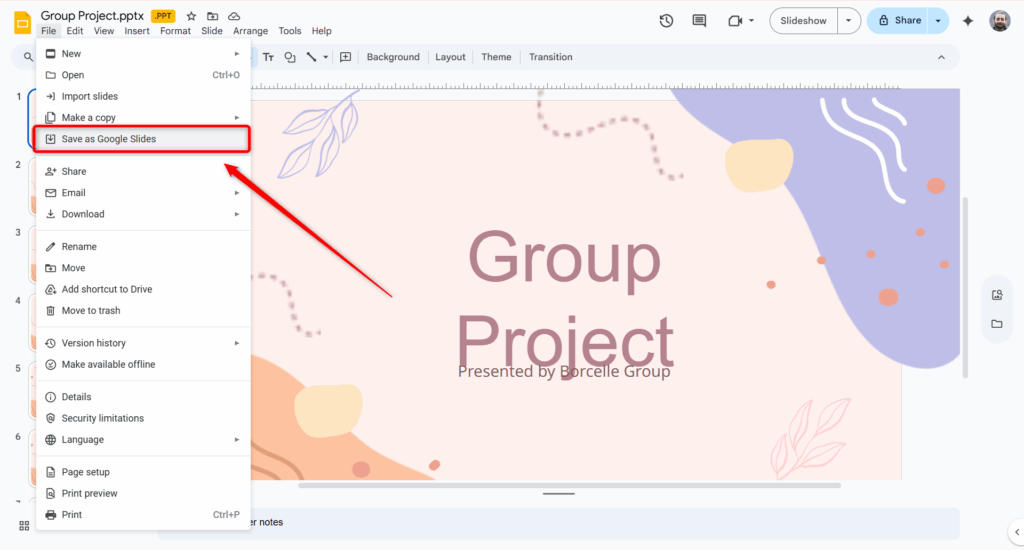
You have now successfully converted your Canva presentation into a Google Slides file via Google Drive.
Also Read – How to Export Google Slides to Canva?
Method 2: Downloading Individual Slides as Images
You can download slides from Canva as image files and then insert them into Google Slides. This method helps preserve the exact design of each slide, though the slides will appear as images and won’t be directly editable.
Here are the simple steps to be followed:
1. Locate Your Canva Presentation: Start by opening the Canva presentation you want to convert in your Canva account.
2. Save Each Slide as an Image: Click the “Download” button in the top right corner of the editor. You’ll be presented with various file format options. For this method, choose either PNG or JPEG, which are both high-quality image formats that work well for presentations.

3. Open Google Slides: Head over to your web browser and launch Google Slides. Sign in to your Google account if needed.
4. Create a New Presentation (or Open Existing): If you’re starting fresh, click on “New Presentation” to create a blank canvas. If you have an existing presentation where you want to incorporate the Canva slides, simply open that presentation.
5. Import Downloaded Images: Now it’s time to bring your Canva slides into Google Slides. Click on “Insert” in the top menu bar, then select “Image.” This will open a window where you can browse your computer and locate the downloaded Canva slides (PNG or JPEG files) you saved earlier. Select each image one by one and click “Open” to import them into your Google Slides presentation.

6. Adjust Layouts and Add Elements: With your Canva slides now in Google Slides, you might need to adjust the layouts a bit to fit your needs. Use the tools in Google Slides to resize and reposition the images as needed. You can also add text boxes, shapes, and other elements to further customize your presentation.
Also Read: How To Convert PowerPoint to Google Slides
Method 3: Exporting as PowerPoint (PPTX) and Importing into Google Slides
Download your Canva design as a PowerPoint file and then upload that PPTX into Google Slides, so you can keep most of your original layout while editing natively in Google’s interface.
Here are the simple steps to be followed:
1. Open Your Canva Presentation: Just like in Method 1, begin by opening the Canva presentation you want to convert.
2. Download as PowerPoint (PPTX): Click the “Download” button in the top right corner of the editor again. This time, instead of choosing an image format, select “Microsoft PowerPoint (PPTX).” This will save your entire Canva presentation as a single PPTX file.

3. Open Google Slides: Launch Google Slides in your web browser, sign in if prompted.
4. Import the PPTX File: Click on “File” in the top menu bar, then select “Import Slides.” In the following window, choose “Upload” and browse your computer to locate the downloaded PPTX file (your converted Canva presentation). Click “Open” to import it into Google Slides.

5. Review and Edit: While Google Slides does a good job of converting PPTX files, it’s always a good idea to review the presentation for any formatting or layout issues. Use the tools in Google Slides to make any necessary adjustments.
Remember: Both methods have their advantages. Downloading individual slides as images offers more control over each slide’s layout while exporting as PPTX is a quicker option for converting your entire presentation at once. Choose the method that best suits your needs.
Also Read – How to Convert Canva to PowerPoint?
How to Convert Canva to Google Slides Without Losing Formatting — 6 Proven Tips
Although it’s usually simple to convert designs from Canva to Google Slides, some formatting components might change. These useful suggestions can help you maintain a polished and consistent presentation.
- Make Use of Standard Fonts: Google Slides might not have the custom fonts that Canva offers. Before exporting your design, use widely supported fonts like Arial, Roboto, or Open Sans to prevent font replacement problems.
- Export to a PPTX file: Use Canva to export the presentation as a PowerPoint (PPTX) file rather than downloading the slides as pictures or PDFs. Google Slides maintains the majority of formatting elements and has good support for PPTX imports.
- Examine Effects and Animations: Certain visual effects, animations, and transitions in Canva might not transfer flawlessly. Quickly review the slides and reapply animations if necessary after importing the file into Google Slides.
- Maintain Simple Layouts: Grouped graphics or intricately layered elements can occasionally move. Maintaining the design structure during conversion is made easier by using clear layouts with correctly aligned elements.
- Check the placement of the image and icon: Shapes, icons, and images may occasionally move a little. Scan each slide after uploading it to Google Slides and make any necessary adjustments to alignment or spacing.
- Preview the presentation:Preview the full presentation whenever you open the imported file in Google Slides. This last check guarantees that the text, spacing, and images look exactly as they should.
You can also create Google Slides using an AI Google Slides generator to build and refine your presentation.
Common Canva to Google Slides Problems — and How to Fix Them
Even with the best export method, a few issues come up consistently when converting Canva presentations to Google Slides. Here is how to resolve the most common ones quickly.
My fonts changed after converting
This is the most common issue. Canva offers custom and branded fonts that Google Slides does not support. When Google Slides encounters an unsupported font, it substitutes the nearest available font — which can alter your layout significantly.
Fix: Before exporting from Canva, switch all text to Google-compatible fonts such as Arial, Roboto, Open Sans, Lato, or Montserrat. These fonts are available in both platforms and will carry across the conversion without substitution.
My images or icons moved out of position
Grouped elements, overlapping layers, and PNG icons with transparent backgrounds occasionally shift position during the PPTX conversion process.
Fix: After importing into Google Slides, click on each slide and check image alignment using the Arrange menu. Use View > Guides to re-align elements to your original grid. For complex slides, consider Method 2 (image export) to lock the visual layout completely.
My animations and transitions did not transfer
Canva animations use a proprietary system that does not translate to PowerPoint or Google Slides formats. This affects all three conversion methods.
Fix: Rebuild animations natively in Google Slides after converting. Google Slides offers a full range of entrance, exit, and motion path animations under Insert > Animation. The process takes 5–10 minutes for a typical presentation and gives you full control over timing and sequencing.
My slide background colours look different
Canva uses its own colour rendering system. Solid background colours usually transfer accurately, but gradient backgrounds and pattern fills occasionally shift tone after conversion.
Fix: After importing, go to Slide > Change Background and re-apply the exact hex code from your original Canva design to restore accurate colour matching.
Why do Professionals Switch from Canva to Google Slides?
There are several reasons why professionals might choose to switch from Canva to Google Slides for creating presentations. Here’s a breakdown of some advantages Google Slides offers:
- Real-time Collaboration: One of the biggest advantages of Google Slides for professionals is its collaborative features. Unlike the free version of Canva, Google Slides allows multiple people to edit and work on a presentation simultaneously. This can be incredibly helpful for teams working on a project together. It’s like sitting in a virtual meeting room for your presentation, where everyone can contribute and refine the slides in real time.
- Seamless Integration with Google Workspace: If you’re already using Google products like Docs and Sheets, Google Slides integrates perfectly with them. This means you can easily copy and paste content between documents, presentations, and spreadsheets without any formatting issues. This streamlines your workflow significantly, allowing you to pull data or text from other projects into your slides without any hassle.
- Accessibility Anywhere, Anytime: One of the biggest advantages of Google Slides is its accessibility. Since your presentations are stored online in Google Drive, you can access them from any device with an internet connection. This eliminates the worry of forgetting a USB drive with your presentation or being unable to work on it due to location limitations. It’s like having your slides readily available in your pocket, prepared for whenever and wherever you need them.
- Version Control and Peace of Mind: For professionals who frequently work on presentations and revisions, Google Slides’ automatic version control can be a lifesaver. Unlike relying solely on “Ctrl+Z” to undo mistakes, Google Slides automatically saves different versions of your presentation. This allows you to easily revert to a previous version if needed, ensuring you don’t lose valuable work due to accidental edits.
- Cost-Effectiveness: Let’s face it, budget is a real concern for many professionals. Google Slides is completely free to use, making it a budget-friendly option compared to the limitations of the free version of Canva. However, for eligible organizations, canva for nonprofits offers free access to premium features, making it a great alternative for nonprofits seeking high-quality design tools at no cost. Both tools empower presenters from various fields to create impactful presentations without breaking the bank.
Also Read: How to Convert Keynote to Google Slides
Closing Thoughts
Converting your Canva presentations to Google Slides is surprisingly straightforward with the two methods explained in this guide. By taking advantage of features like collaboration, smooth integration, and accessibility, Google Slides can help you take your presentations to the next level.
So, whether you’re a seasoned professional or just starting out, feel free to explore the power of Google Slides to share your ideas and work effectively with your team.
Create AI presentations directly in Google Slides.
- No design skills required
- 3 presentations/month free
- Save directly in Google Slides

Frequently Asked Questions About Converting Canva to Google Slides
Will all formatting and animations transfer from Canva to Google Slides?
Unfortunately, some formatting and animations might not transfer perfectly between platforms. You might need to make adjustments after importing the slides into Google Slides.
How do I save a Canva presentation to Google Drive?
Go to Share > More > Google Drive (connect your account if needed). Choose the file format and folder where you want to save it.
Can I convert Canva to Google Slides for free?
Yes. All three methods in this guide are completely free. You only need a Canva account (free tier is sufficient for PPTX and image exports) and a Google account with access to Google Drive and Google Slides. No paid tools or third-party software are required.
Will all formatting and animations transfer from Canva to Google Slides?
Most text formatting, images, and layout will transfer — especially when using the PPTX method. However, Canva-specific animations and transitions do not transfer to any external format. Custom fonts not available in Google Slides will be substituted. Plan to rebuild animations in Google Slides after converting and switch to Google-compatible fonts before exporting.
Why do my fonts look different after converting?
Canva includes fonts that are not available in Google Slides. When Google Slides encounters an unsupported font, it automatically substitutes the closest available alternative — which can change text spacing and layout. To avoid this, use only Google-compatible fonts in your Canva design before exporting. Arial, Roboto, Open Sans, and Montserrat are reliable choices that render consistently in both platforms.
Can I convert Canva to Google Slides on mobile?
Yes. On the Canva mobile app, tap the three-dot menu on your presentation, select Share > Download, and choose PowerPoint (.PPTX) as the file format. Open the Google Drive app on your phone, upload the PPTX file, and tap to open it — Google Drive will automatically convert it to Google Slides format.
How do I save a Canva presentation to Google Drive?
In Canva, click Share in the top right corner, then select More > Google Drive. If it is your first time, you will be prompted to connect your Google account. Choose PPTX as the file format, select your destination folder in Google Drive, and click Save. The file will appear in your chosen Drive folder and can be opened directly in Google Slides.
Does converting Canva to Google Slides lose image quality?
Image quality is generally preserved well when using the PPTX method. PNG images export at full resolution. JPEG compression may slightly reduce quality for photographs. If image quality is critical, use Method 2 (download slides as PNG images and insert them into Google Slides) — this guarantees pixel-perfect visual reproduction on every slide.
Are there any other things to consider when converting from Canva to Google Slides?
Yes, a few additional things to check: (1) Canva Pro elements such as premium photos and brand kit colours are embedded in the exported file and will display correctly in Google Slides, but you cannot edit or swap them through Canva’s library. (2) Gradient backgrounds may render slightly differently — re-apply the hex code in Google Slides if needed. (3) QR codes and embedded links in Canva transfers correctly to Google Slides via the PPTX method.