
Boring, text-only headings often fade into the background and fail to grab attention in PowerPoint presentations. Even well-formatted titles can feel flat and easy to ignore. The fix? Turn plain text into eye-catching visual graphics that stand out. In this article, we’ll show you simple steps to convert text into images in PPT and instantly level up your slides.
How To Convert Text To Images? 2 Easy Methods
Method 1: Picture / Texture Fill (Image Inside Text)
This method lets you fill your text with an image while keeping the text fully editable. It’s a simple way to create eye-catching text using pictures, patterns, or textures inside the letters.
Step 1: Add your text: Type the text on the slide and format it. Use a large font size and center it so the image effect is clearly visible.
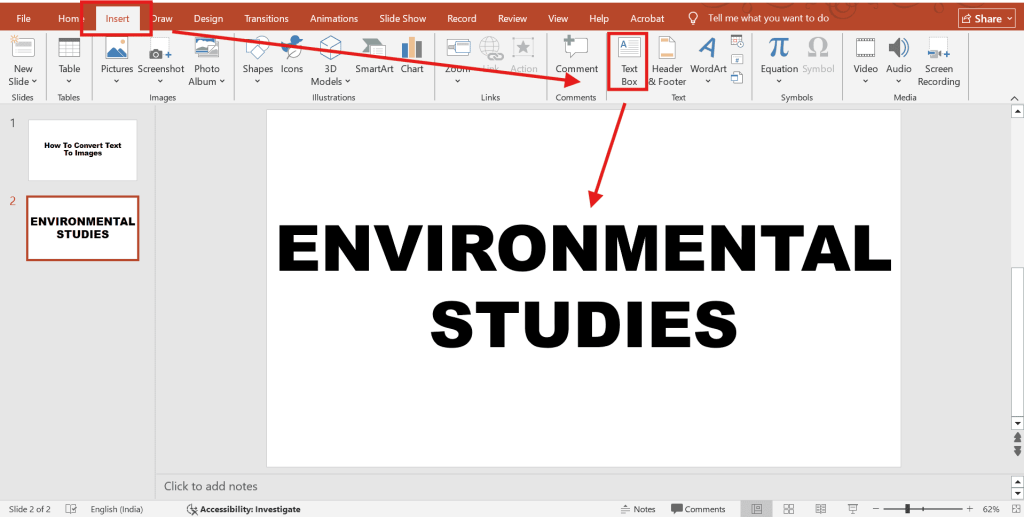
Step 2: Open text fill options: Go to Shape Format in the top menu, then click Text Fill and choose Picture or Texture Fill.
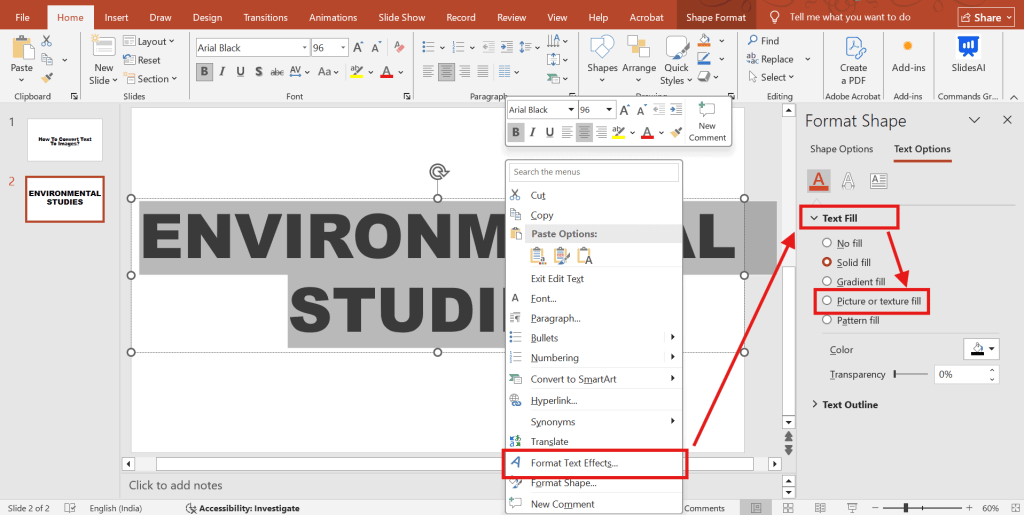
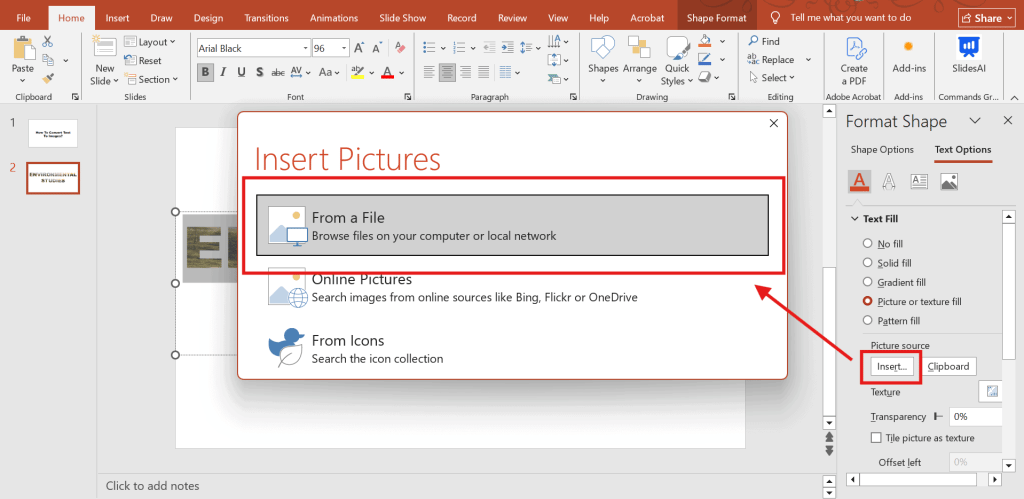
Step 3: Fill text with the image: Select the image is copied, or From File to upload it. The image will now appear inside the text.
Method 2: Merge Shapes (Text as a Cutout)
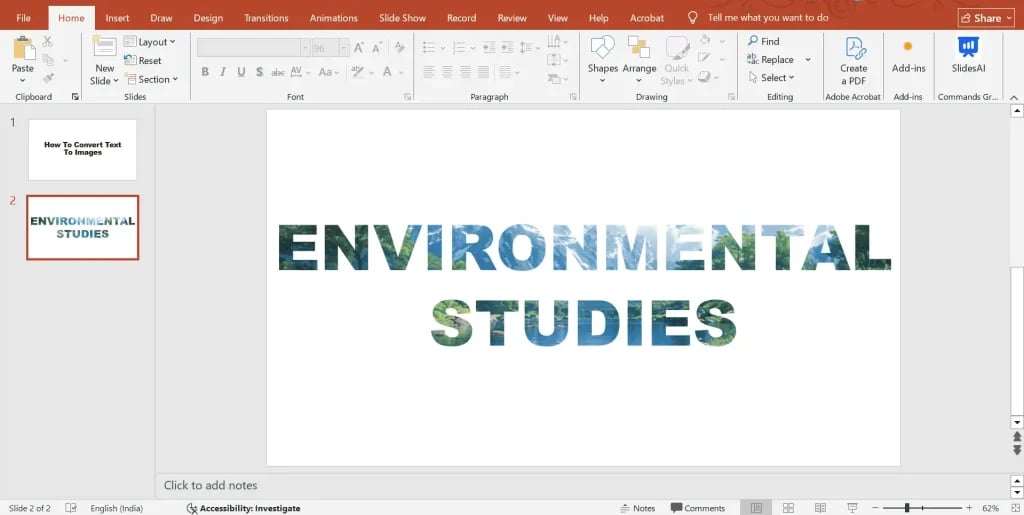
This method lets you turn text into a see-through cutout inside a shape or image. This creates a bold, modern effect where the background shows through the text.
Step 1: Add a Text – Open a blank slide and type the text you want to convert into an image.
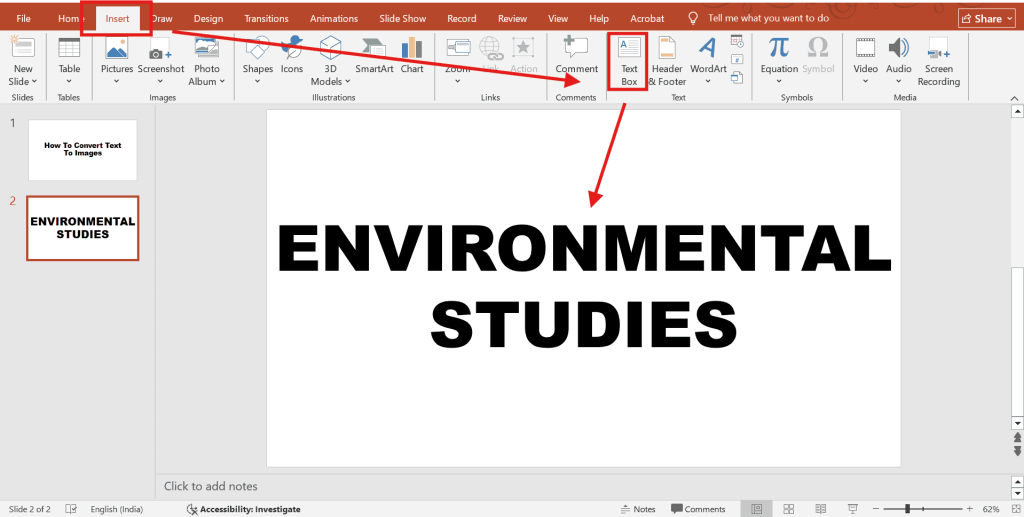
Step 2: Add an Image – From the Insert tab, select Pictures and add an image. You can insert from your device, PowerPoint stock images, or the web.
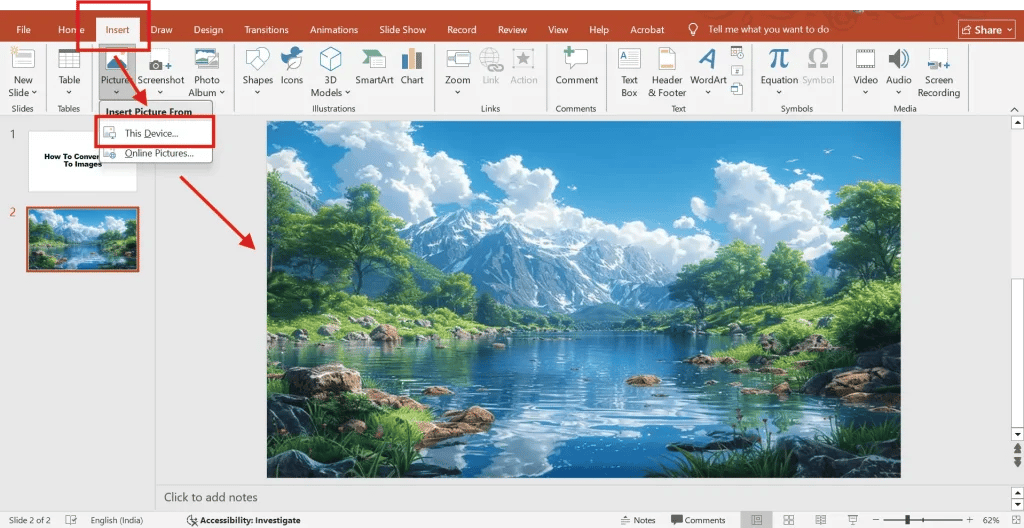
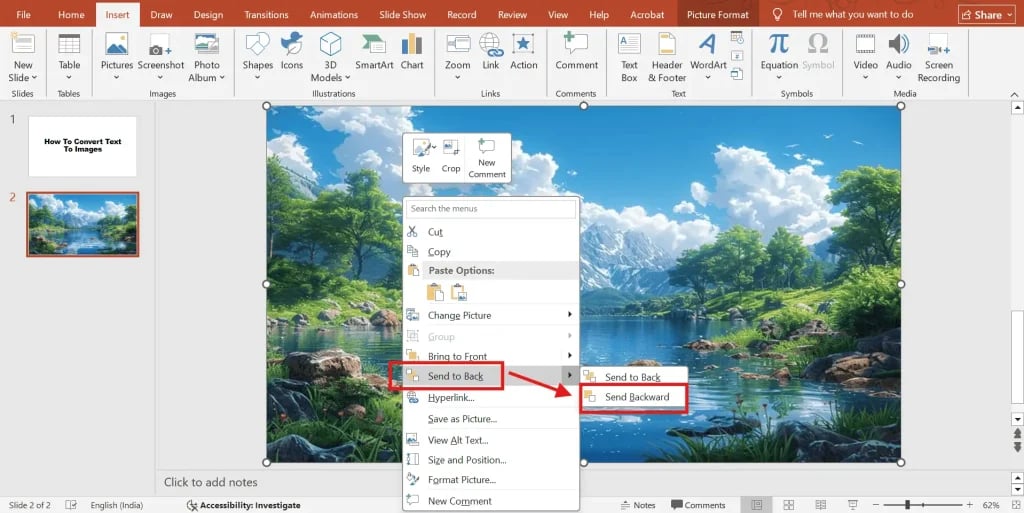
Step 3: Send Image Backwards – Once the image is added, it will probably cover the entire slide including your text. Select the image, right-click on it, and select the Send Backward option from the menu. You will now see the text you typed in front of the image.
Step 4: Intersect the Image and Text Box – Carefully, select both the text box and the image together. Once selected, go to the Shape Format tab and select the Intersect option from the Merge Shapes menu.
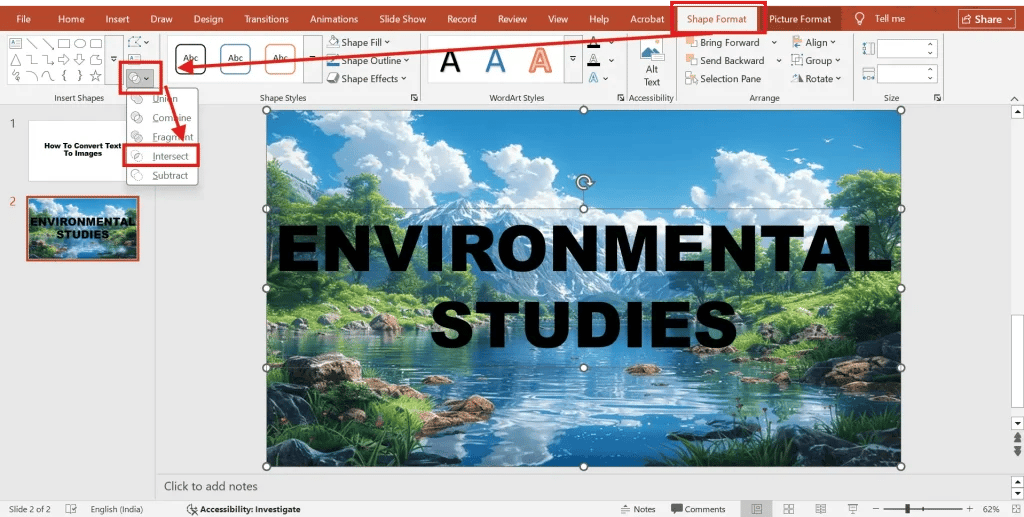
Step 5: Now your image will merge with the text. Voila! You have now converted your text into an image. How cool is that?
If you’re a Google Slides user, you can watch this tutorial to do the same in Google Slides.
Pro Tip: Before converting text boxes to images, make a copy of the original text box and place it hidden behind the image so you can access the live text later if needed!
Skip the manual work. Use SlidesAI’s AI PPT Maker to turn your ideas, text, and prompts into polished presentations with compelling visuals automatically.
Can You Convert Images to Text in PowerPoint By Extracting it?
While there’s no built-in tool to directly convert images to editable text in PowerPoint, there are a couple of workarounds:
- For simple graphics, screenshots, or infographics with clear legible text, use the text conversion capabilities in Microsoft’s free Office Lens app. Simply snap a pic or import the image to extract text.
- For detailed graphics or charts, first convert the PPT slide to PDF format, then use any OCR (image to text) app or tool for the conversion. Adobe Acrobat has this conversion feature.
- For complex visuals, manually retype any text you want to reuse or edit from the image into a new text box.
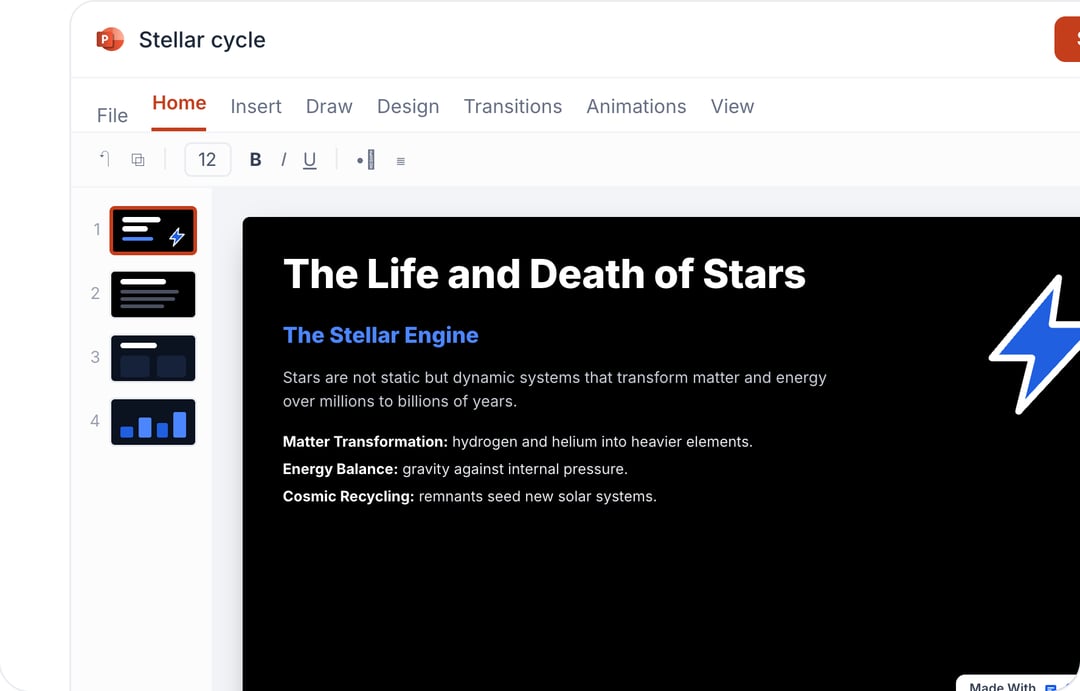
Take Your PowerPoint From Basic to Professional With SlidesAI
- Improve your slide content with AI
- Create polished layouts faster
- Work directly inside PowerPoint

Wrapping Up
Now you know how to convert text to images in PPT. This simple hack can transform dense text into vibrant visuals. Remember to keep details while maximizing visual appeal and audience engagement.
But formatting an entire visually stunning presentation still requires effort. Rather than manual work, explore AI-powered text-to-presentation tools like SlidesAI.
SlidesAI transforms your content into beautifully designed slides tailored to your brand. It handles graphic design, layouts, visual consistency, and more so you can focus just on your narrative.
SlidesAI currently integrates with Google Slides but we will be rolling out the PowerPoint integration soon. If you want your presentation in PPT format, you can still use SlidesAI on Google Slides and then convert to PowerPoint in 3-4 simple steps.