Whether you’re making a presentation for a class, a team, or just for fun, you can quickly create a quiz using tools like PowerPoint or an AI quiz presentation generator. A well-designed quiz template makes the process even faster and easier. Let’s walk through the easy steps to create a quiz that’ll impress everyone.
How to Create a Quiz in PowerPoint With AI?
Looking for a faster way to make a quiz? SlidesAI has got your back. In just a few clicks, you can generate a ready-to-use PowerPoint quiz presentation without having to design everything manually. Here’s how you can do it:
Step 1: Open a PowerPoint presentation and download the SlidesAI Add-in.
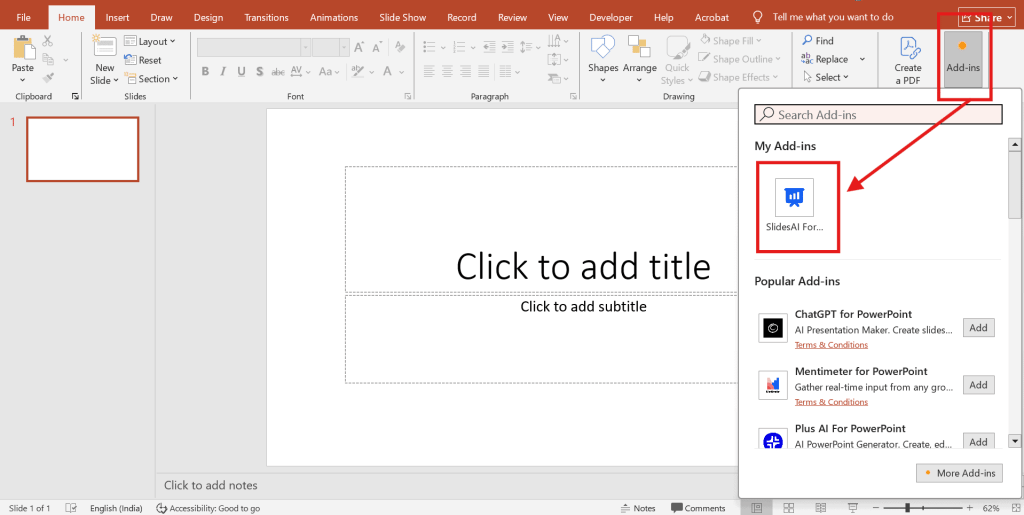
Step 2: Go to the “Home” tab, click on SlidesAI, and select “New Presentation”
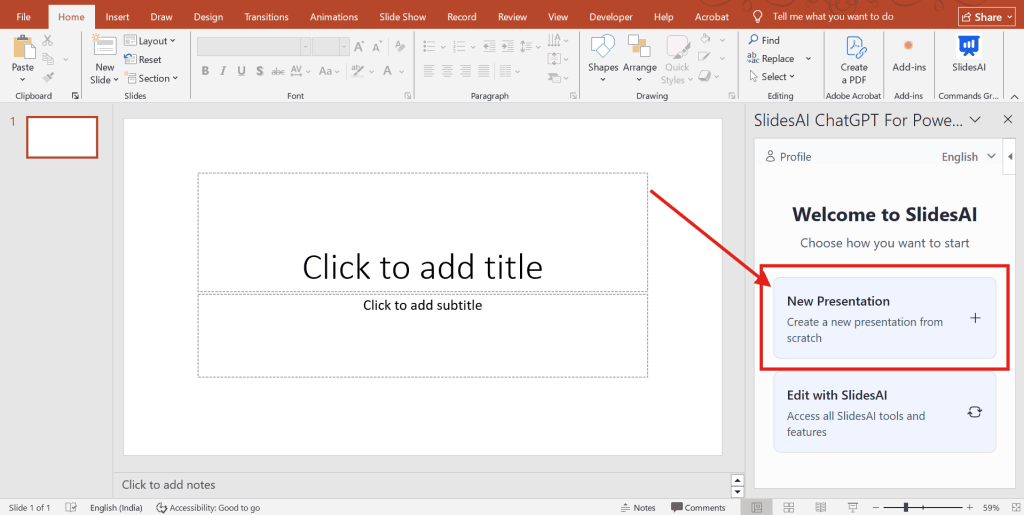
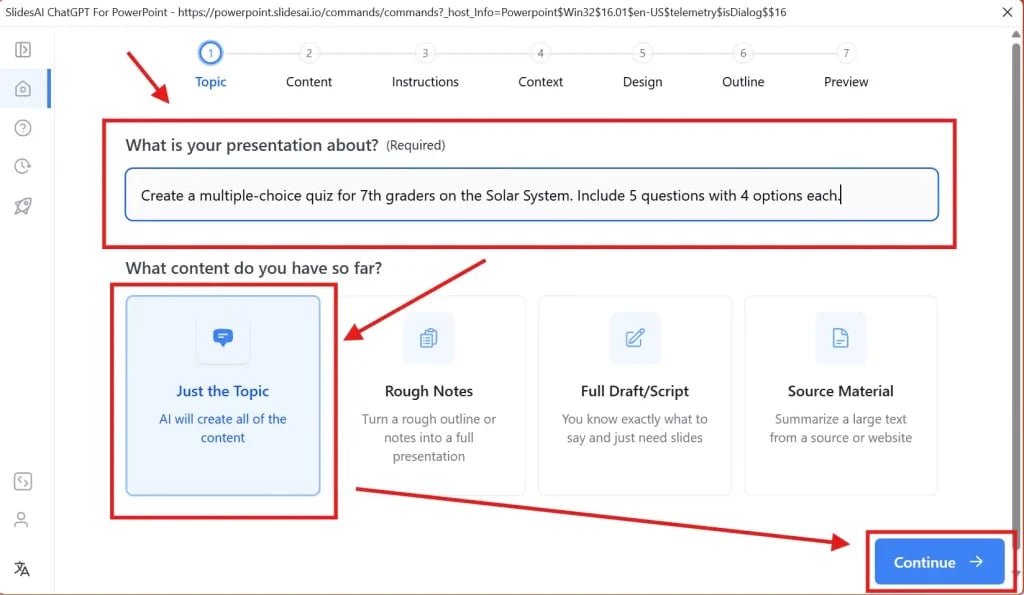
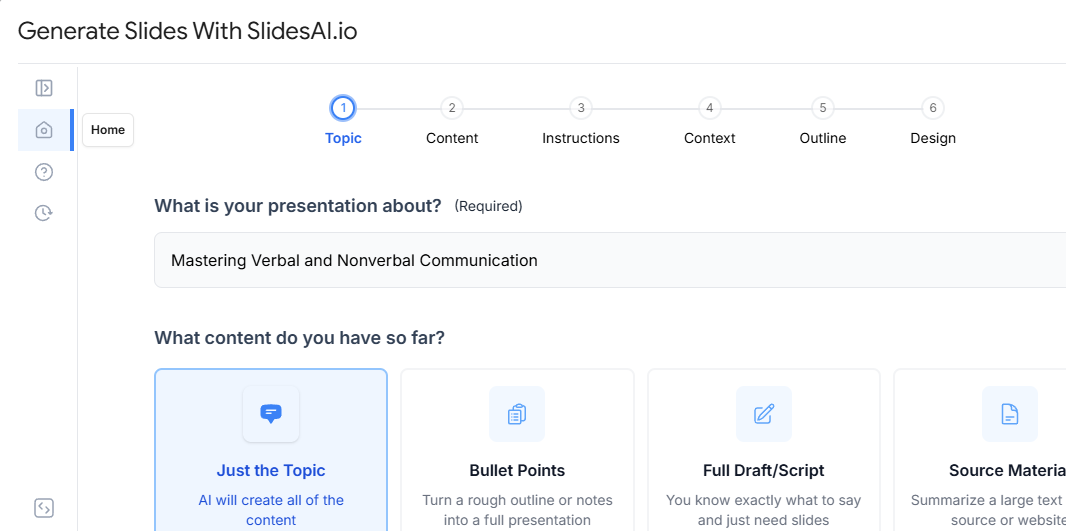
Step 3: Enter the topic of your quiz presentation and select the “Just the topic” option.
For eg:
- “Multiple choice questions Math Quiz for grade 2 students.”
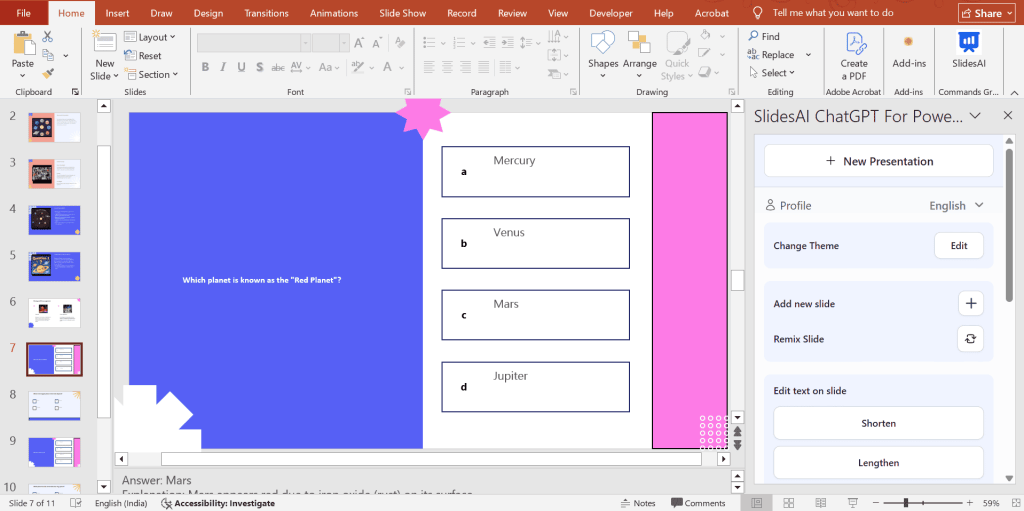
- “Create a multiple-choice quiz for 7th graders on the Solar System. Include 5 questions with 4 options each.”
- “Generate a PowerPoint quiz template with 8 fill-in-the-blank questions about [World Capitals]. Each slide should have a sentence missing one word.”
- “Design a picture-based quiz for children aged 5–7 on [Fruits and Vegetables]. Include fun images and let them identify the item.”
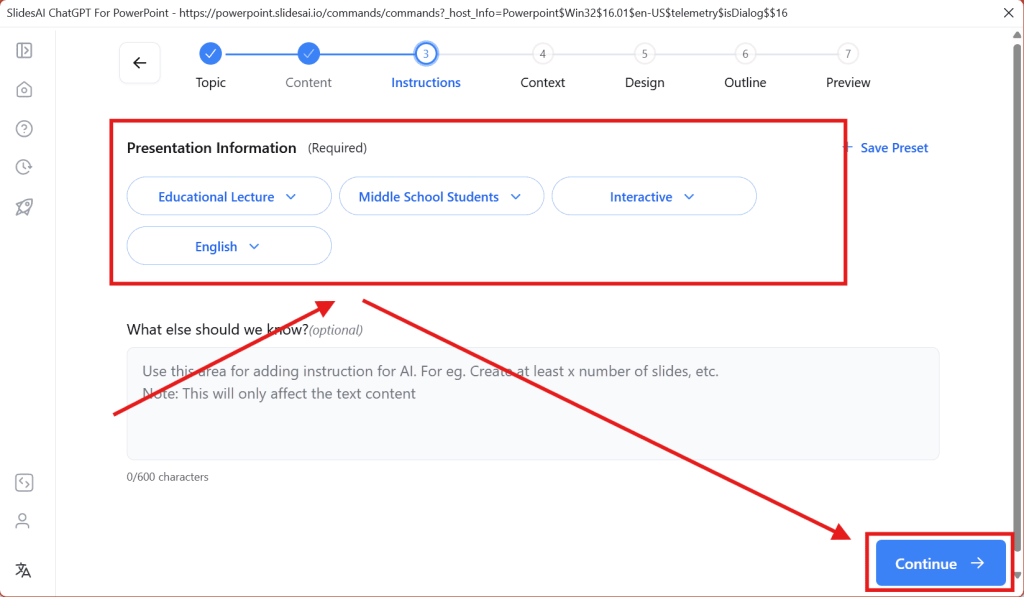
Step 4: After clicking Continue, you’ll be asked to add extra details like:
- Presentation Type:
- Target Audience
- Tone of Voice
- Language
- Any additional information about your quiz
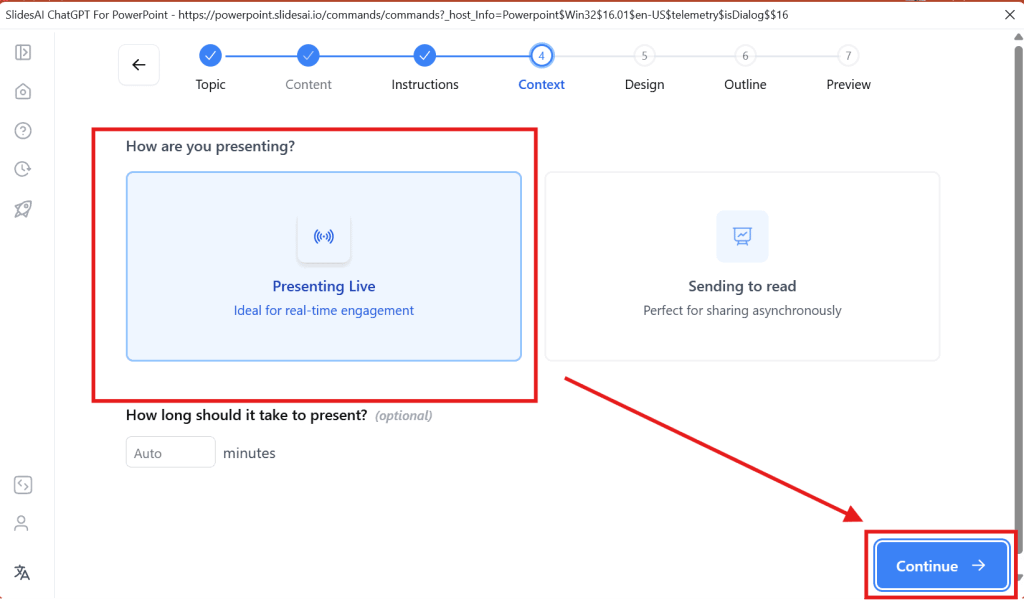
Step 5: Decide how you want to present it, live or shared via a link. You can even turn it into a fun PowerPoint presentation quiz for your class or team meeting.
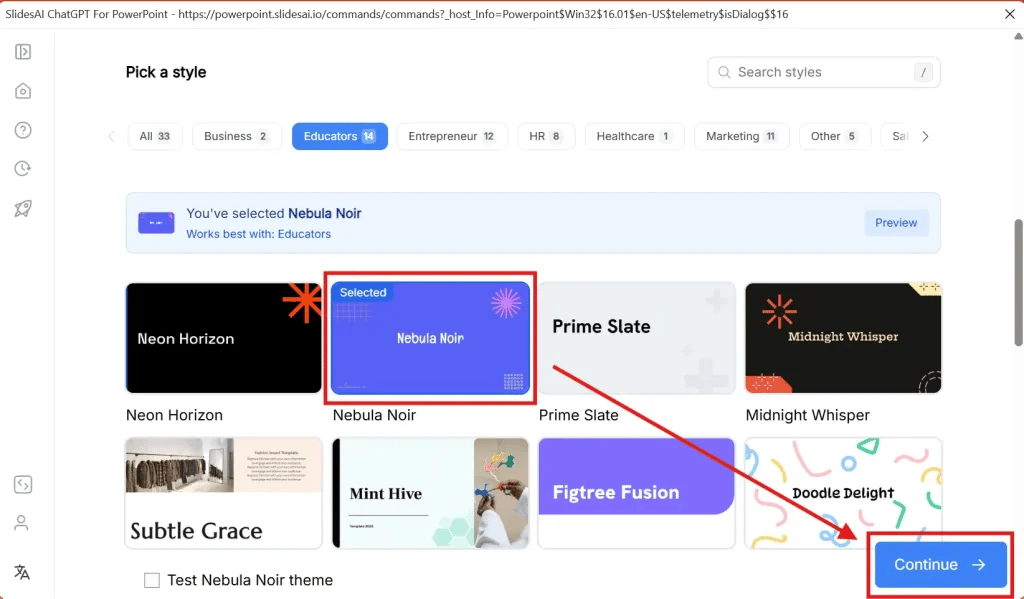
Step 6: Pick a design template that fits your quiz vibe. A good quiz template can save you time and keep your design consistent.
Step 7: SlidesAI will generate an outline of your slides. Review and tweak it as needed, then click Continue.
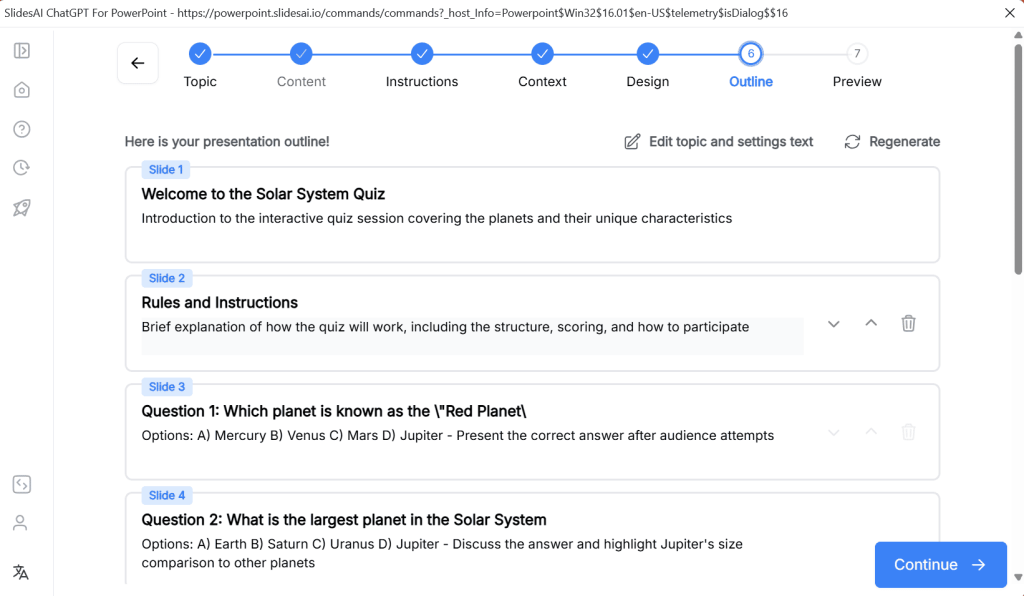
Step 8: After the outline is approved by you, SlidesAI will generate the presentation content. Review and edit the content if needed.
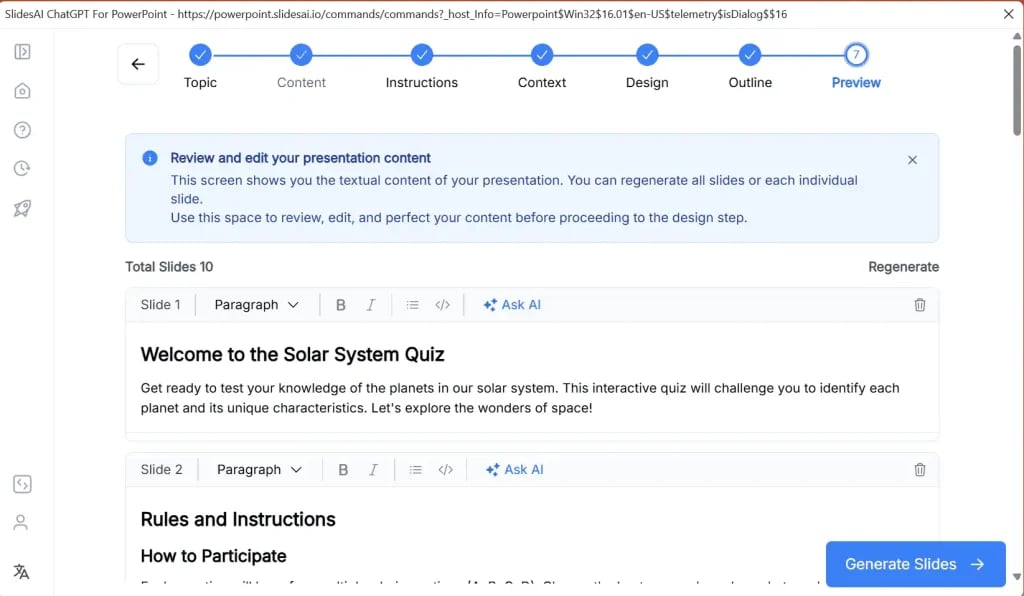
Step 8: Hit Generate Slides, and your complete quiz presentation is ready. You can make final edits if needed.
Create Presentations Easily in Google Slides and PowerPoint
14M+Installs
 Install add-in
Read More – 18 Interactive Presentation Games For Active Participation
How to Create a Quiz in PowerPoint Without AI?
Making a quiz in PowerPoint is simple. Here’s how you can do it:
Step 1: Open PowerPoint and set up your quiz presentation.
Step 2: Create a title slide. For example, a computer quiz. You can also add an image related to your topic.
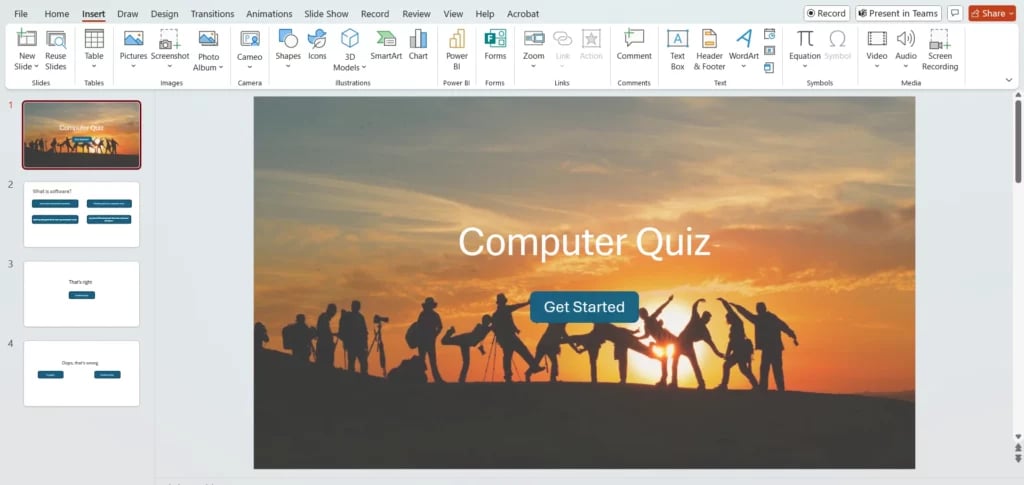
Step 3: Add a new slide for your first question. Write the question-and-answer options below.
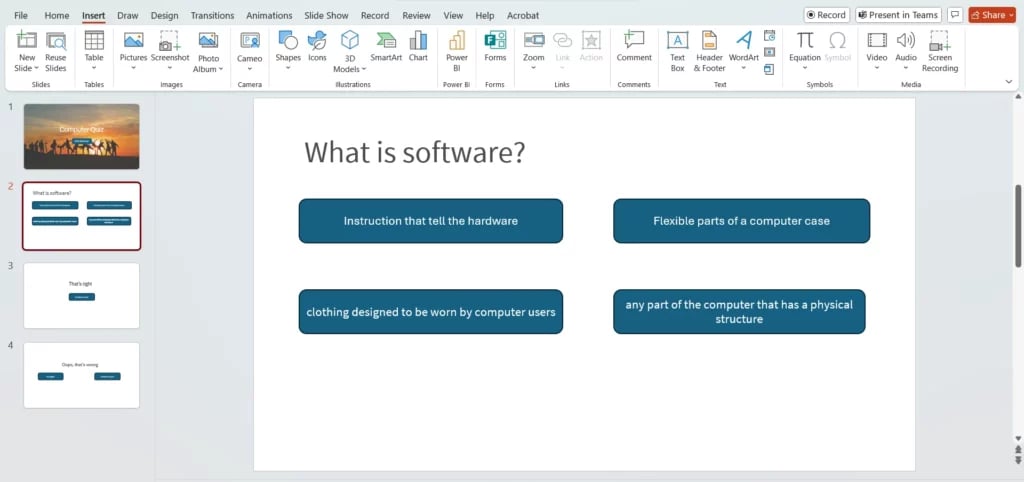
Step 4: After each question, insert a slide confirming whether the answer is correct or wrong. For example, That’s right or Oops, that’s wrong.
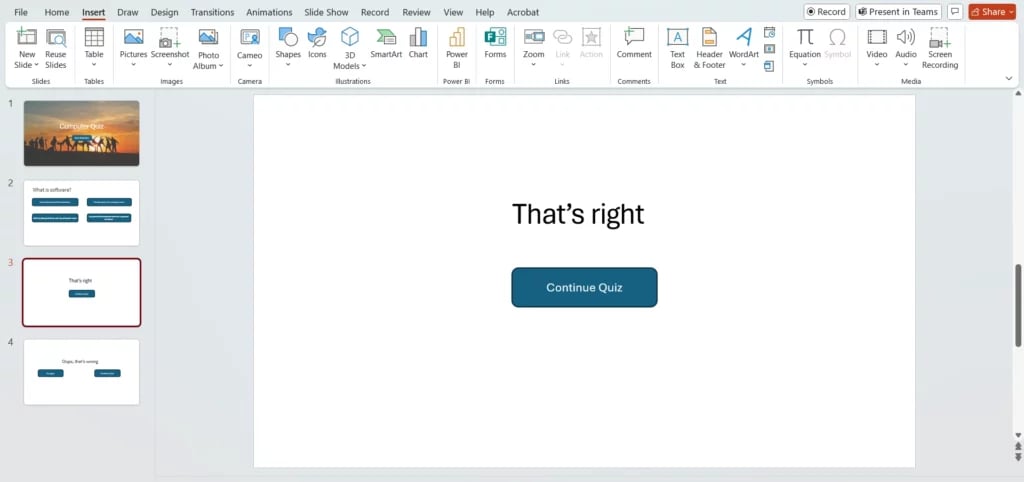
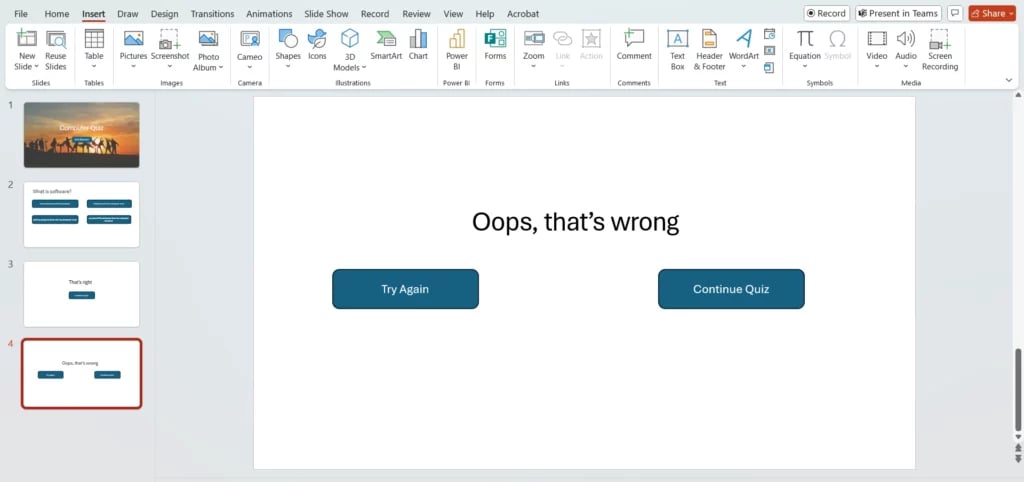
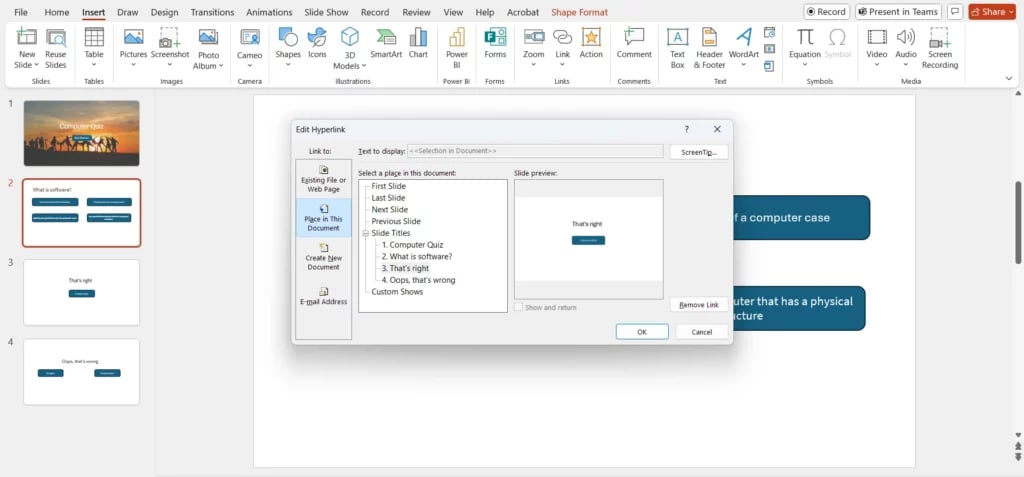
Step 5: You can use hyperlinks to link the answers to the correct or incorrect response slides.
Step 6: To make your quiz interactive, set up navigation so that the quiz can be played with buttons or clicks.

By using a PowerPoint quiz template, you can skip the extra formatting and jump straight into making your quiz. There are many templates available that are designed to help you quickly create an interactive quiz in PowerPoint.
To save time, you can also use our ready-made Quiz Template and customize it in PowerPoint.
Build Stunning Slides in Seconds with AI
- No design skills required
- 3 presentations/month free
- Don't need to learn a new software
Read More – How do you make a Jeopardy game on PowerPoint?
Conclusion
Whether you choose to manually create a PowerPoint quiz or use an AI quiz generator, both methods are great for making fun and engaging quizzes. With just a few steps, you can create an interactive quiz in PowerPoint that looks professional and that will keep your audience engaged. Don’t forget to use a PowerPoint quiz template to make things even easier!
Frequently Asked Questions Related to the Quiz in PowerPoint
1. How do I create an interactive quiz in PowerPoint?
To create an interactive quiz, use hyperlinks to link questions to answers, and set up navigation for users to click through the quiz.
2. Can I use a quiz template for PowerPoint?
Yes! There are many PowerPoint quiz templates available that will make the process of creating a quiz much easier.
3. How does an AI quiz generator work?
An AI quiz generator automatically creates quizzes based on your prompts, saving you time and effort.