All Blogs

How to Make a Collage in PowerPoint: A Step-by-Step Guide

How to Make a Collage in PowerPoint: A Step-by-Step Guide

Creating a collage in PowerPoint is a simple way to bring multiple images together in a visually appealing format. Whether you are working on a school project, a presentation, or just putting together memories from a trip, PowerPoint gives you the tools to arrange your pictures exactly how you want. You’ve got a bunch of […]

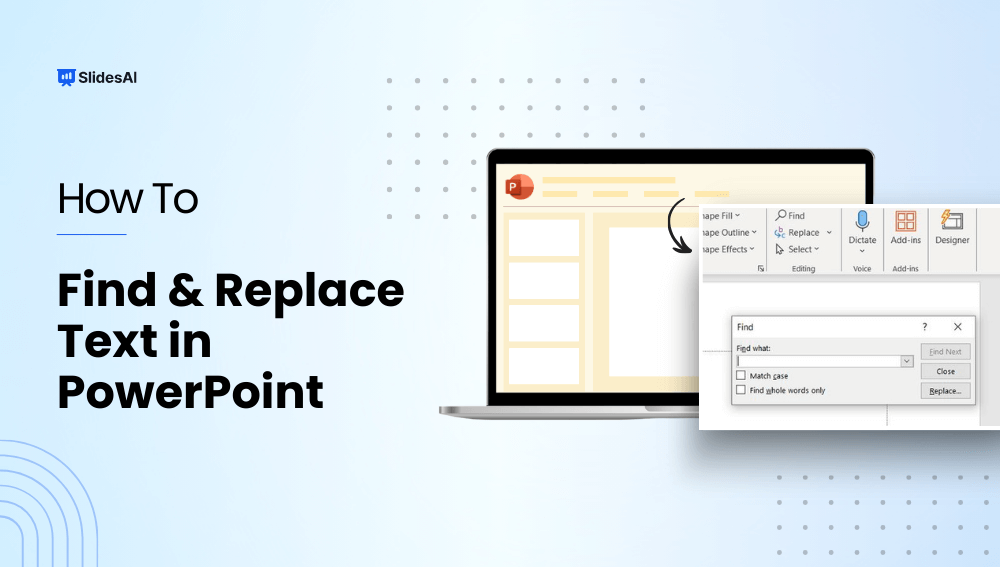
How to Use Find and Replace in PowerPoint to Replace Text?

How to Use Find and Replace in PowerPoint to Replace Text?

Have you ever needed to update a name, date, product feature, or other important word in your presentation slides? The best way to go about it is by using the find and replace in PowerPoint. It allows you to quickly find and change words and phrases across multiple slides instantly.  In this guide, we will […]

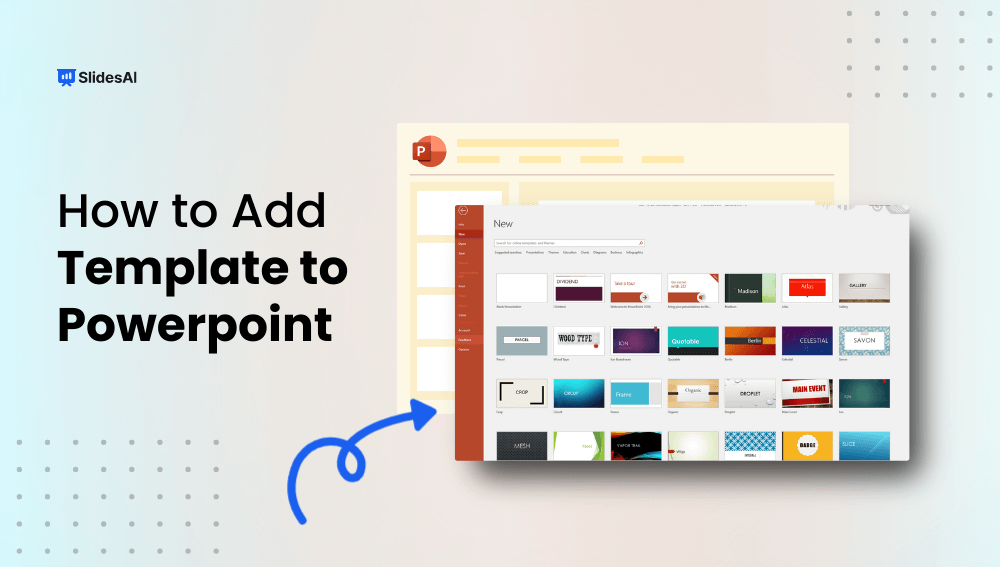
How to Add a Template to PowerPoint?

How to Add a Template to PowerPoint?

PowerPoint presentations play an important part in efficient communication, and using the proper template improves both professionalism and visual appeal. If you created a presentation and want to give it a new look with a new template, there are numerous options available depending on your unique needs.

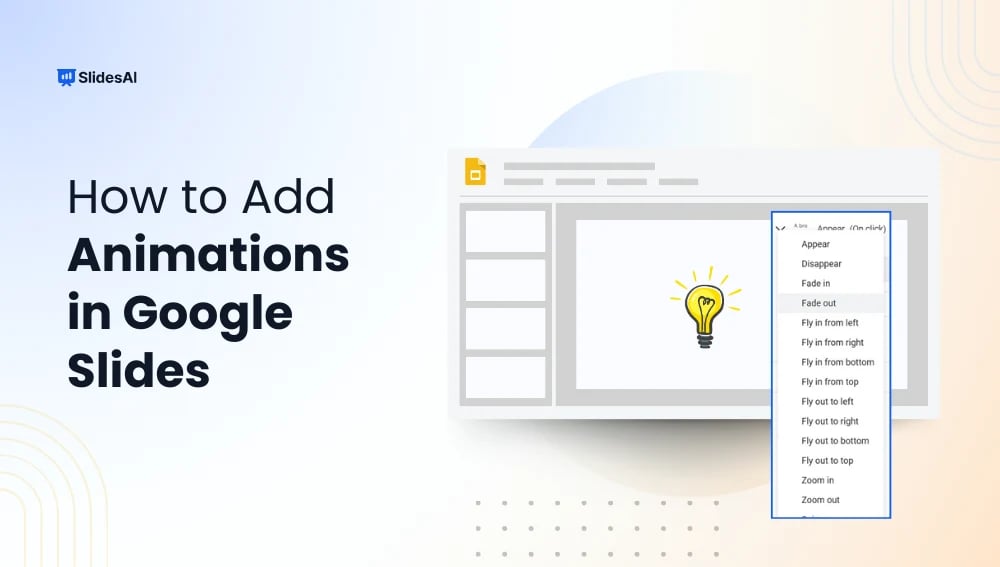
How to Add Google Slides Animations?

How to Add Google Slides Animations?

Learn about Google Slides animations in this easy tutorial. Step-by-step guide to animating text and images, adding GIFs, and looping animations.

300+ PowerPoint Shortcuts for Windows and Mac.

300+ PowerPoint Shortcuts for Windows and Mac.

Learning PowerPoint keyboard shortcuts can save you time, boost productivity, and make editing slides much smoother.

16 Best Presentation Tools for Students in 2026

16 Best Presentation Tools for Students in 2026

Creating presentations is a big part of student life. Whether it’s for assignments, projects, or group discussions, a good presentation can help you stand out. But picking the right tool can be confusing with so many options available. Don’t worry. This guide will help you choose the best presentation tools for students to make your work easier and more effective.

How to Add a Timer to PowerPoint?

How to Add a Timer to PowerPoint?

To insert a timer in PowerPoint, the easiest method is to use add-ins via Insert > Get Add-ins and search for “Timer” (like Breaktime or Timer for PowerPoint). Alternatively, you can create a custom timer using animations by adding a shape, applying an Exit or Fly Out animation, and setting the duration in the Animations pane.

35 Presentation Design Trends You’ll See Everywhere in 2026

35 Presentation Design Trends You’ll See Everywhere in 2026

If you’re working on a presentation this year, it’s worth paying attention to the design trends that are starting to take over. Whether you’re building slides for a pitch, a classroom session, or a team meeting, how your presentation looks can shape how people respond to it. From bold typography and animated layouts to minimalist […]

How to Make a Jeopardy Game on Google Slides?

How to Make a Jeopardy Game on Google Slides?

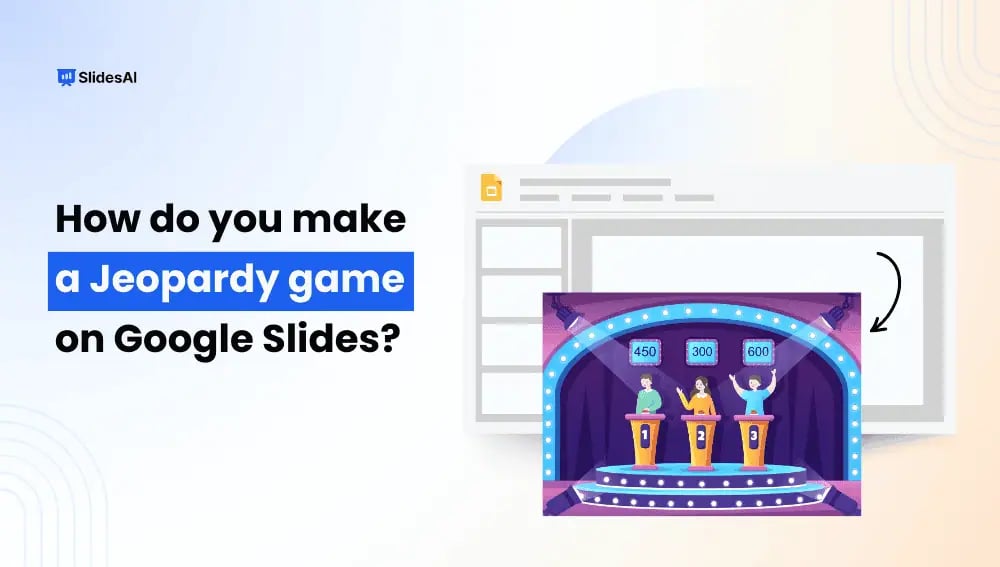
Jeopardy is a fun quiz-style game where players answer questions based on different categories, earning points for correct answers. It’s great for classrooms, training sessions, or even game nights with friends. You can use it to test knowledge, make learning interactive, or just have a good time. Instead of writing questions on a board or using expensive software, you can easily create your own Jeopardy game using Google Slides.

How to Make a Jeopardy Game on PowerPoint?

How to Make a Jeopardy Game on PowerPoint?

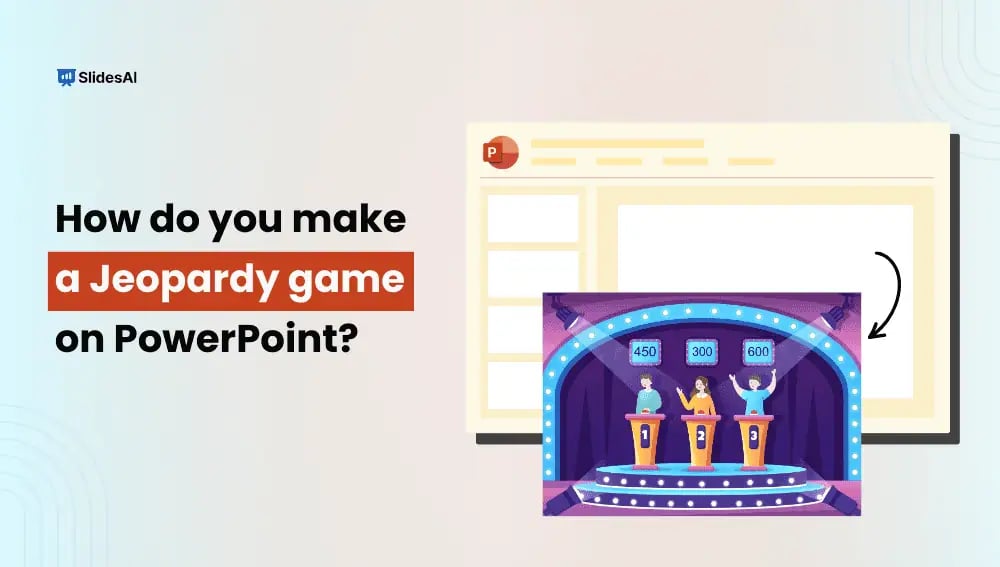
A Jeopardy-style game is a fantastic way to bring fun and excitement to learning, training, or casual gatherings. Whether you’re a teacher looking to make lessons more interactive, a corporate trainer adding engagement to workshops, or just someone who loves trivia nights, creating a Jeopardy game PowerPoint is a great choice. PowerPoint provides the perfect platform to design a game that mirrors the classic Jeopardy; TV show.

How to Make Charts and Graphs in PowerPoint?

How to Make Charts and Graphs in PowerPoint?

Discover how to create stunning charts and graphs in PowerPoint with our easy-to-follow guide. Learn 6 simple steps to enhance your presentations.

Presentation Tips for Students

Presentation Tips for Students

Presentations are a big part of student life, whether you’re in school, college, or stepping into the professional world. A good presentation can boost your confidence, make your message clear, and leave a strong impression on your audience. If public speaking makes you nervous, don’t worry; you’re not alone. With a few simple techniques, you can create and deliver an engaging presentation with ease.
How To Work on Google Slides Offline?

How To Work on Google Slides Offline?

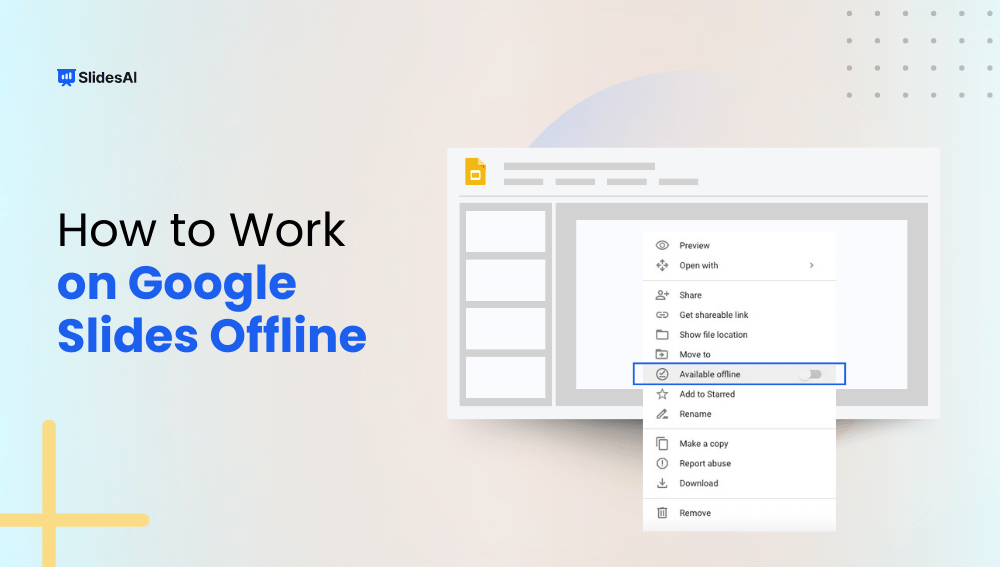
Have you ever needed to edit a presentation but didn’t have internet access? Whether you’re traveling, facing Wi-Fi issues, or just want fewer distractions, knowing how to work on Google Slides offline can be a game-changer. The good news is that you can access, edit, and create presentations without an internet connection. This guide will show you step by step how to enable Google Slides offline mode so you’re always prepared.

How to Create Sections in Google Slides?

How to Create Sections in Google Slides?

Sections in a Google Slides presentation help you organize slides into meaningful groups based on topics, themes, or chapters. They act like folders within your presentation, allowing you to easily manage large slide decks by collapsing or expanding sections, reordering entire groups of slides, and keeping your content structured. This feature is especially useful for team collaboration or long presentations with multiple topics.

Master Google Slides Shortcuts for Effortless Presenting

Master Google Slides Shortcuts for Effortless Presenting

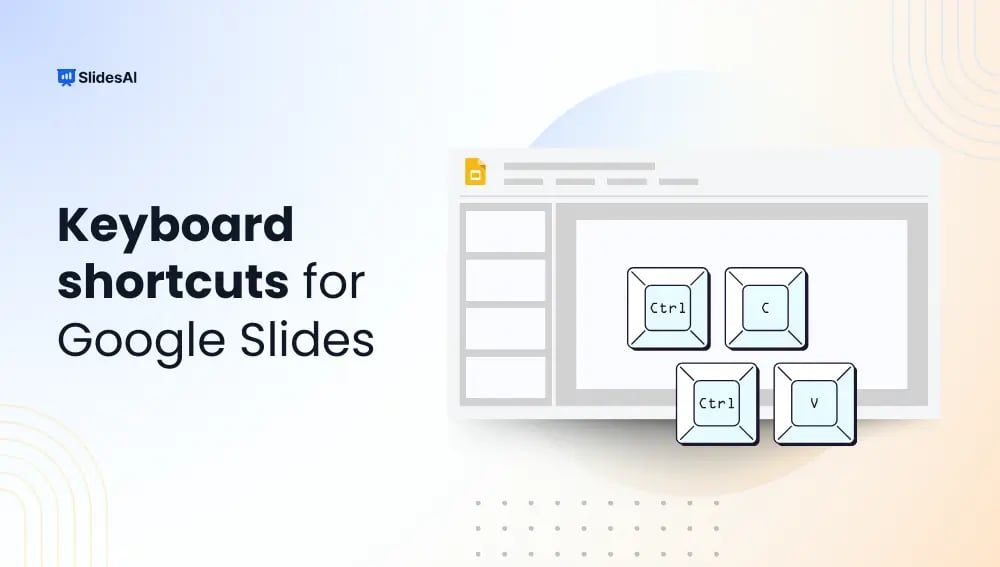
Efficiency is crucial in the fast-paced world of presentations. A wealth of keyboard shortcuts is included with Google Slides, a potent tool for creating visual narratives to facilitate navigation and speed up task completion. Whether you are a novice or an experienced presenter, using these Google Slides shortcuts can significantly improve your workflow. By keeping […]

How to Add Stickers in Google Slides: A Step-by-Step Guide

How to Add Stickers in Google Slides: A Step-by-Step Guide

Ever felt like your slides look a bit plain? Sometimes, a small touch like stickers can make a big difference. Whether you’re creating a lesson for students, a fun quiz or just want to add some personality to your slides, stickers help bring them to life. They can highlight important points, add humor, or make […]

Google Slides vs PowerPoint: Which is Right for Your Presentations?

Google Slides vs PowerPoint: Which is Right for Your Presentations?

Microsoft PowerPoint and Google Slides are two names that frequently come up while discussing slide presentation software. Even though both programs offer a viable alternative for producing presentations with a polished appearance, several distinctions between them may make one more appropriate for a given project than the other.  Both Google Slides and PowerPoint offer features […]

How to Evenly Space Objects in PowerPoint?

How to Evenly Space Objects in PowerPoint?

Messy and unorganized slides in a presentation can be confusing for the viewer. When you don’t place the text boxes, images, and shapes evenly, your slides can look unprofessional and cluttered. You want to be able to present presentations that are polished and professional because they are easier to understand. 

How to Change Line Spacing in PowerPoint?

How to Change Line Spacing in PowerPoint?

When you are making a PowerPoint presentation, line spacing is what makes the presentation clear and easy to read. If the text is too close together it looks very cramped, if it is far apart it looks like a waste of space. If you know how to change line spacing in a presentation, it will make your presentation look neat and professional.

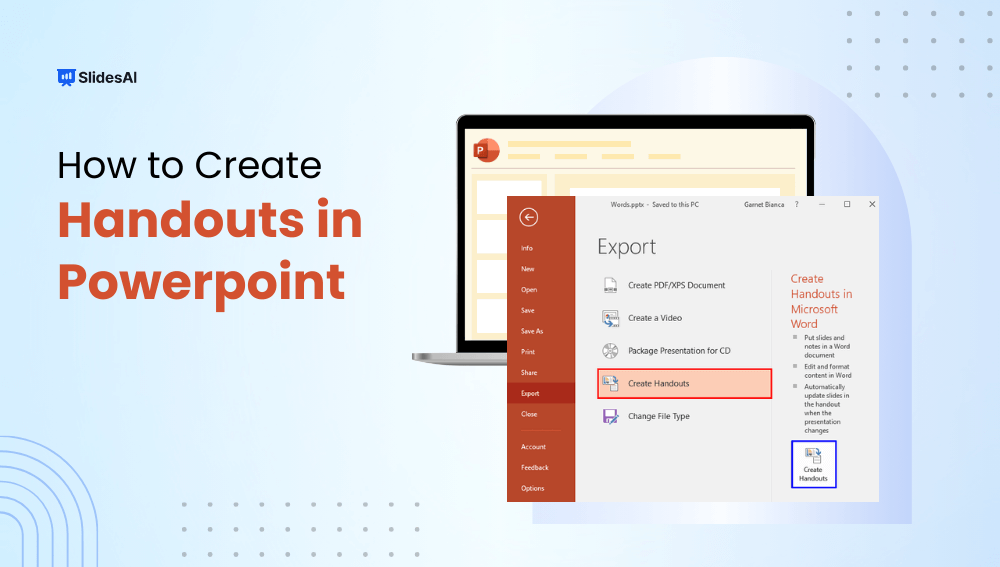
How to Create a Handout in PowerPoint: 2 Easy Methods

How to Create a Handout in PowerPoint: 2 Easy Methods

Creating excellent presentations is a crucial component of communication in a variety of disciplines, including education and business. However, preparing your slides is only half of the battle. Handouts of presentations frequently steal the show, providing essential tools to supplement your presentations.

How to Insert Text to Speech in Powerpoint?

How to Insert Text to Speech in Powerpoint?

In recent years, technology has transformed how you provide information. Text-to-speech (TTS) technology is at the forefront of these innovations, allowing presentations and information to leap off the page by giving voice to the written words. Consider transforming dull slides into dynamic experiences and inclusive spaces in which everyone may absorb information smoothly. This technology […]

75+ AI Prompts for Presentations to Create Slides Faster

75+ AI Prompts for Presentations to Create Slides Faster

AI has rapidly transformed the way we work, communicate, and create, becoming an essential part of everyday life. From automating tasks to enhancing creativity, its role continues to expand across industries. One area where AI is making a noticeable impact is presentation design.

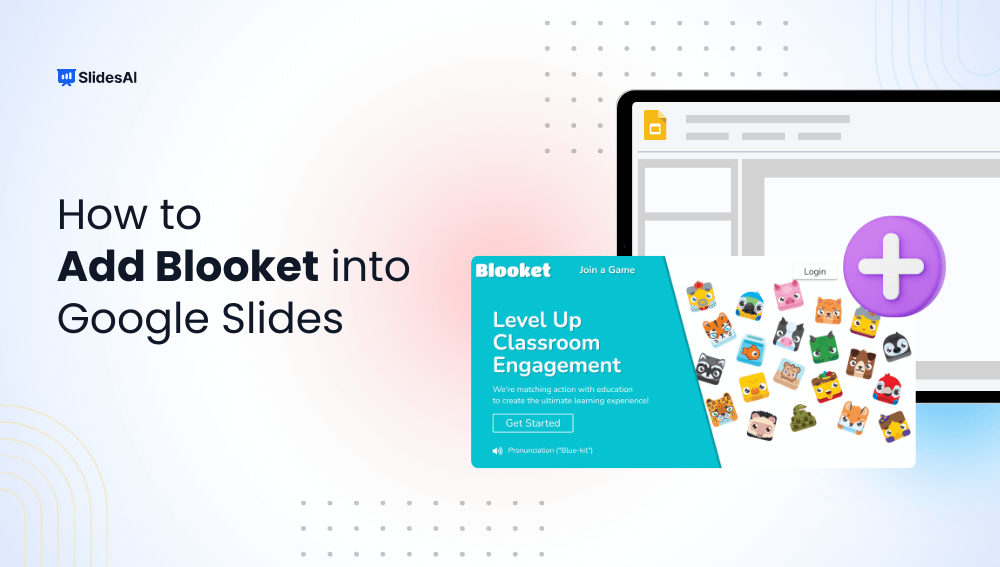
How to Add Blooket Into Google Slides?

How to Add Blooket Into Google Slides?

Adding Blooket to Google Slides is a simple yet powerful way to make your presentations more interactive and engaging. Instead of switching between multiple tabs during a lesson or meeting, you can seamlessly integrate Blooket games directly into your slide deck to maintain attention and boost participation. This guide explains the fastest and most effective […]

How to Create an Impactful Summary Slide on Google Slides?

How to Create an Impactful Summary Slide on Google Slides?

Whether you are a student, teacher, or small business owner, a well-designed Google Slides presentation can make all the difference. However, one essential factor that is sometimes forgotten is the need for summarising. A concise summary slide is vital for conveying your point successfully. It can improve knowledge, retention, and engagement.