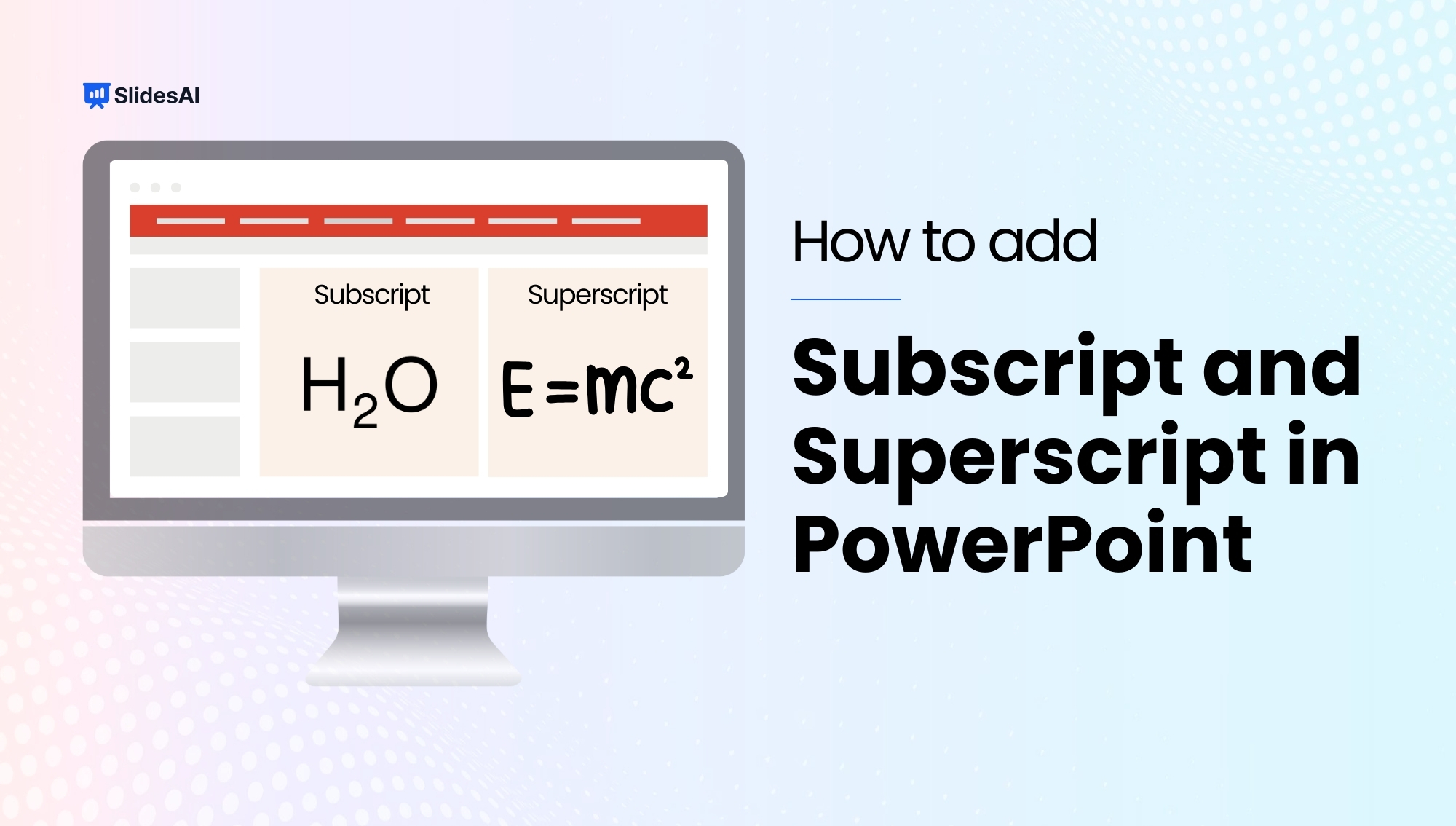
Incorporating superscript or subscript elements in your PowerPoint (PPT) slides enhances the presentation of symbols, formulae, or footnotes.
Are you a professional in mathematics or physics, often including complex formulae in your presentations? Do you frequently need to incorporate symbols like ™ into your slides? No worries, we’ve got a simple solution for you. While it might not be the most complex task in PowerPoint, mastering superscript or subscript adds another handy skill to your toolbox for creating slides.
What is a Superscript?
Superscript refers to text positioned slightly above the baseline, often utilized for exponents, trademarks, and particular citations. For example, (2)², (-3)².
What is a Subscript?
Subscript refers to text positioned slightly below the baseline, frequently employed for chemical formulas, mathematical indices, and specific referencing. For instance, H₂O, CO₂.
How to Add Subscript or Superscript in PowerPoint (PPT) on Windows?
Learn how to effortlessly enhance your PowerPoint presentations by incorporating subscript or superscript text elements on Windows. Elevate your slides with professional formatting techniques in just a few simple steps.
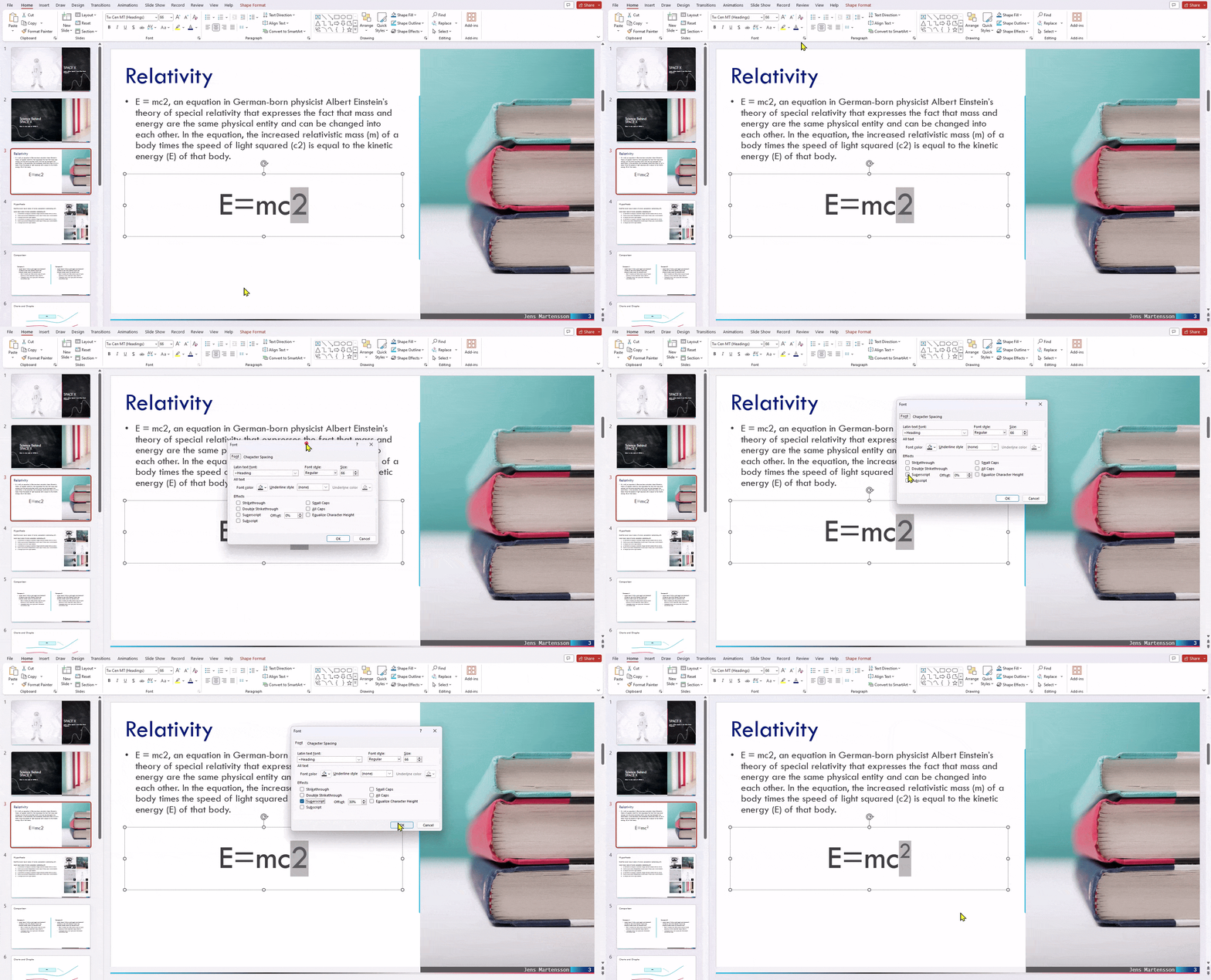
Method 1: Using the Home Tab
- Highlight the desired text.
- Click the “Font Dialog Launcher” (small arrow) in the Font group on the Home tab.
- In the Font window, navigate to the “Effects” section.
- Select the checkbox for either “Superscript” or “Subscript” as needed.
- Click “OK” to apply the formatting.
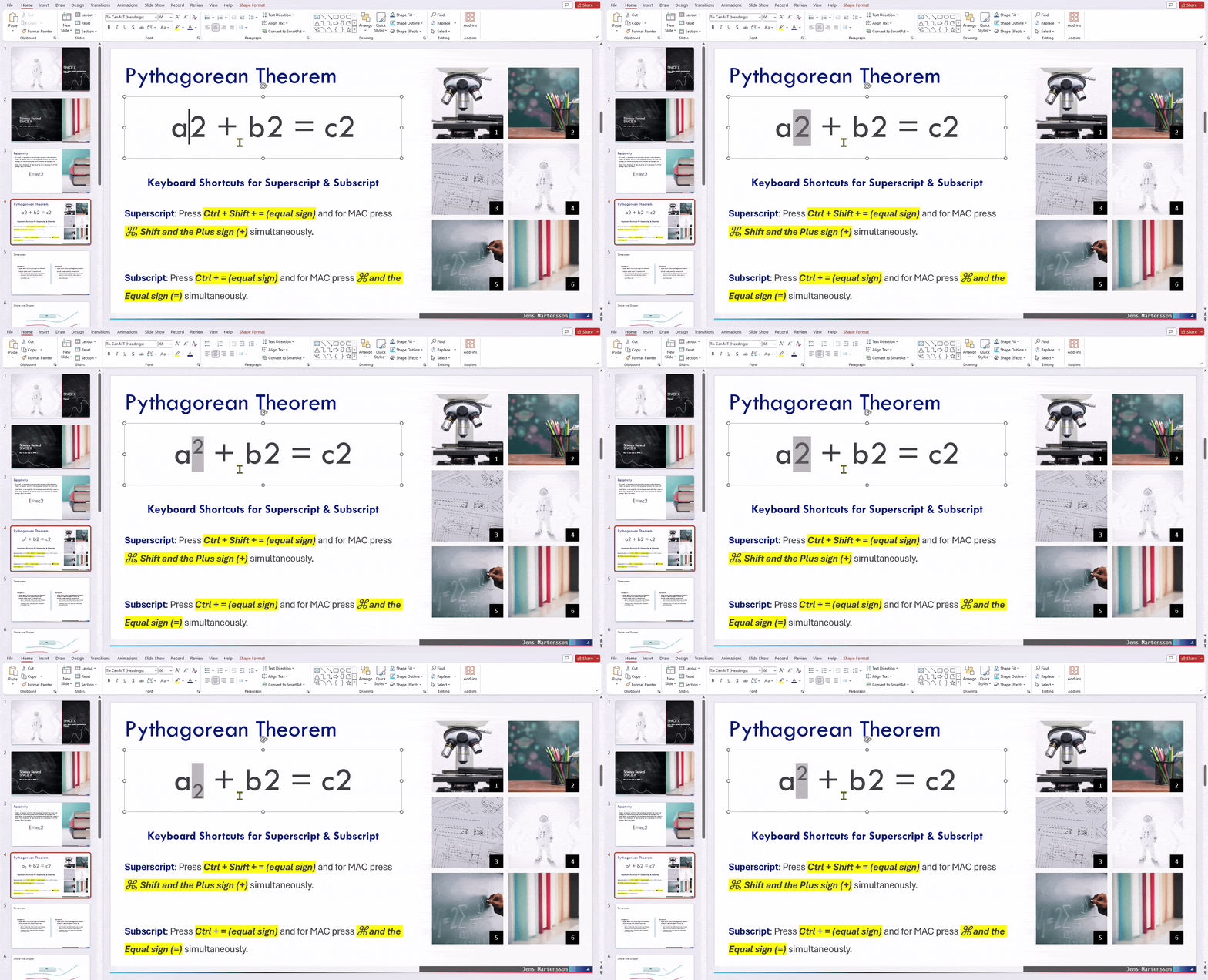
Method 2: Using Keyboard Shortcuts
For a quicker approach, leverage these handy keyboard shortcuts:
- Superscript: Press Ctrl + Shift + = (equal sign)
- Subscript: Press Ctrl + = (equal sign)
Related Read – Keyboard Shortcuts for PowerPoint Presentation
Method 3: Inserting Special Symbols
Step 1: Click the “Insert” tab.
Step 2: Select “Symbol”.
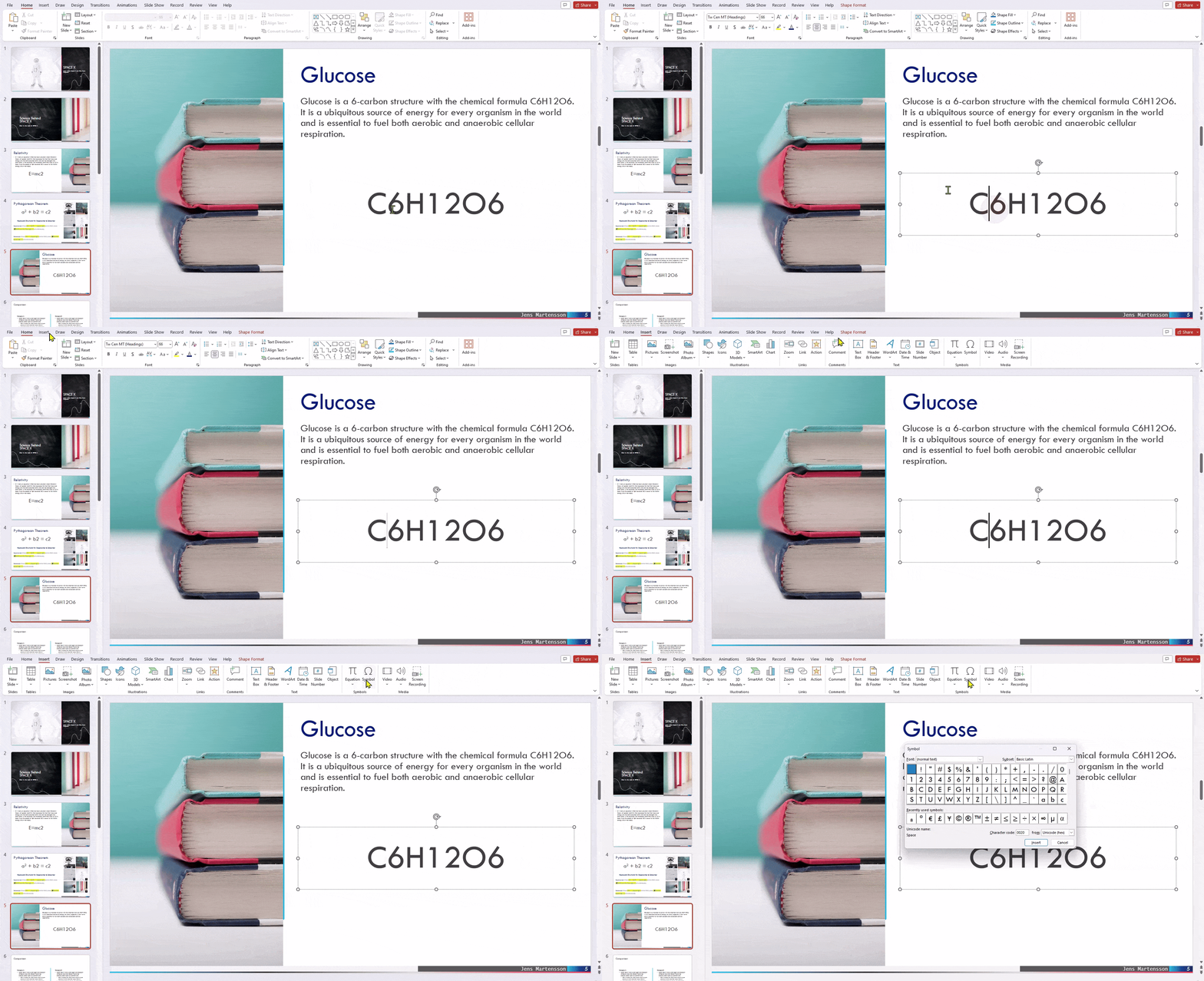
Step 3: Choose “(normal text)” or any superscript/subscript supported font from the “Font” dropdown menu.
Step 4: In the “Subset” dropdown menu, select “Superscripts and Subscripts”.
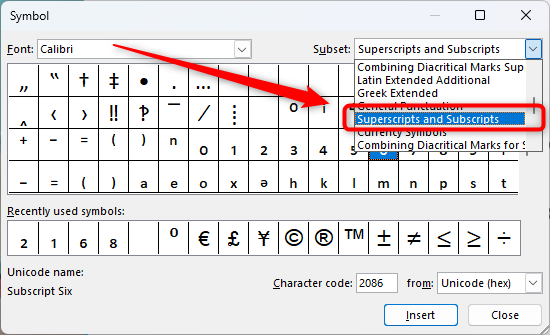
Step 5: Choose superscript or subscript and click “Insert”.
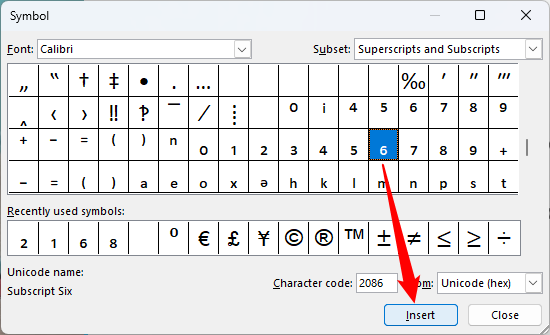
Method 4: Adding them to the Quick Access Toolbar
Here’s how to add superscript and subscript options to your Quick Access Toolbar (QAT) in PowerPoint:
Step 1: Right-click on the main PowerPoint ribbon (the big toolbar at the top).
Step 2: In the menu that appears, select Customize Quick Access Toolbar. This will open a small window titled “PowerPoint Options.”
Step 3: Look for the section titled Choose commands from. In the dropdown menu, select “All Commands”.
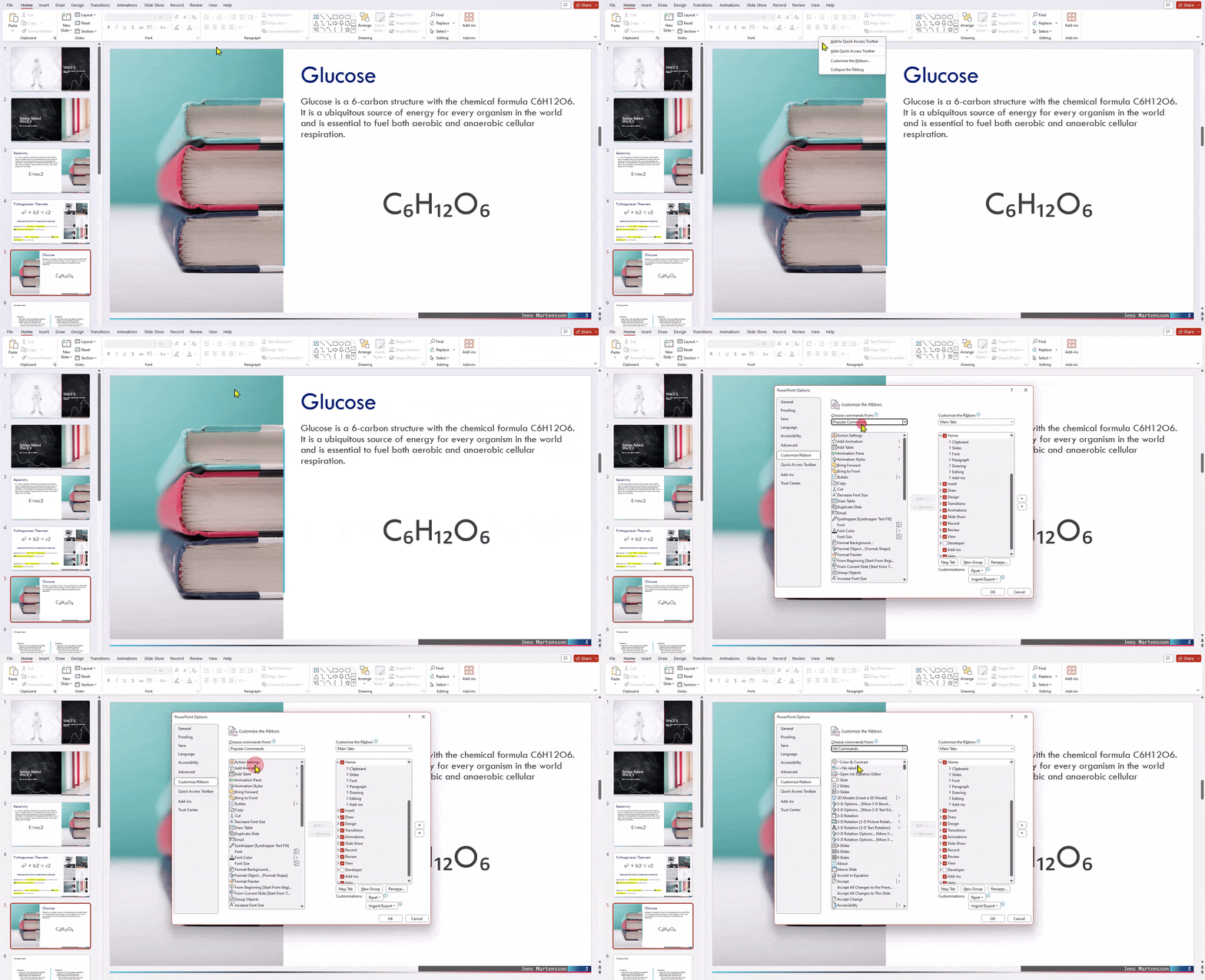
Step 4: Now, scroll down the alphabetical list of commands and find Superscript and Subscript.
Step 5: Click on the desired option (Superscript or Subscript) to highlight it.
Step 6: Click the Add >> button located in the center of the window to move the selected command to the right pane.
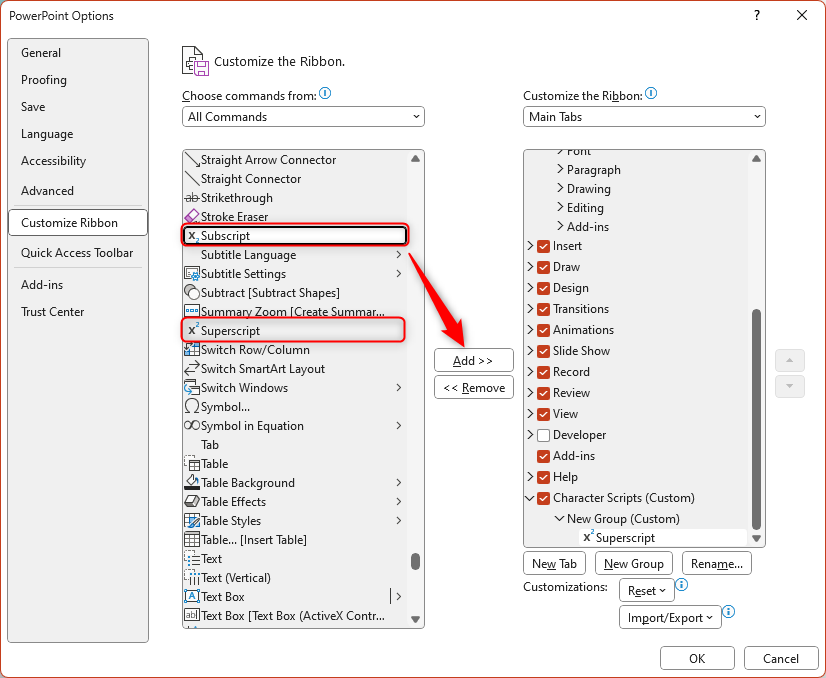
Step 7: Once both options are added to the right pane, click OK to save your changes.
Step 8: Now, the Superscript and Subscript buttons will be displayed on your Quick Access Toolbar, allowing you to easily format text with a single click.
Simplify presentation creation with an AI PowerPoint maker that helps you turn ideas into polished slides in just minutes.
Method 5: Using the Equation Editor
The Equation Editor in PowerPoint is the most precise way to insert superscripts and subscripts, especially for complex mathematical or scientific expressions. Unlike the Font Dialog method, this option gives you structured, publication-quality formatting that stays clean and consistent across all slide sizes.
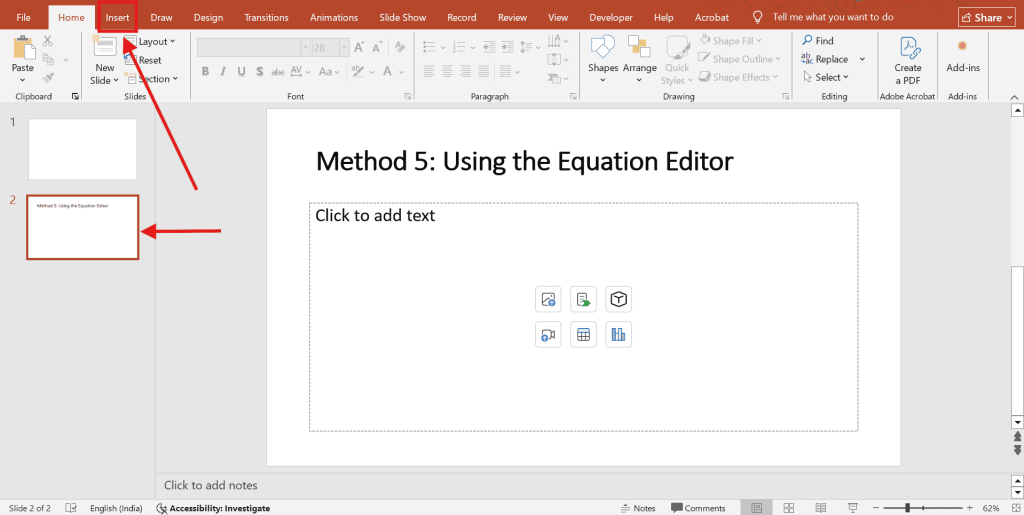
Step 1: Click on the slide where you want to insert the equation. Go to the Insert tab on the top ribbon.
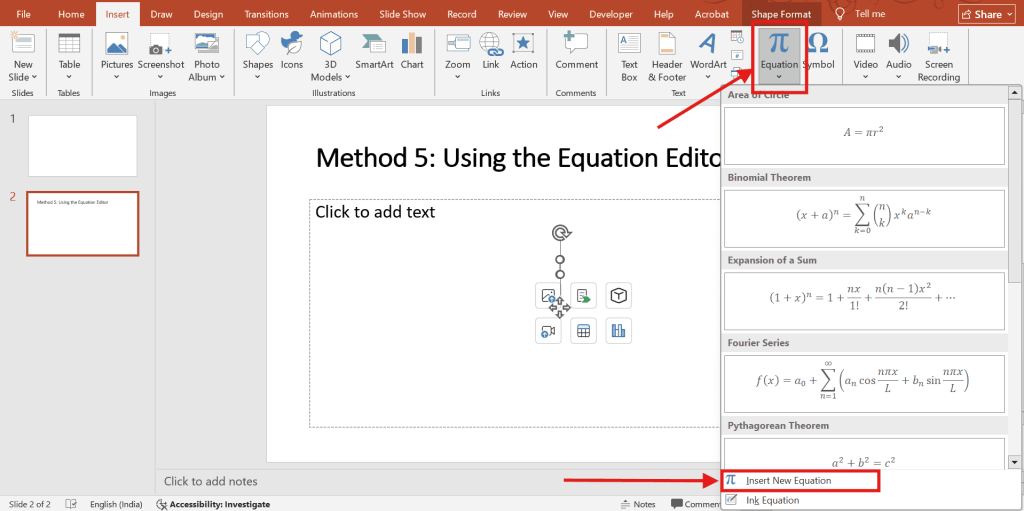
Step 2: In the Symbols group on the far right, click Equation. A new equation text box will appear on your slide, and a new Equation tab will open in the ribbon.
Step 3: Inside the Equation tab, click on Script in the Structures group. A dropdown will appear showing several script templates.
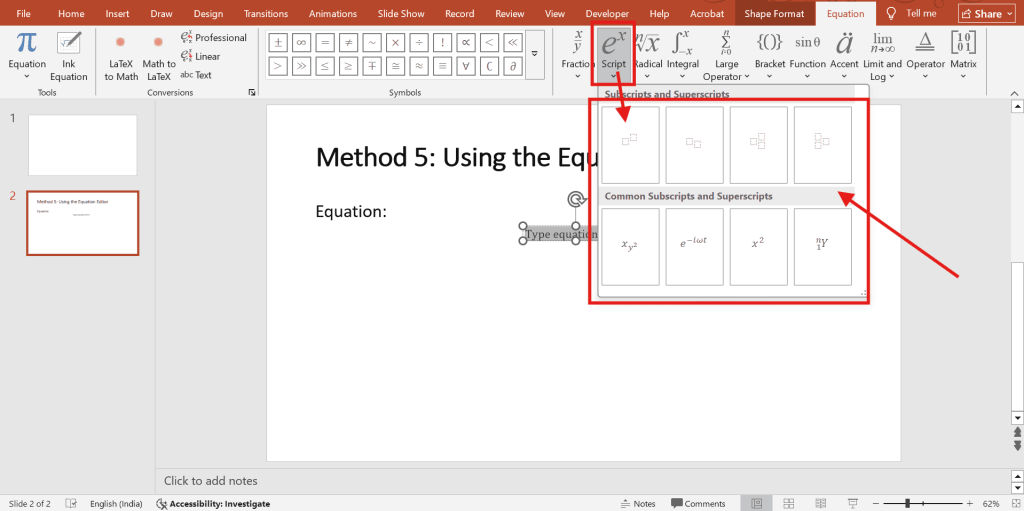
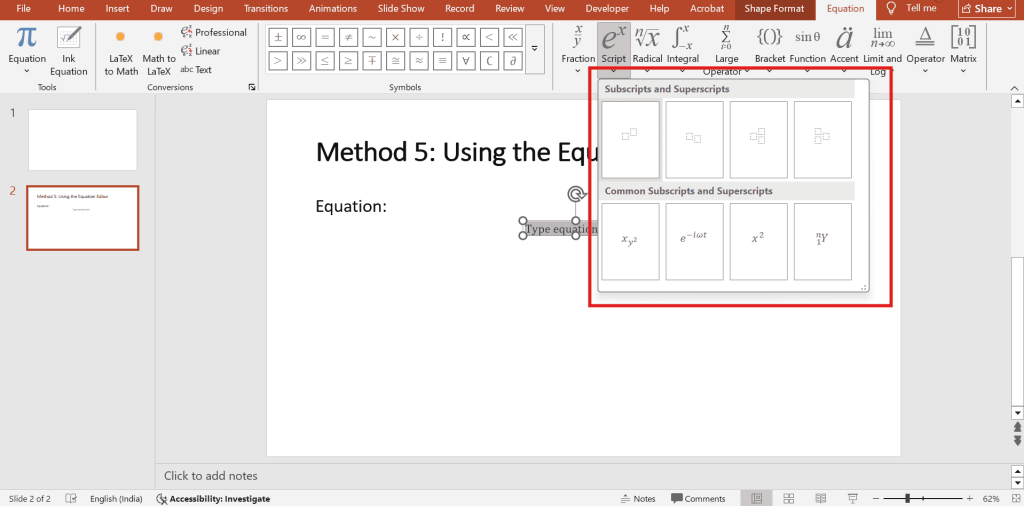
Step 4: Choose your desired format:
- Select the first option (base with superscript) for superscript
- Select the third option (base with subscript) for the subscript
- Select the second option (base with both) if you need superscript and subscript simultaneously, such as for ionic charges like SO₄²⁻
Step 5: Small dotted placeholder boxes will appear in the equation field. Click inside each placeholder and type your values. For example, to write X², type X in the base box and 2 in the superscript box.
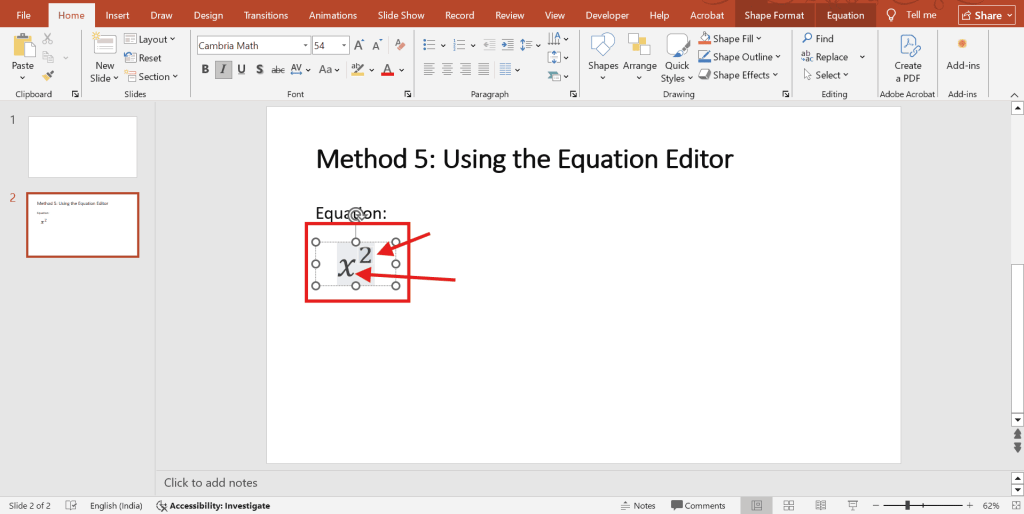
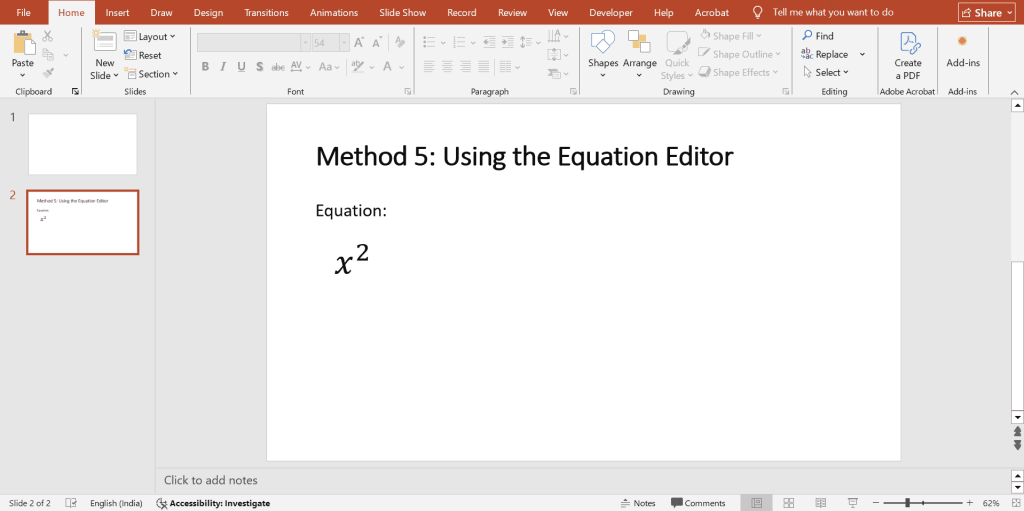
Step 6: Once done, click anywhere outside the equation box to deselect. Your formatted equation will now appear on the slide.
How to Add Subscript or Superscript in PowerPoint (PPT) on Mac?
There are two ways to format text as superscript or subscript in PowerPoint on your Mac:
Option 1: Using the Menu:
- Highlight the text you want to change.
- Go to the Format menu at the top of your screen (it might be under “Edit” depending on the application).
- Select Font from the dropdown menu.
- Choose either Superscript or Subscript from the options.
Option 2: Using Keyboard Shortcuts:
These shortcuts work in most applications on your Mac:
- Superscript: Press Command (⌘) + Shift + Plus (+) simultaneously.
- Subscript: Press Command (⌘) + Minus (-) simultaneously.
Troubleshooting Common Issues
1. Superscript or Subscript Shortcut Is Not Working
- Problem: You press the keyboard shortcut (Ctrl + Shift + = or Ctrl + =) but nothing happens, or a different action is triggered instead.
- Solution: Keyboard shortcuts for superscript and subscript only work when your cursor is active inside a text box or placeholder. If you are clicking on a shape, chart, SmartArt, or table cell, the shortcuts will not respond. Click directly inside a text box first, then try the shortcut again. Also, check that no other application or system shortcut is overriding the key combination.
2. Superscript or Subscript Option Is Greyed Out
- Problem: You open the Font Dialog box, but the Superscript and Subscript checkboxes appear greyed out and cannot be selected.
- Solution: This usually happens when the selected text is inside a chart, table, or SmartArt element, where PowerPoint restricts certain formatting options. Move the text into a standard text box and apply the formatting from there. If the text must stay inside a chart or table, use the Insert > Symbol method to insert a pre-formatted superscript or subscript character instead.
3. Formatted Text Looks Too Small or Misaligned on the Slide
- Problem: After applying superscript or subscript, the formatted text appears too tiny to read clearly, or it looks visually off compared to the rest of the text.
- Solution: PowerPoint automatically reduces the font size of superscript and subscript text. If the result looks too small, manually select the formatted text and increase its font size from the Home tab. There is no rule that superscript or subscript must be a specific size — adjust it until it looks balanced with the surrounding text.
4. Equation Editor Text Does Not Align With Regular Text
- Problem: You inserted a superscript or subscript using the Equation Editor, but the equation box sits separately on the slide and does not align inline with your regular text.
- Solution: The Equation Editor inserts equations as independent floating objects, not inline text. If you need the formatted text to flow naturally within a sentence, use the Font Dialog or Keyboard Shortcut method instead. Reserve the Equation Editor for standalone formulas or expressions that are displayed separately on the slide.
5. Superscript or Subscript Formatting Is Lost After Copy-Pasting
- Problem: You copy formatted superscript or subscript text from another source (Word, a website, or another slide) and paste it into PowerPoint, but the formatting disappears.
- Solution: When pasting, use Paste Special instead of a regular paste. Click the dropdown arrow under the Paste button on the Home tab and select Keep Source Formatting. If the formatting still doesn’t carry over, reapply it manually using the Font Dialog or keyboard shortcut after pasting.
Why Use Superscript or Subscript?
Superscript and subscript formatting help present certain types of information clearly, accurately, and professionally. They are essential for scientific, mathematical, technical, and citation-related content. Here’s why they are used:
1. To Display Mathematical Expressions Correctly – Superscripts are commonly used for exponents (like 10² or x³), while subscripts are used for variables in formulas (like a₁ or x₂). This makes equations easier to read and understand.
2. To Write Chemical Formula – Chemistry uses subscripts to indicate the number of atoms (H₂O, CO₂) and superscripts for charges and ions (Na⁺, SO₄²⁻). Without them, formulas become confusing or incorrect.
3. For Footnotes and Endnotes – Superscripts help mark references in essays, research papers, or slides (e.g., “according to study¹”), keeping the content organized and professional.
4. To Format Ordinal Number – Superscripts are often used for dates and rankings such as 1st, 2nd, or 3rd, improving readability.
5. To Indicate Trademarks or Copyright Symbol – Superscript is commonly used for symbols like ™, ®, or © placed neatly above the text.
6. To Present Scientific Measurement – Scientific units sometimes require superscript notation, such as square meters (m²) or cubic centimeters (cm³).7. For Technical or Specialized Writing – Fields like physics, biology, engineering, and statistics frequently use subscripts and superscripts to communicate precise meanings (e.g., v₀ for initial velocity).
Build Stunning Slides in Seconds with AI
- No design skills required
- 3 presentations/month free
- Don't need to learn a new software


Frequently Asked Questions About Using Subscript and Superscript in PowerPoint (PPT)
1. How to Add Subscript and Superscript in PowerPoint (PPT) on the Phone?
Formatting text with superscripts and subscripts on the PowerPoint mobile app is a bit different from the desktop version. Here’s how to do it:
- Open your presentation and tap the text you want to change.
- Find the “Formatting” menu. It might look like an “A” with a tiny arrow at the bottom right (it can vary depending on your device and app version).
- Accessing Superscript/Subscript:
- Some versions have dedicated “Superscript” and “Subscript” buttons within formatting. Just tap the one you need.
- Other versions might require tapping “Font” or “More formatting” to see additional options. Then, find and tap “Superscript” or “Subscript.”
- Your selected text will be formatted accordingly.
2. How to Put Exponents in PowerPoint (PPT)?
To add exponents in PowerPoint, select the text, then use the superscript option in the “Font” group under the “Home” tab. You can also use the shortcut Ctrl + Shift + =.
3. Can I Change the Font Size of Superscript or Subscript?
Sure! Just select the formatted text and choose the desired size from the “Font” dropdown menu on the “Home” tab.
4. How to Remove Superscript or Subscript Formatting?
Easy! Follow the same steps as adding the formatting, but instead of selecting the option, uncheck the corresponding box in the “Font” window. You can also use the keyboard shortcuts again (Ctrl+Shift+= for superscript, Ctrl+= for subscript).
5. What are some common mistakes to avoid when using superscripts and subscripts?
- Don’t overdo it: Too many superscripts or subscripts can make your slides look messy and hard to read.
- Mind the size: Make sure the formatted text is big enough for everyone to see clearly.
6. Can I use superscripts and subscripts with different fonts?
While technically possible, it’s generally not recommended. Using different fonts for superscripts and subscripts can be visually distracting and break the flow of your presentation.
7. Are there any limitations to using these methods?
These methods work well for basic superscripts and subscripts. But if you need more advanced formatting or special symbols, you might need to use the equation editor in PowerPoint.
8. I’m still having trouble adding superscript or subscript. What should I do?
If you’re having trouble, you can try these:
- Check the official Microsoft PowerPoint support documentation.
- Search online tutorials for more detailed instructions.
- Join online communities or forums dedicated to PowerPoint to get help from other users.