Have you ever noticed how a well-designed slide can grab your attention? One easy way to improve the look of your slides is by adding borders. Borders are simply lines or decorations that go around the edge of your slide content. They can make your slides look nicer, but they also have some practical uses.
Borders can help people focus on the important information, separate different sections of your slide, and make your presentation look more professional overall. Whether you choose a classic solid line or something more decorative, borders offer a simple way to enhance your slides and make your message stand out. Let’s explore how you can use these borders in your PowerPoint presentation.
Quick answer:
To add a border in PowerPoint, go to Insert > Shapes, draw a rectangle over your slide, and set Shape Fill to No fill. Then use Shape Outline to choose the color, weight, and dash style. For a border on every slide, add the shape to the Slide Master.
How to Add a Border in PowerPoint?
- Open your PowerPoint presentation and select the slide where you want to add a border.
- Go to the Insert tab and click Shapes.
- Select the rectangle shape and draw it around the edges of your slide.
- Click on the rectangle and select the Shape Format option from the ribbon.
- Under Fill, select No Fill to make the inside of the rectangle transparent.
- Adjust the rectangle’s size and position so it fits neatly around the slide.
- If needed, right-click the rectangle and select Send to Back to keep your slide content visible.
How to Add a Border to All Slides in PowerPoint?
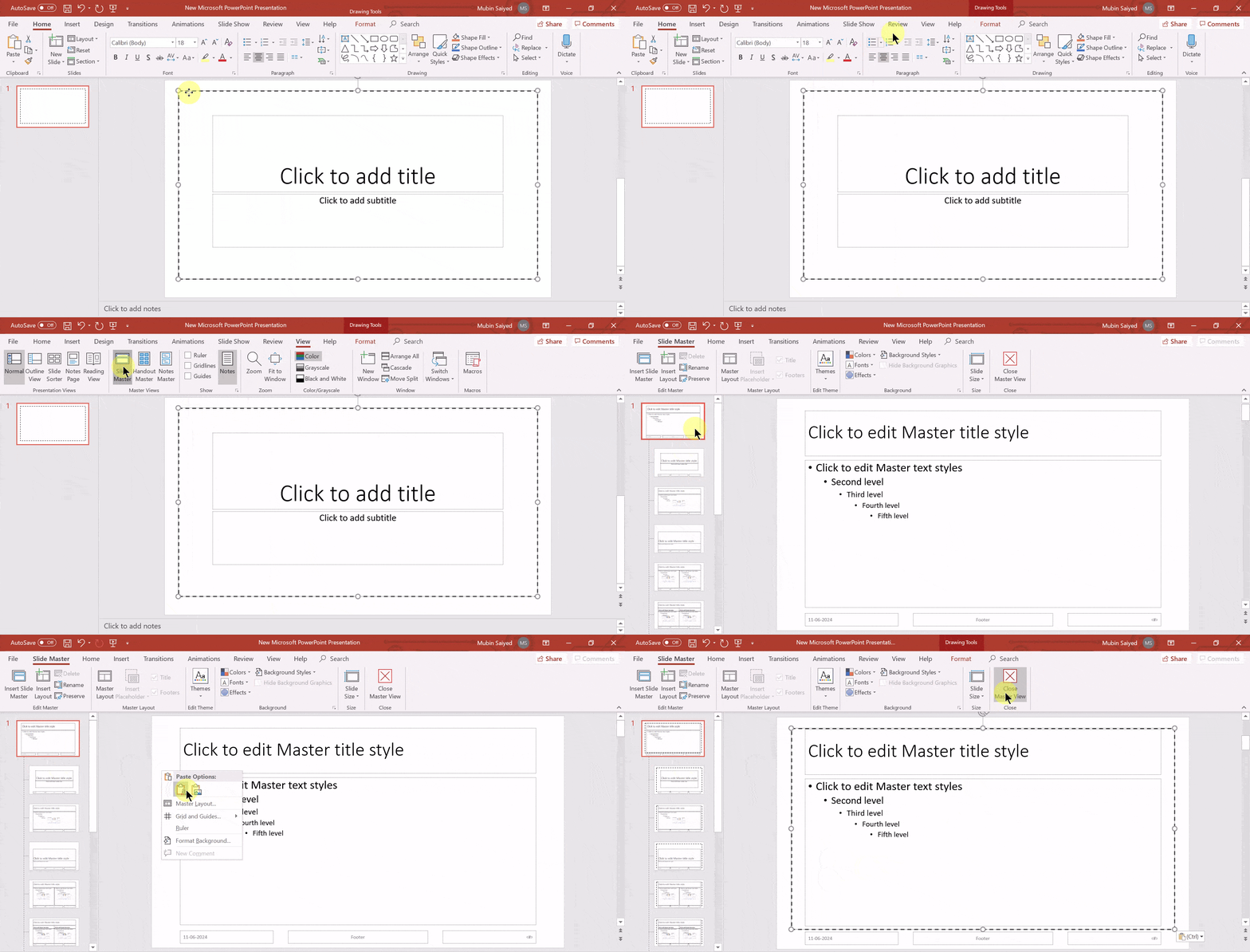
If you want the same border on every slide, you don’t need to add it manually. You can use Slide Master to apply the border across your entire presentation.
- Open your PowerPoint presentation and go to the View tab.
- Click Slide Master to open the master view.
- Select the top slide in the left-hand pane to apply the border to all slides using that master.
- Go to Insert > Shapes and select a rectangle.
- Draw the rectangle around the edges of the slide.
- Select the rectangle, choose Shape Fill > No Fill, and customize the border using Shape Outline.
- Click Close Master View to return to your presentation.
How to Customize Border Outline and Border Effects?
Now that you’ve created a border, let’s explore the exciting ways to customize it!
Step – 1. Customize the Outline
- Color: Click the “Shape Fill” dropdown menu in the “Shape Format” tab. Choose “No fill” to make the shape transparent, leaving just the border. Use the “Shape Outline” menu to pick a color that goes well with your presentation theme.
- Thickness: Feeling like the border is too thin or thick? Adjust the “Weight” option within “Shape Outline” to find the right thickness.
- Line Style: Want a dashed line instead of solid? Explore the “Line Style” options in “Shape Outline” for different line variations.
Step – 2. Beyond Basic Borders:
PowerPoint lets you add more than just plain lines! Here are some effects you can try:
- Shadow: Add a light shadow for a bit more depth.
- Reflection: Create a mirrored reflection for a unique, modern touch.
- Glow: Apply a gentle light for a touch of class and visual appeal.
- Soften Edges: Choose “Soft Edges” for a clean and seamless border.
- Bevel: Give your border a three-dimensional feel with a subtle bevel.
- Explore 3D Options: For a more impactful presentation, consider different 3D effects to make your border stand out.
Also Read: How to Add a Border Design in PowerPoint
Step – 3. Adding Your Own Graphics
When you are feeling creative, you can add your own images or icons within the border shape to create a unique design.
Step – 4. Positioning Your Border:
Once your border is customized, use drag-and-drop to place it exactly where you want it on the slide. Resize the corners to get a perfect fit.
Step – 5. Applying to All Slides:
Want your border on all your slides? Use the “Slide Master” feature. Edit the master slide to apply your border design to all slides at once for a consistent presentation style.
How to Add a Border to an Image in PowerPoint?
Want to make your images stand out in PowerPoint? Adding borders is a simple way to achieve this! Here’s how to do it:
1. Select the Image: Click on the picture you want to give a border. This makes sure any changes you make apply only to that image.
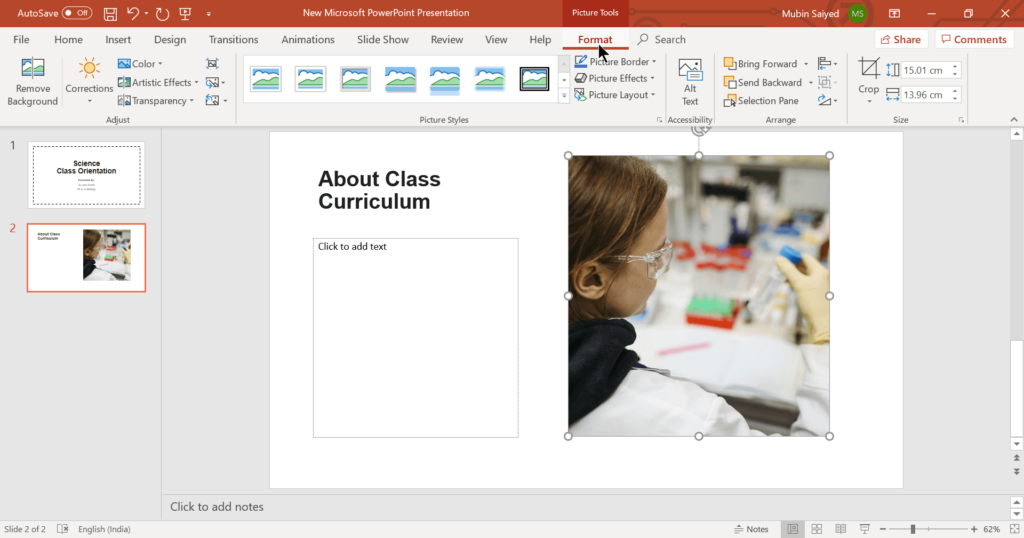
2. Picture Format Tab: Look for the “Picture Format” tab at the top of your screen. This tab appears once you’ve clicked on the image.
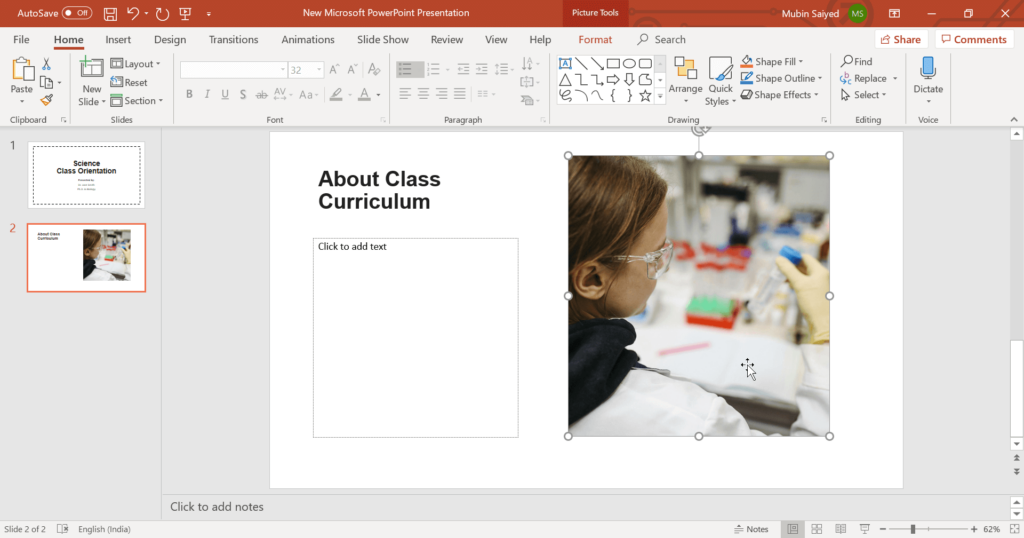
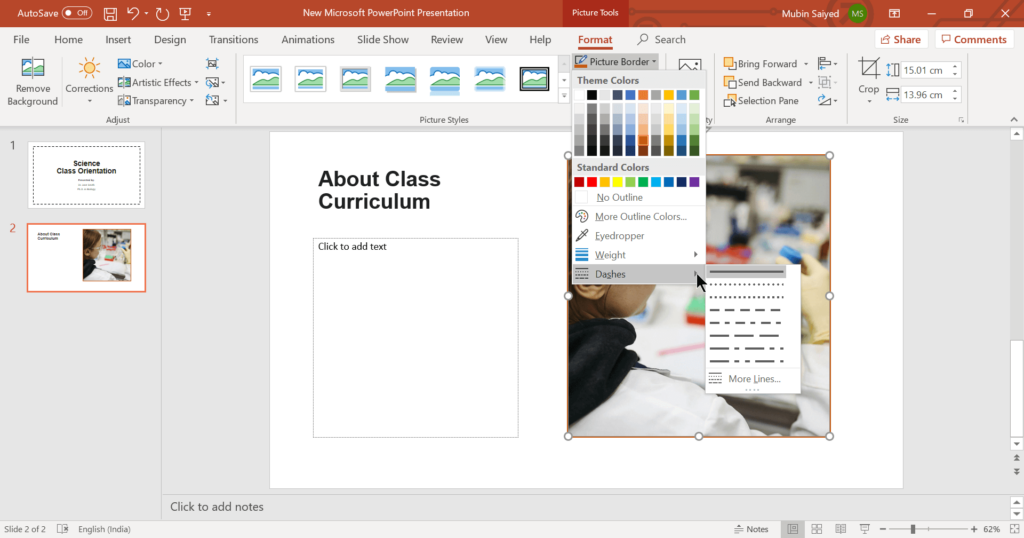
3. Picture Border: On the “Picture Format” tab, find the “Picture Border” option and click it. This will open a menu with different ways to change your border.
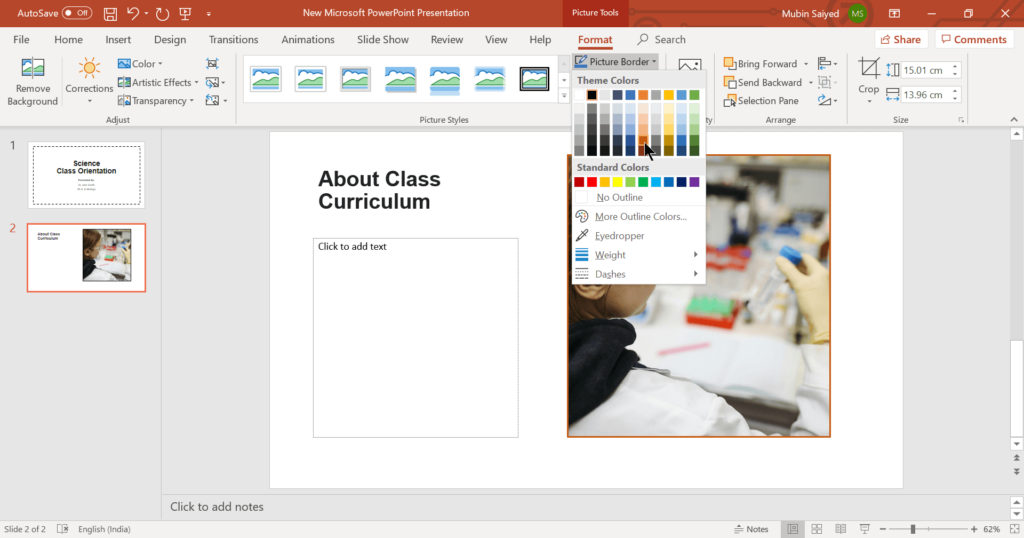
4. Choosing Colors: The menu will show you a color palette where you can pick the color you want for your border. Choose a color that goes well with your image and the overall design of your slide.
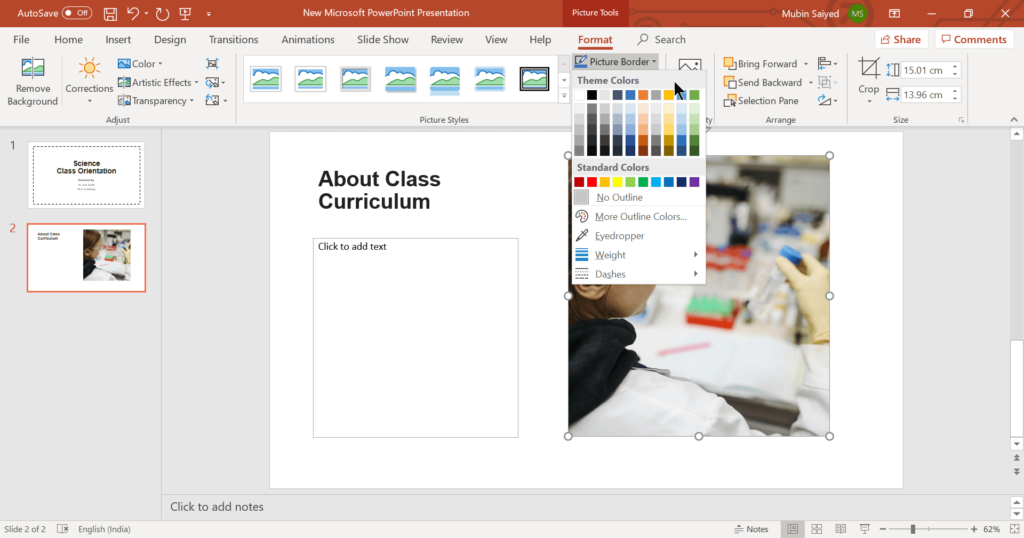
5. Border Style: You can have more than just a plain line! This menu also lets you choose the style of the line for your border. Common options include solid, dashed, and dotted lines.
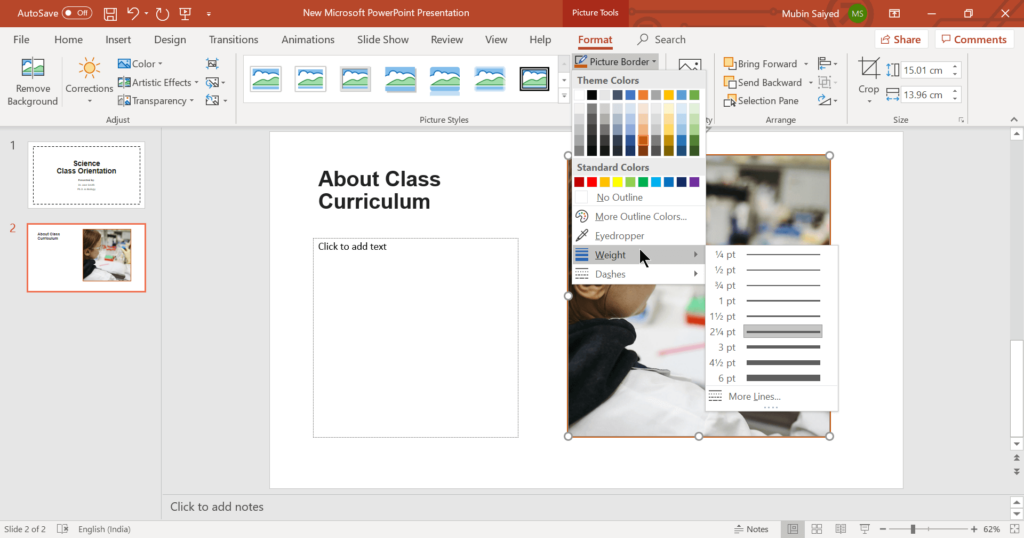
6. Adjusting Thickness: Want a thin or thick border? Use the “Weight” option to change how thick your chosen borderline will be.
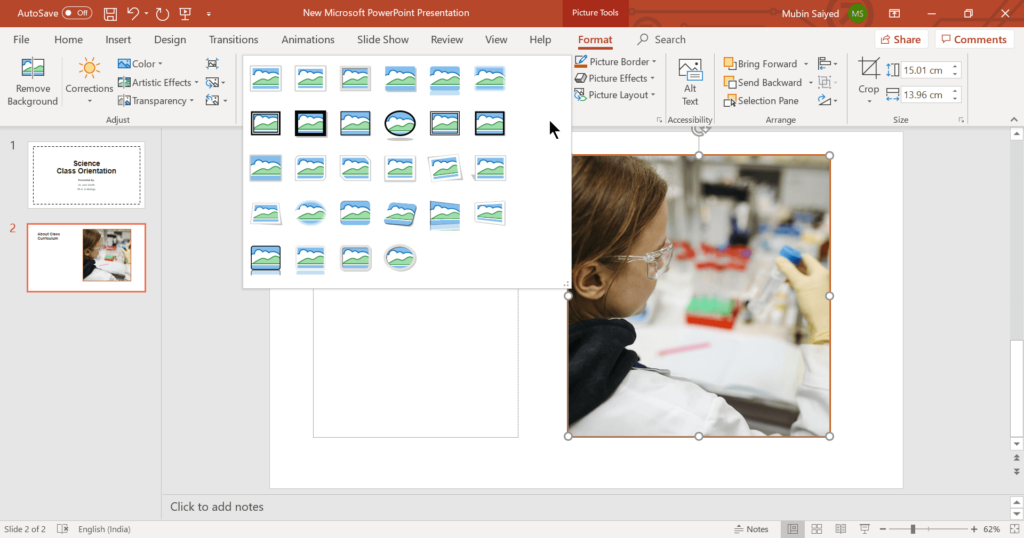
7. Pre-designed Borders: For a quicker option, check out the “Picture Styles” section in the menu. Here, you’ll find a collection of borders already designed that you can add to your image with just one click.
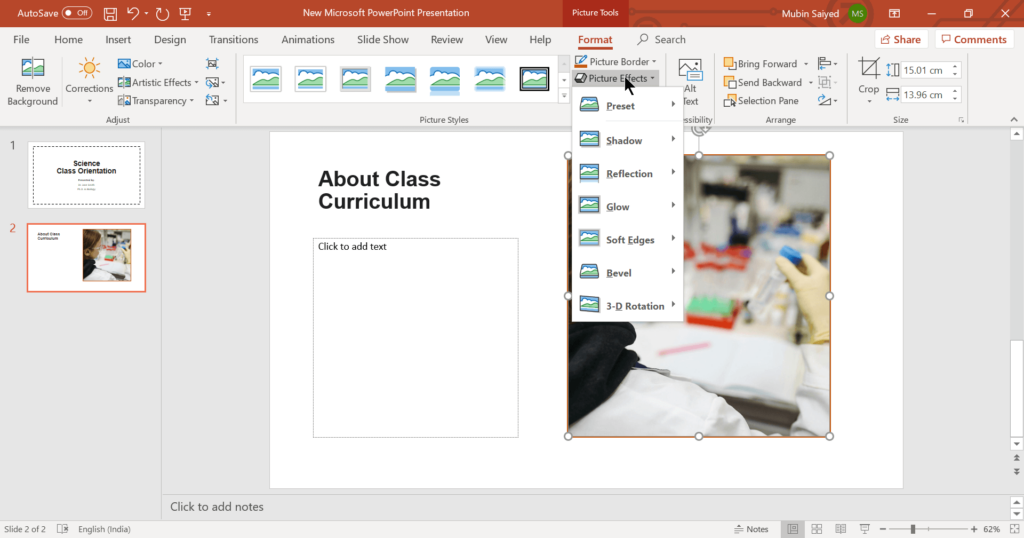
8. Adding a Little Extra (Optional): Feeling creative? The menu also has “Picture Effects” options. You can try adding a shadow or a soft glow to your border for a bit more visual interest.
9. Preview and Adjust: As you make changes to your border, be sure to take a look at how it looks. You can always change the color, style, thickness, or effects until your image looks just right.
How to Add a Border using the SlidesAI template in PowerPoint?
- Go to SlidesAI, open Free Templates, and select All Presentation Templates.
- Search for the Border presentation template and select the design you like.
- Click the download dropdown and choose PowerPoint to download the template.
- Open the downloaded PowerPoint template.
- Browse through the slides to explore the different border designs.
- You can choose any of your choices. Customize the slides as per your requirements.
Design Tips to Make Your PowerPoint Border Stand Out
A border only helps if it looks intentional. These tips make it noticeable without overpowering your content.
- Pick a color that contrasts with the background.
Use a dark border on light slides and a light one on dark slides. If the border and background are close in shade, the border disappears on a projector or a shared screen. Pulling the color from your logo or theme keeps it on brand. - Match the weight to the slide.
A 1.5 to 3 pt line works for clean, minimal slides. On busy slides with images or charts, go up to 4.5 to 6 pt so the border doesn’t get lost. If it starts pulling attention from your content, drop the weight down a step. - Leave a margin around the edge.
A border that sits right on the slide edge can get clipped by projectors and printers. Size the rectangle a little smaller than the slide, then use Align > Align Center and Align Middle so the gap is even on all sides. Keep your text and images inside the border as well, with breathing room between them. - Change the line style, not just the color.
A compound line (double or thick-thin) looks more refined than a plain single line. A dashed line feels casual and works well for worksheets and classroom slides. Pick one style and use it throughout. - Round the corners for a softer look.
Use a Rounded Rectangle instead of a standard one, then drag the yellow handle to adjust the curve. It suits friendly, modern decks, while square corners feel more formal. - Keep effects subtle.
A soft shadow or light glow can lift a border off the slide. Bevel and 3-D effects usually look dated, so use them sparingly. If you can spot the effect at first glance, it’s probably too strong.
Wrapping Up
Adding borders to your PowerPoint slides is a great way to improve their visual style and make them look more professional. You can try out the different options PowerPoint offers, or create your own borders using shapes, pictures, and colors. But if you want to skip the manual effort altogether, SlidesAI helps you build beautifully designed slides in seconds, complete with borders, layouts, and other design elements, so you can focus on your message instead of the formatting.
Looking for an easier way to design polished slides? Try SlidesAI, an AI PowerPoint presentation maker with ready-to-edit presentations and templates.
Take Your PowerPoint From Basic to Professional With SlidesAI
- Improve your slide content with AI
- Create polished layouts faster
- Work directly inside PowerPoint


Frequently Asked Questions About Adding a Border Design in PowerPoint
Can I animate the border in PowerPoint?
Yes! Select the border shape, go to the Animations tab, and choose an effect such as Appear, Fade, or Wipe.
What colors should I choose for my presentation border?
The best colors for your border will depend on your presentation’s theme and background. Ideally, choose colors that complement the overall look and are visible against the background without being distracting.
How can I make the border stand out on a busy slide?
If your slide has a lot of elements, consider using a thicker border or applying visual effects like a Glow or Shadow. This can help the border cut through the clutter and maintain its visibility.
Can I have different borders on different slides?
Yes, while the Slide Master is great for applying a uniform border, you can also customize borders individually on each slide. This allows you to highlight specific content or themes within your presentation.
How do I remove a border from my PowerPoint Slide?
Select the border shape and press Delete. To remove it from all slides, delete it from Slide Master view.
Why is my PowerPoint border not showing?
Check whether the shape has an outline color, whether its fill is set to No Fill, and whether it is positioned within the slide boundaries. Also, make sure the border is not hidden behind another object.
Can I use a custom image as a PowerPoint border?
Yes. Go to Insert > Pictures and select your image. Resize it to fit the slide. For a transparent decorative border, use a PNG image with a transparent center so your slide content remains visible.
How do I add a border to a chart in PowerPoint?
Select the chart and open Format Chart Area. Under Border or Line options, choose a solid line and customize its color and thickness. The available options may vary depending on your PowerPoint version.