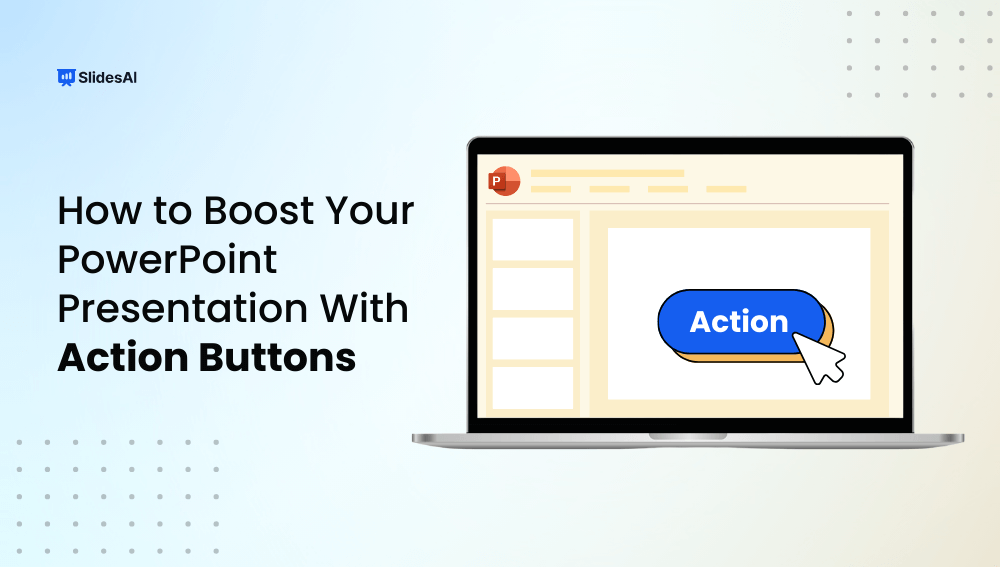
If you’re building an interactive PowerPoint presentation, action buttons can make navigation much easier for both you and your audience. These clickable PowerPoint buttons let you move between slides, open links, launch files, or trigger custom actions, which is why they are commonly used in tutorials, training decks, quizzes, product demos, and branded PowerPoint templates.
Whether you’re designing a business deck, a classroom lesson, or reusable PowerPoint templates, action buttons help turn static slides into a smoother, more engaging experience. In this guide, you’ll learn how to create action buttons in PowerPoint, customize them with links or commands, and use them to build interactive presentations that feel polished, intuitive, and easy to follow.
Adding Action Buttons – At a Glance
Action buttons in PowerPoint are built-in shapes that run a command when you click them, such as jumping to a slide, opening a link, or launching a file. To add one, go to Insert > Shapes, pick a button from the bottom row, and draw it on your slide. In the Action Settings dialog box, choose Hyperlink to (or another action), click OK, and press F5 to test it.
Quick answer:
Action buttons in PowerPoint are specialized shapes that, when clicked or hovered over, perform specified activities. They improve the presenting experience by letting you effortlessly browse, access other information, and manipulate multimedia components without interruptions.
This adaptability transforms a static lecture into an interactive adventure, inviting participation like never before.
What are the Types of Action Buttons in PowerPoint?
PowerPoint includes 12 built-in action buttons in the bottom row of the Insert > Shapes menu. Six come with a preset destination, and six need you to assign the action yourself in the Action Settings dialog box.
Navigation buttons (preset destination)
|
Button |
What it does |
Best use |
|
Back or Previous |
Goes to the previous slide in order |
Linear decks and tutorials |
|
Forward or Next |
Goes to the next slide in order |
Self-paced training and kiosk-style decks |
|
Beginning |
Jumps to the first slide |
Restarting a presentation or quiz |
|
End |
Jumps to the last slide |
Skipping to the summary or Q&A slide |
|
Home |
Jumps to the first slide by default, but you can point it at a menu slide |
A “back to menu” button in interactive decks |
|
Return |
Jumps to the last slide you viewed, not the previous slide in order |
Returning from a detail slide to wherever you came from |
Assignable buttons (you choose the action)
|
Button |
What it does |
Best use |
|
Information |
Has no preset action. Link it to a slide, file or web page |
Pointing to extra detail or sources |
|
Help |
Has no preset action. Link it to an instructions slide |
Explaining how to navigate an interactive deck |
|
Document |
Opens another file, such as a Word or Excel document |
Sharing handouts, reports or spreadsheets |
|
Sound |
Plays a sound when clicked |
Quiz feedback (correct or wrong) and game effects |
|
Movie |
Opens or plays a video file you link to |
Demos and tutorial clips |
|
Custom |
Gives you a blank button to label and assign yourself |
Any action the other buttons don’t cover |
How Do You Create an Action Button in PowerPoint?
Creating action buttons is straightforward and adds layers of interactivity to your presentations. Follow these steps to add action buttons effectively:
Step 1: Click the Insert Tab
Begin by opening your PowerPoint presentation and selecting the Insert tab located on the Ribbon.
Step 2: Click the Shapes Command
Within the Illustrations group on the Insert tab, click on the Shapes command. A drop-down menu will appear, revealing various shape options at the very bottom.
Step 3: Select the Desired Action Button
Scroll down and select an action button from the bottom row of the drop-down menu, incorporating functionality tailored to your needs.
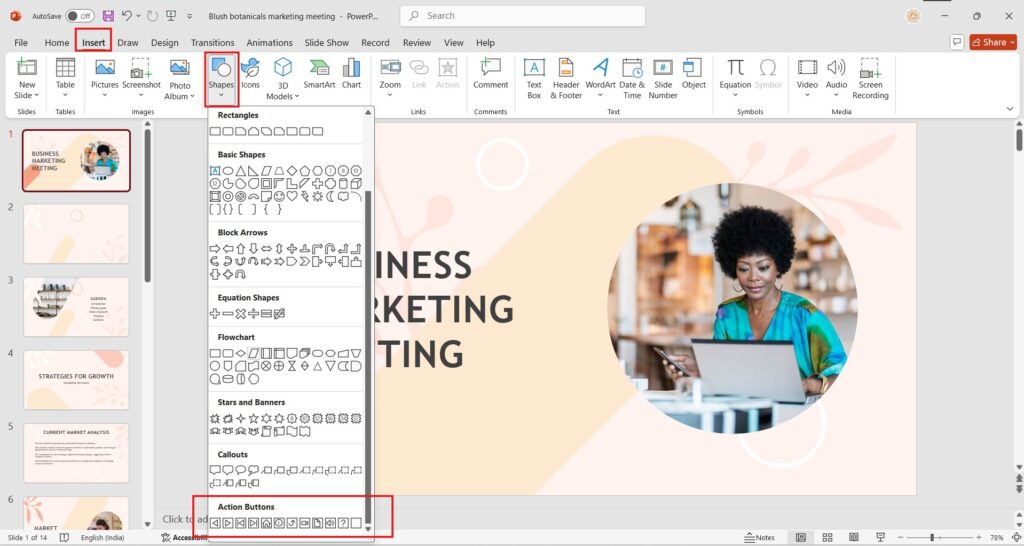
Step 4: Insert the Button Into the Slide
Click on the slide where you wish to place the action button. Upon insertion, the Action Settings dialog box will appear.
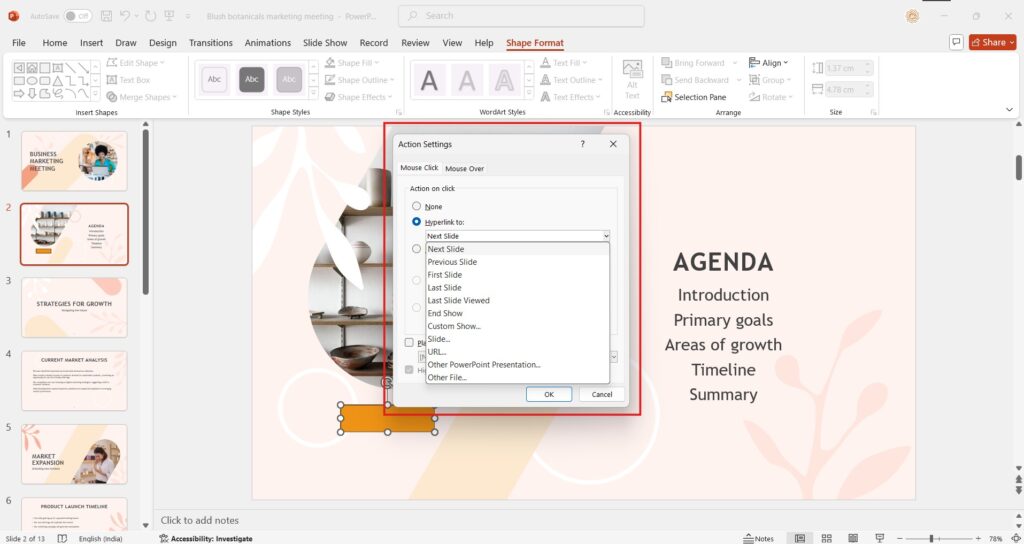
Step 5: Choose the Desired Action
To assign an action to the button, you can opt for one of several triggers:
- Choose Hyperlink to: Select a destination, such as another slide, a different presentation, or an external file.
- Choose None: This lets you use the shape purely for aesthetics without an action.
- Choose Run Program: Locate and select an external program to be launched.
- Choose Run Macro: If your presentation contains macros, you can choose this action to execute a specific macro.
- Object Action: For presentations featuring OLE objects, select the object action available within this configuration.
- Play Sound: Opt to select a sound that will play upon clicking the action button.
Step 6: Click [OK]s
Confirm your selections by clicking [OK] to save the properties of your action button.
Step 7: Test the Action Button
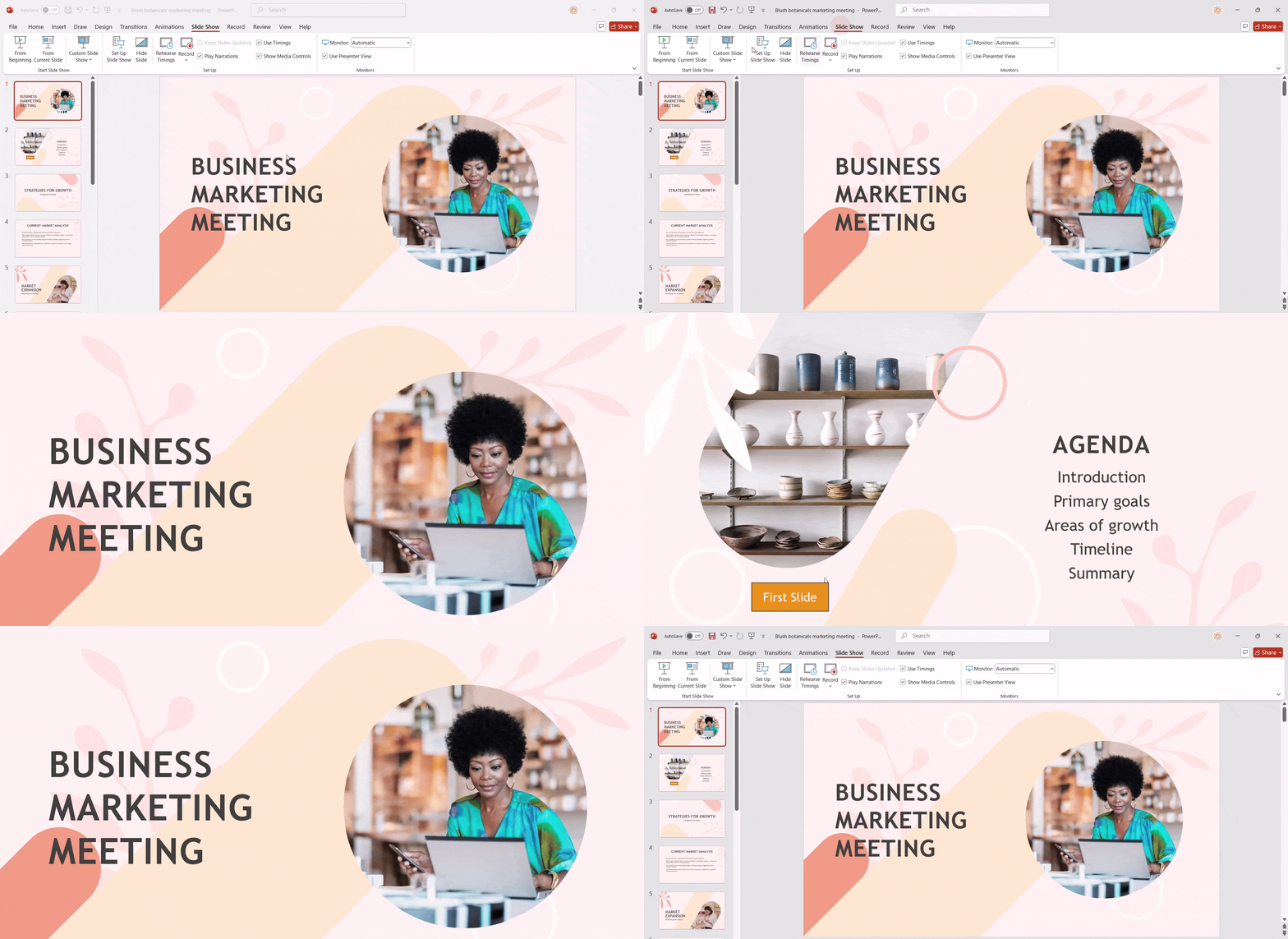
To ensure that the action button works as intended, initiate your PowerPoint slideshow (by clicking F5 on your keyboard) and test the functionality of your action button.
Step 8: Adding Master Button in the Master Slide
If you want to include an action button on every slide, consider adding a master button in the master slide for uniformity and ease of use.
Create engaging PowerPoint presentations faster with our AI-powered presentation generator
Troubleshooting Action Buttons in PowerPoint
Action buttons are easy to set up, but they can be a bit picky. If yours isn’t behaving, start here.
Nothing happens when I click the button
You are probably in the Normal view. Action buttons only work in Slide Show mode, so hit F5 and try again.
The Action Settings box never popped up
No worries, you can open it yourself. Right-click the button and choose Link, or select it and go to Insert, then Action.
The button jumps to the wrong slide
This usually happens when slides get deleted or moved around. Open Action Settings, choose Hyperlink to, then Slide, and pick the right one.
My linked file won’t open
PowerPoint looks for the file in its original location. If you moved or renamed it, the link breaks. Set the link again and it should work. If you see a security warning, click Allow.
I can’t run a macro
Macros need a macro-enabled file. Save your deck as a .pptm and enable macros when PowerPoint asks.
The button shows up on some slides but not others
Check where you placed it. For a button on every slide, add it in View, then Slide Master. Some layouts also hide master graphics, so make sure that setting is off.
It worked in PowerPoint but not after I shared it
Not every app supports action buttons. Google Slides and some web viewers may ignore them. Always test the final file in the same format your audience will use.
Conclusion
In summary, action buttons are invaluable tools for creating engaging and interactive PowerPoint presentations. From guiding your audience more effectively to adding multimedia elements, these tools enhance the overall clarity and impact of your message.
By elevating your presentation with action buttons, you guarantee an interactive experience your audience can remember!
Take Your PowerPoint From Basic to Professional With SlidesAI
- Improve your slide content with AI
- Create polished layouts faster
- Work directly inside PowerPoint

Frequently Asked Questions to Creating Action Buttons in PowerPoint
Can I create custom action buttons?
Absolutely! You can create custom action buttons using VBA code, allowing for tailored actions based on your presentation’s unique needs.
How do I create an action button in PowerPoint that jumps to a specific slide?
To achieve this, go to the Edit Hyperlink dialogue, select “Place in This Document,” and choose the relevant target slide from the list.
Can I use action buttons to create interactive quizzes or games?
Definitely! Action buttons are effective for adding quiz elements or interactive scenarios in presentations, making learning fun and engaging.
Can I customize the appearance of an action button?
Yes, action buttons can be styled with various fill colors, outlines, effects, and sizes using the Format Shape pane, adding a personal touch.
Can I add an icon to an action button?
Certainly! You can enrich your action button’s visuals by inserting a shape or picture and grouping it with the button.
How can I change the action associated with an action button?
To modify an action, right-click the button, select Edit Hyperlink, and then you can choose a different action to suit your needs.